


Word Cloud
The Word Cloud widget displays frequently occurring words from a selected text question. Larger words represent higher frequency, helping you identify recurring terms in open-ended feedback.
Use minimum word length and stop words to focus the visualization on relevant terms. Stop words exclude terms you do not want displayed, such as common filler words or words that are not useful for your analysis.
- Open a BI dashboard and click Add widget.
- Select Question based, then choose the source containing your text responses.
- Select a text question. In the chart selection step, choose Wordcloud.
- Enter the widget name, then click Add widget to add it to the dashboard.
- Open the Word Cloud widget's three-dot menu and select Settings.
- Select Analytics.
- Use Minimum word length to choose the minimum number of characters a word must contain to appear in the cloud.
This setting controls word length. It does not set a minimum number of words in each response or a minimum number of times a word must occur.
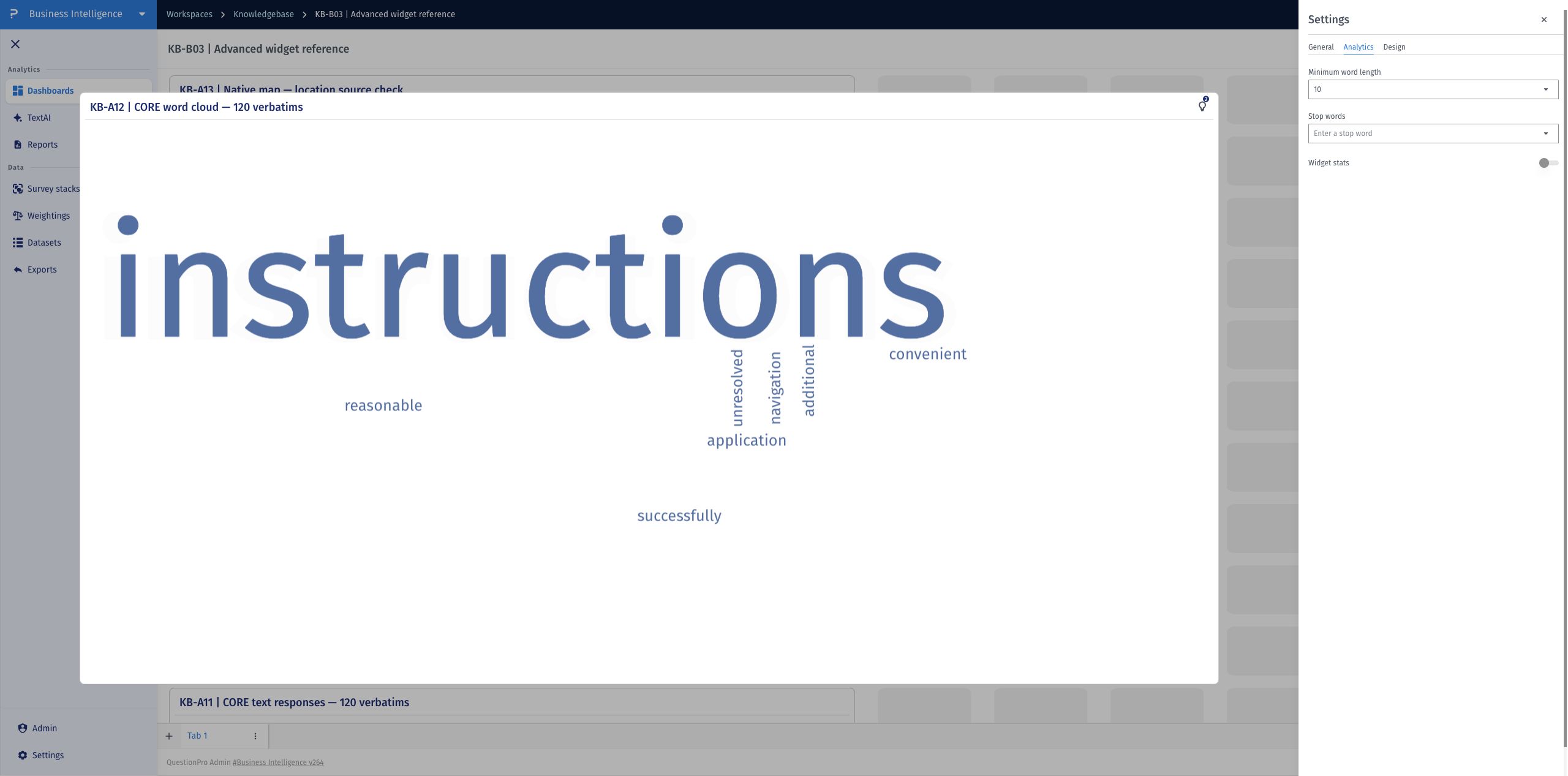
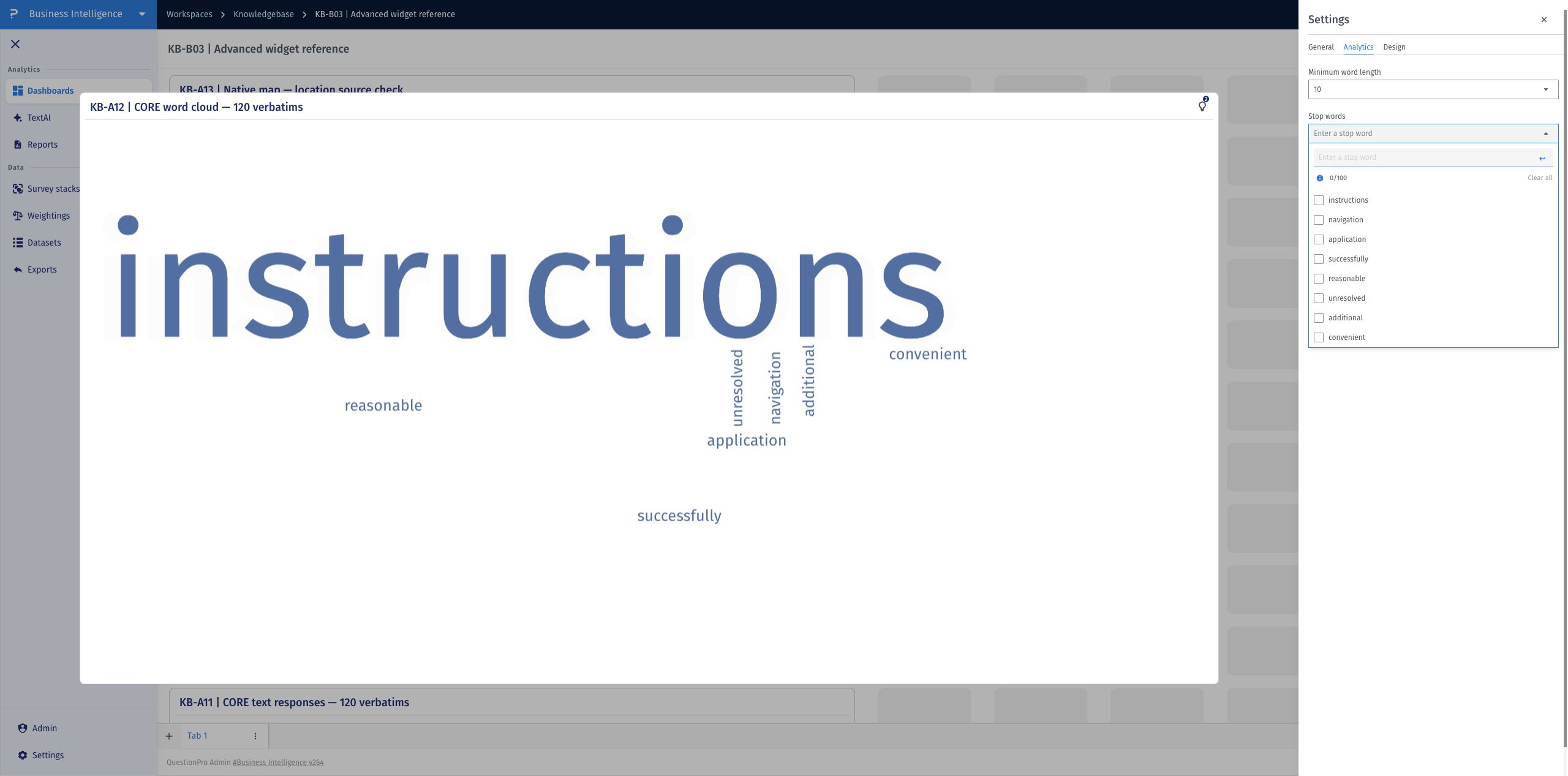
- In the widget's Settings → Analytics tab, open Stop words.
- Enter a word and press Enter or add a comma. To add several words together, paste a list from a spreadsheet or enter comma-separated values.
- You can also select terms shown in the suggested list. The counter shows the number of selected stop words out of the 100 allowed.
- Use Clear all to clear the selected stop-word list when you want to start again.
How should I choose stop words?
Exclude words that do not help answer your analysis question, such as common filler words or terms repeated in every response. Keep words that help distinguish the feedback you want to understand.
Why are short words missing from my cloud?
Check Minimum word length in Settings → Analytics. Words shorter than the selected character length are excluded. Also check whether the words are selected as stop words.
Can I add several stop words at once?
Yes. Use comma-separated entry or paste values from a spreadsheet instead of adding each word separately.
How many stop words can I select?
Each Word Cloud widget supports up to 100 selected stop words. Use the counter in the Stop words control to track the total.
What does a larger word mean?
A larger word represents higher frequency in the text used by the widget. Word size describes frequency; it is not a sentiment score.
