


Funnel Chart
Funnel Chart is an advanced visualization widget in the BI dashboard that displays how survey responses are distributed across multiple segments. It allows users to compare response counts or percentages in a funnel-style layout.
This widget is especially useful for analyzing relative proportions, identifying drop-offs between segments, and comparing segmented response behavior using flexible calculation and visualization options.
To use the Funnel Chart, add it as an Advanced Widget to a BI dashboard, select a survey as the data source, and define one or more segments. Additional analytics and segment settings can be configured after the widget is created.
-
Segment-Based Visualization
Displays survey responses grouped by user-defined segments in a funnel layout. -
Flexible Metric Selection
View data as absolute counts or percentages based on configurable calculation logic. -
Custom Percentage Calculation
Define global or per-segment denominator logic for percentage calculations. -
Advanced Display Controls
Customize chart orientation, tooltip behavior, and weighting schemes.
Common Tasks:
- Compare response distribution across multiple segments.
- Analyze proportional differences using percentage-based funnels.
- Apply custom denominator logic for accurate comparisons.
- Adjust chart layout and interaction behavior.
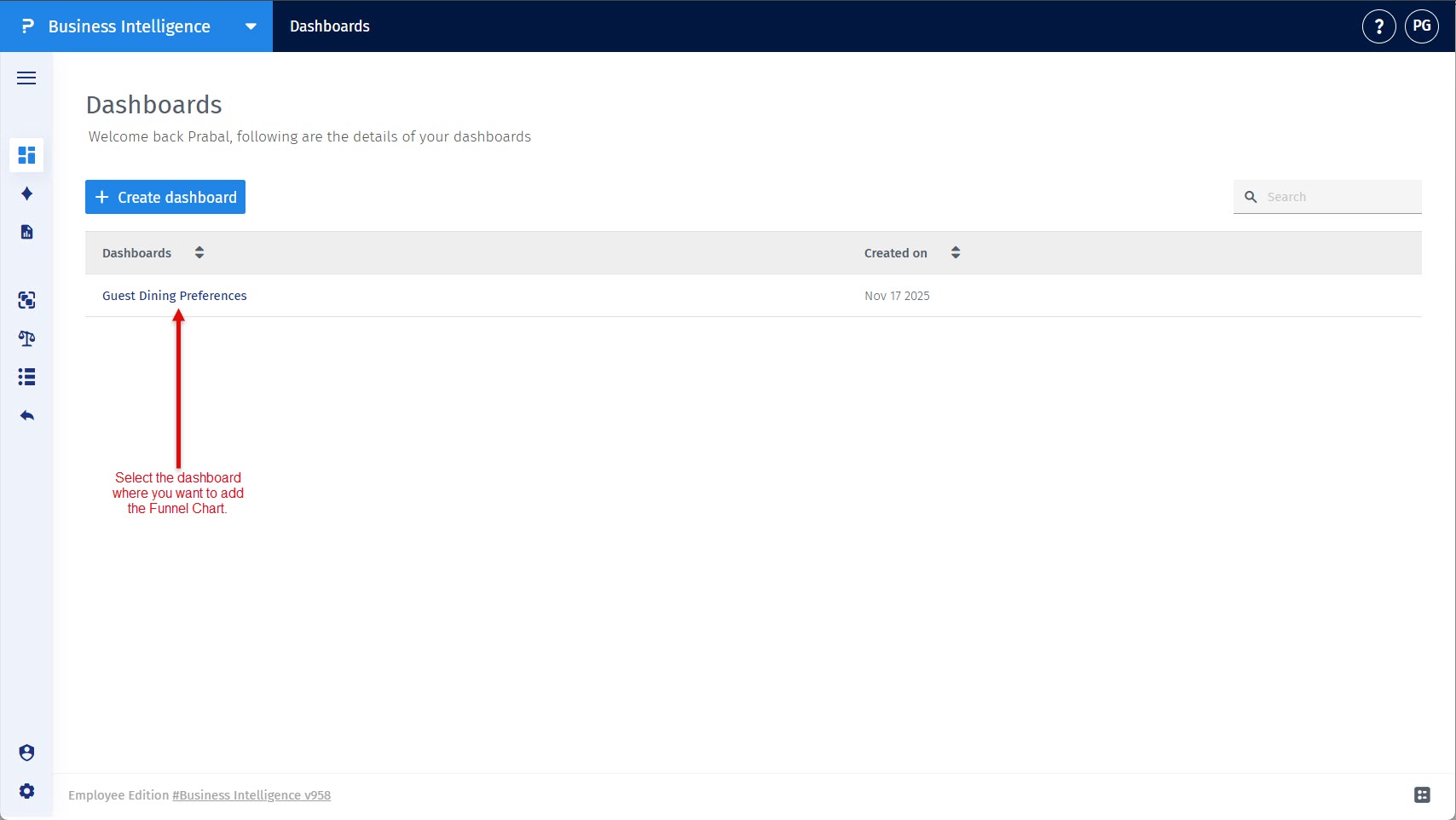
Step 1: Select the dashboard where the widget will be added.
Navigate to BI and select the dashboard from the dashboard list where you want to add the Funnel Chart.
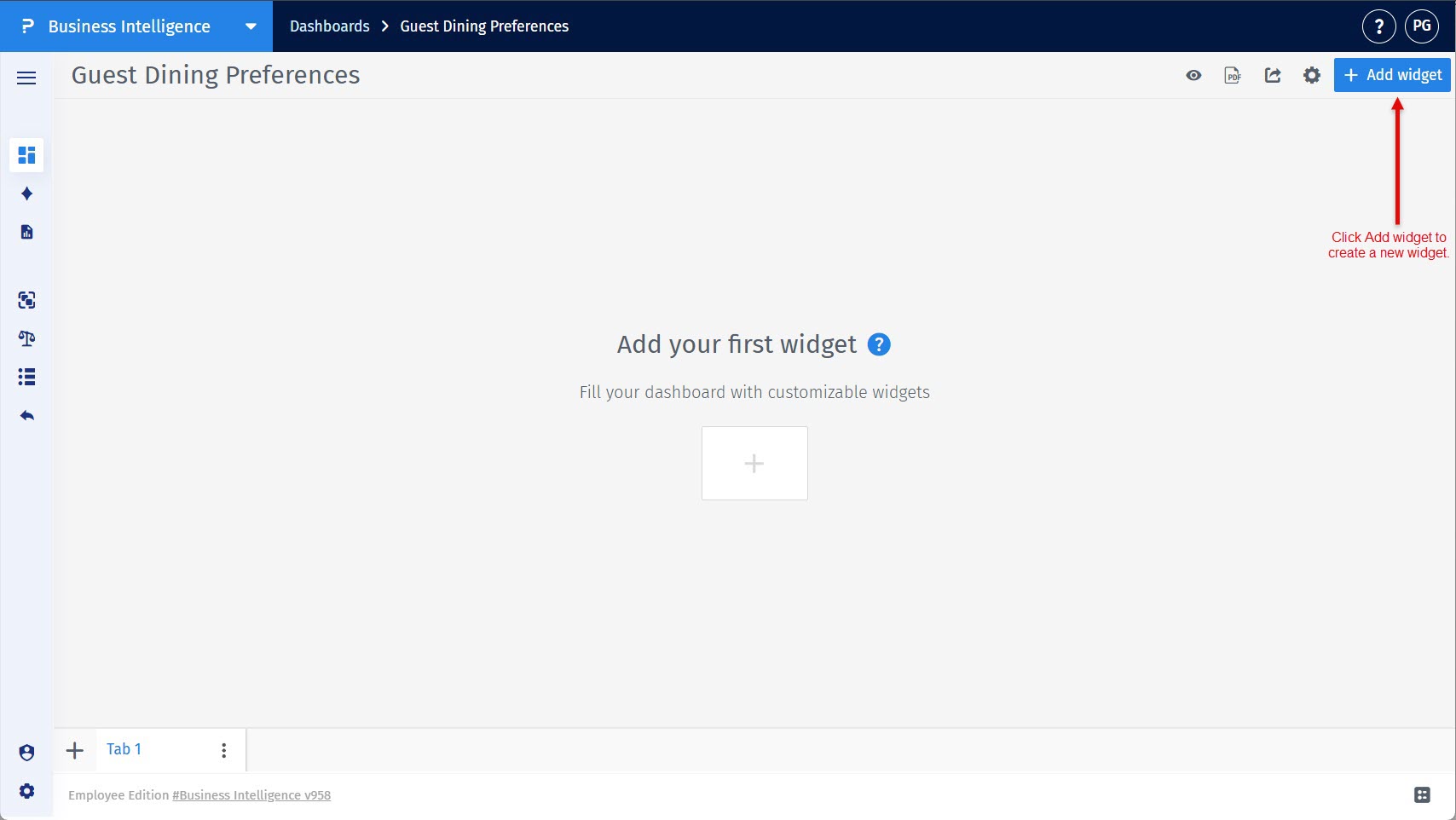
Step 2: Start adding a new widget to the dashboard.
On the selected dashboard, click the Add widget button located in the top-right area of the screen.
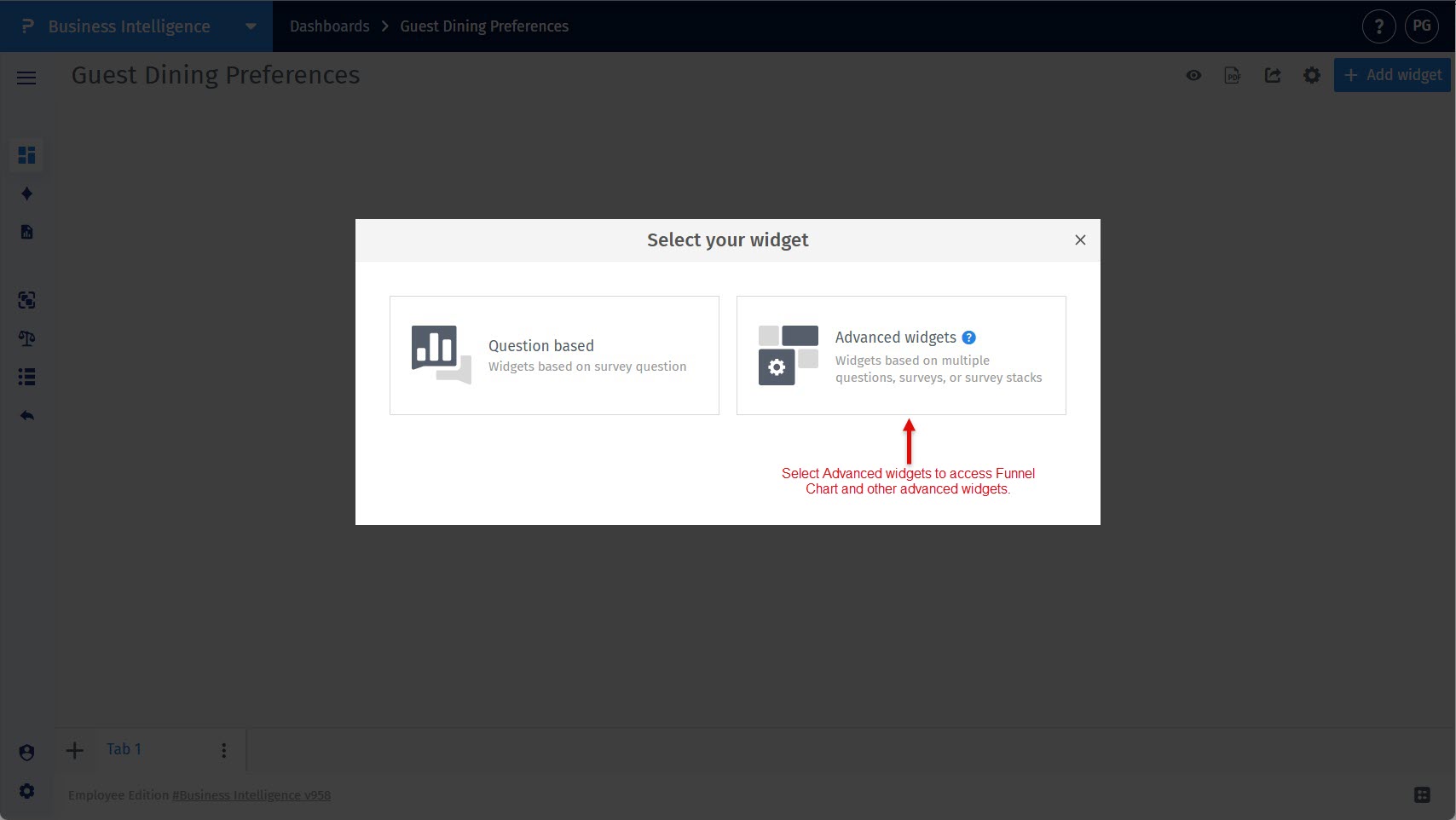
Step 3: Open the list of advanced widgets.
In the Add Widget dialog, select Advanced Widgets to view advanced visualization options.
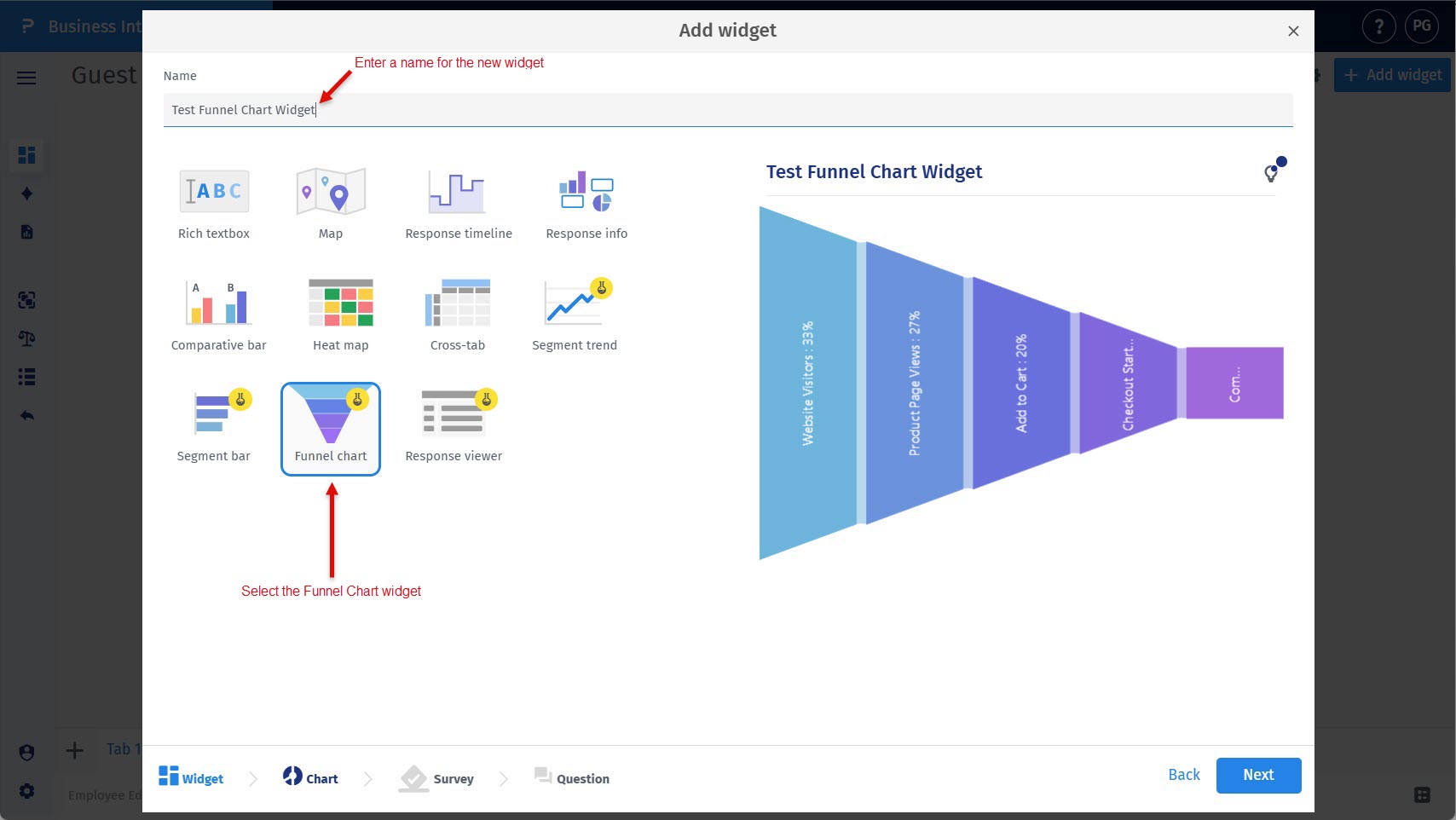
Step 4: Select the Funnel Chart and provide a widget name.
From the Advanced Widgets list, select Funnel Chart and enter a name for the widget in the name field provided.
Step 5: Choose the survey data source.
Select the survey that will be used as the data source for the Funnel Chart.
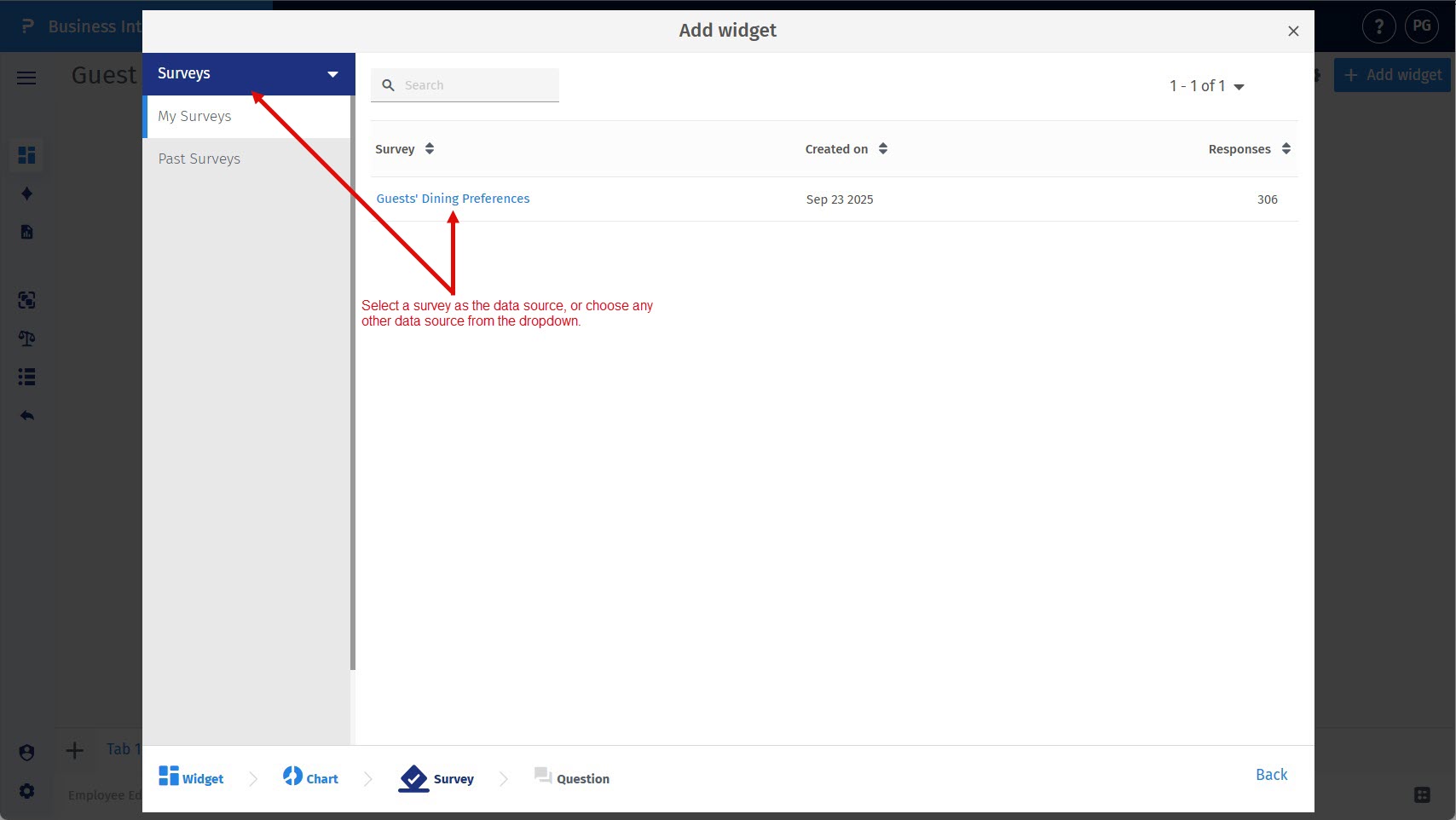
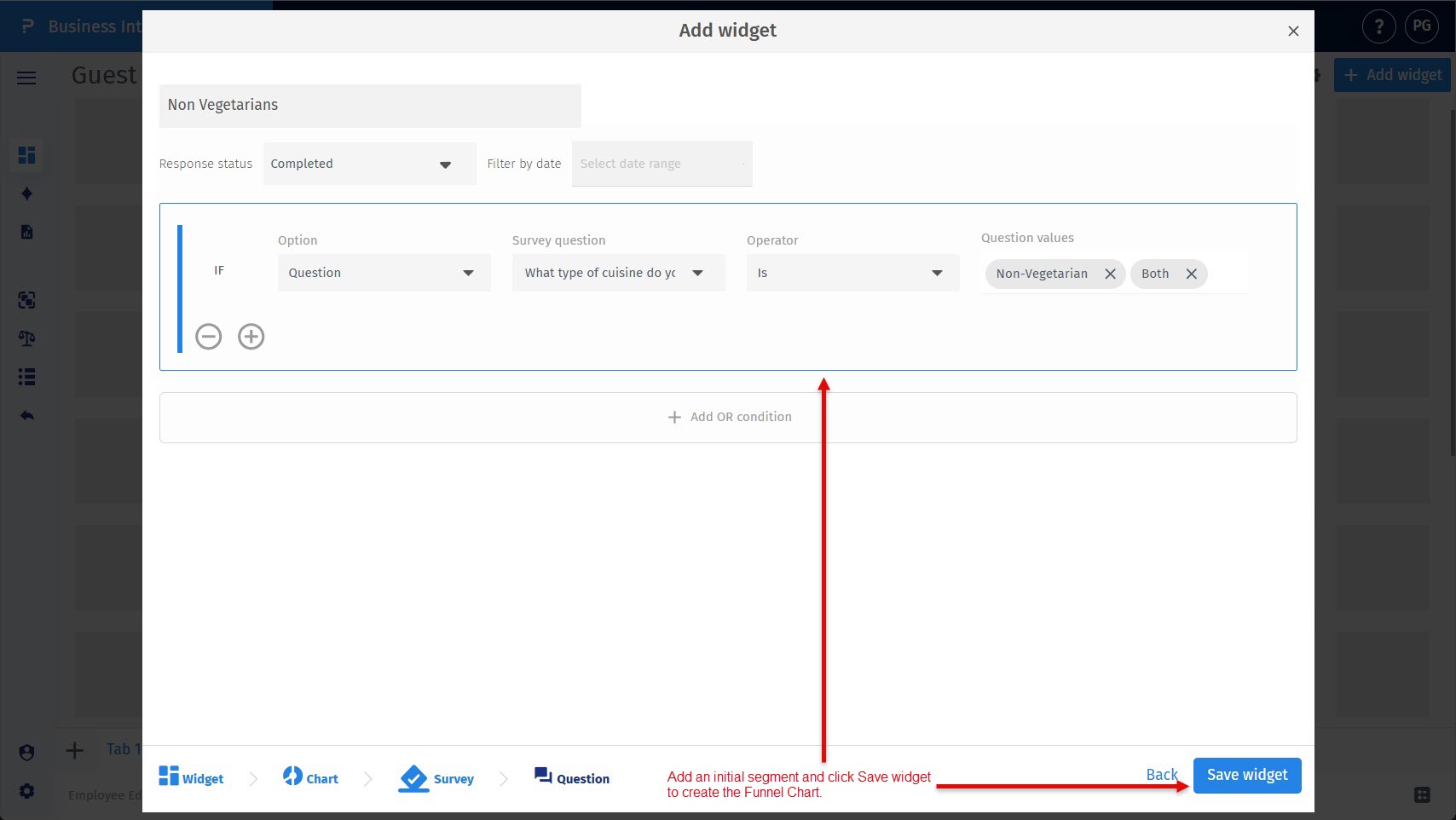
Step 6: Add an initial segment and create the widget.
Define a segment using the available conditions, then click Save widget to create the Funnel Chart.
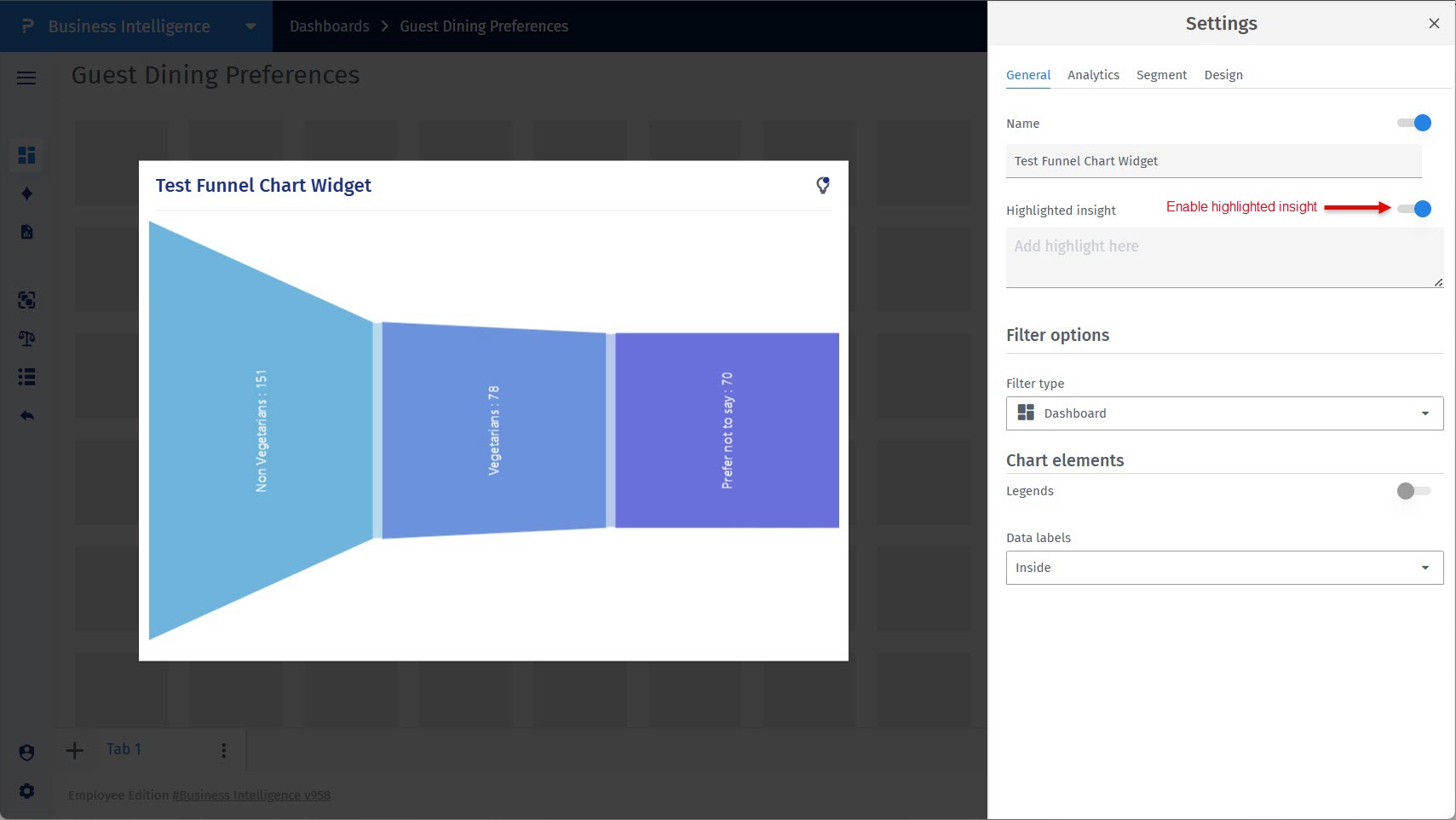
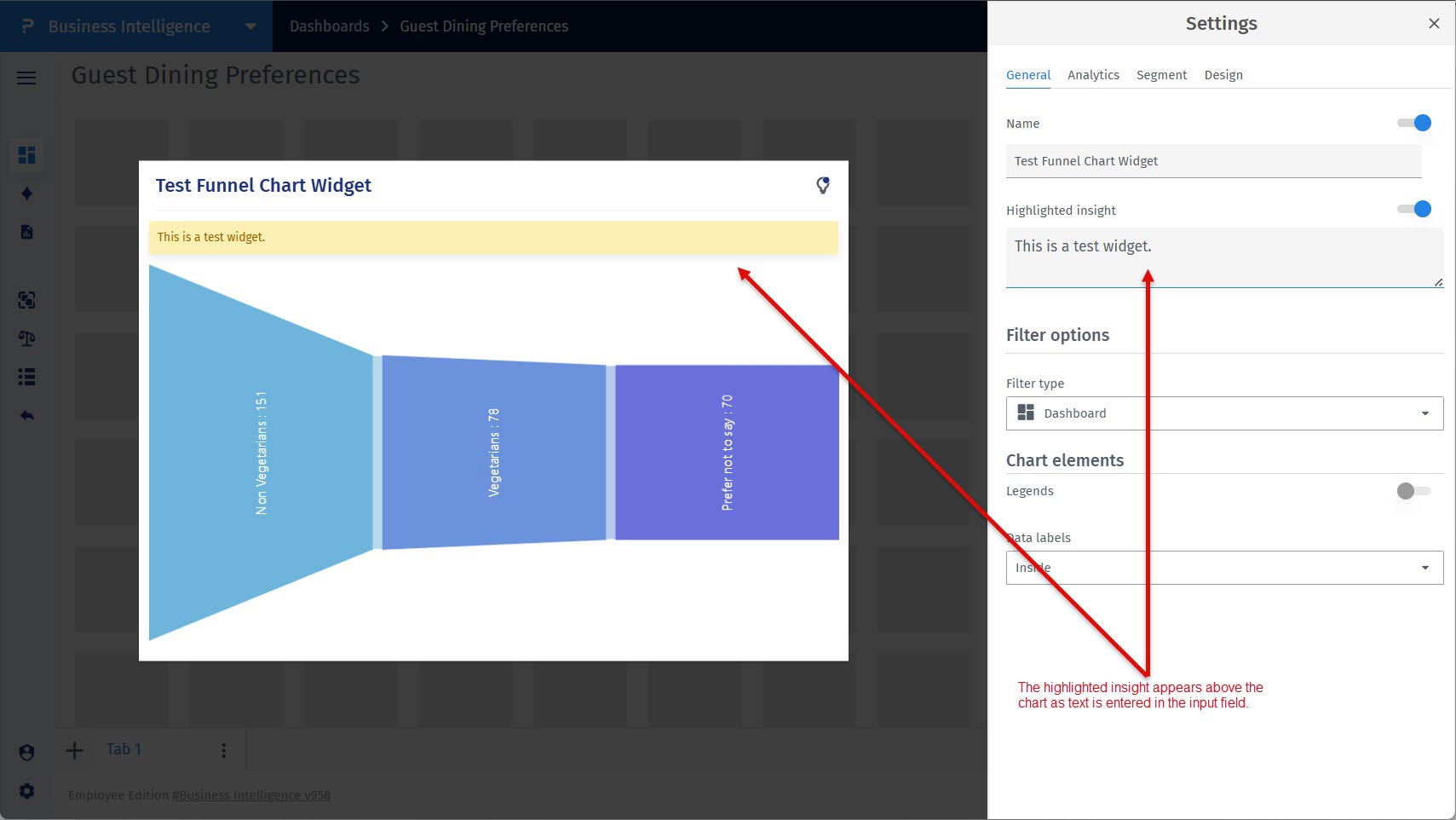
How to add a highlighted insight to the Funnel Chart?
Enable the highlighted insight option in the General tab and add your message in the provided input field to display a short explanatory text above the chart.
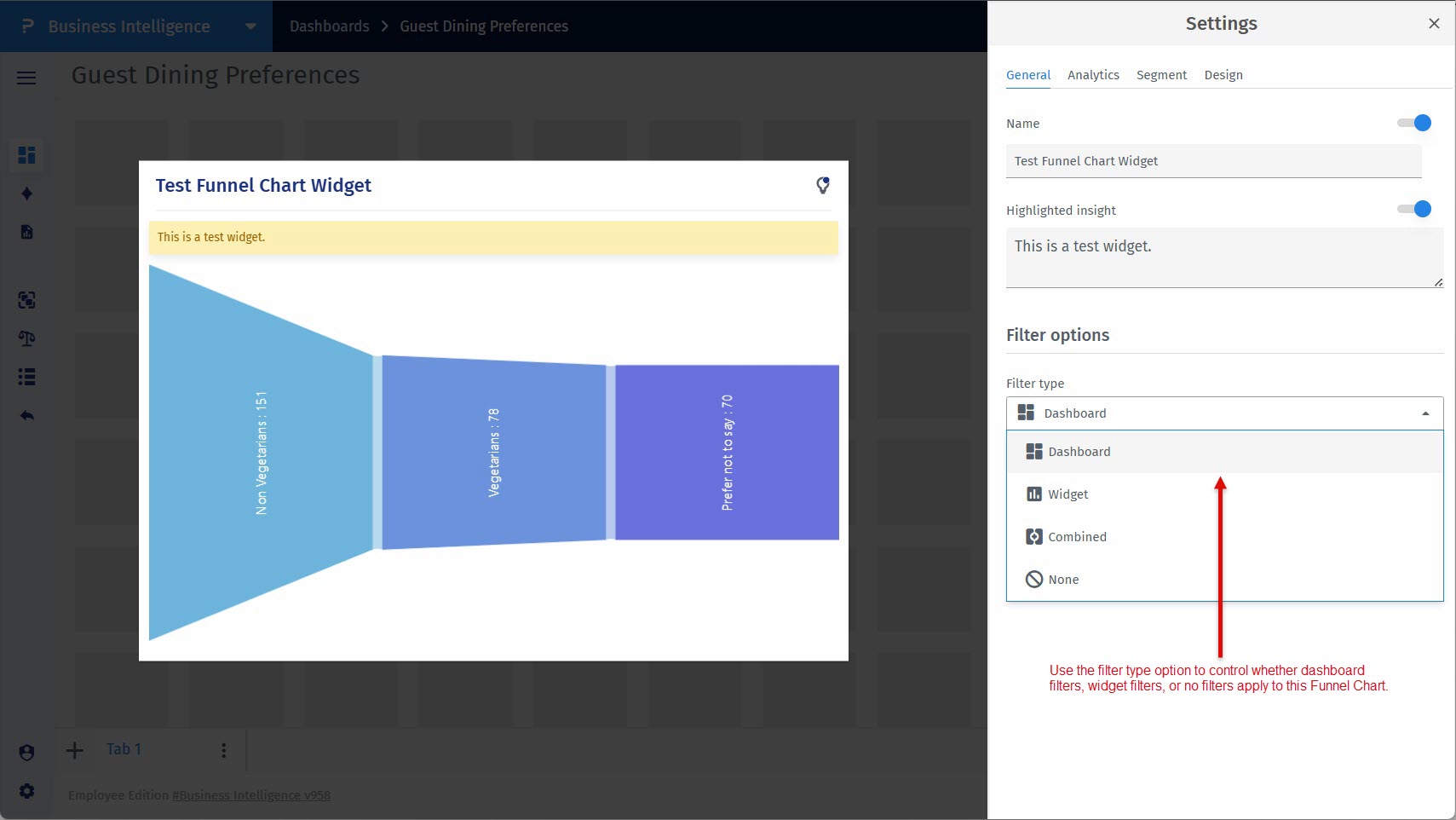
How to control how filters apply to the Funnel Chart?
Use the filter options in the General tab to decide whether dashboard filters, widget filters, or no filters should apply.
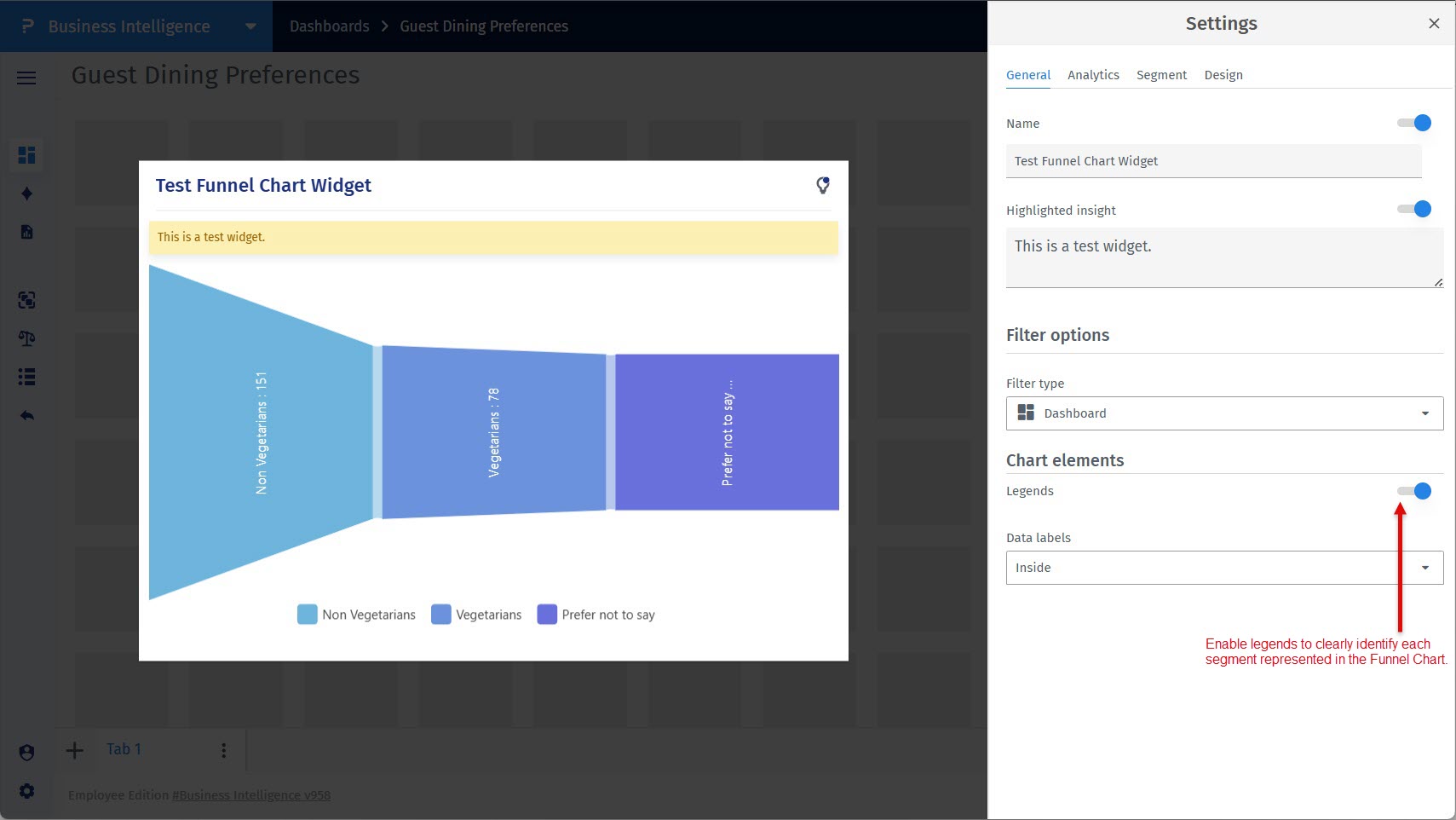
How to show or hide chart legends?
Enable legends in the General tab to help users identify each segment in the funnel.
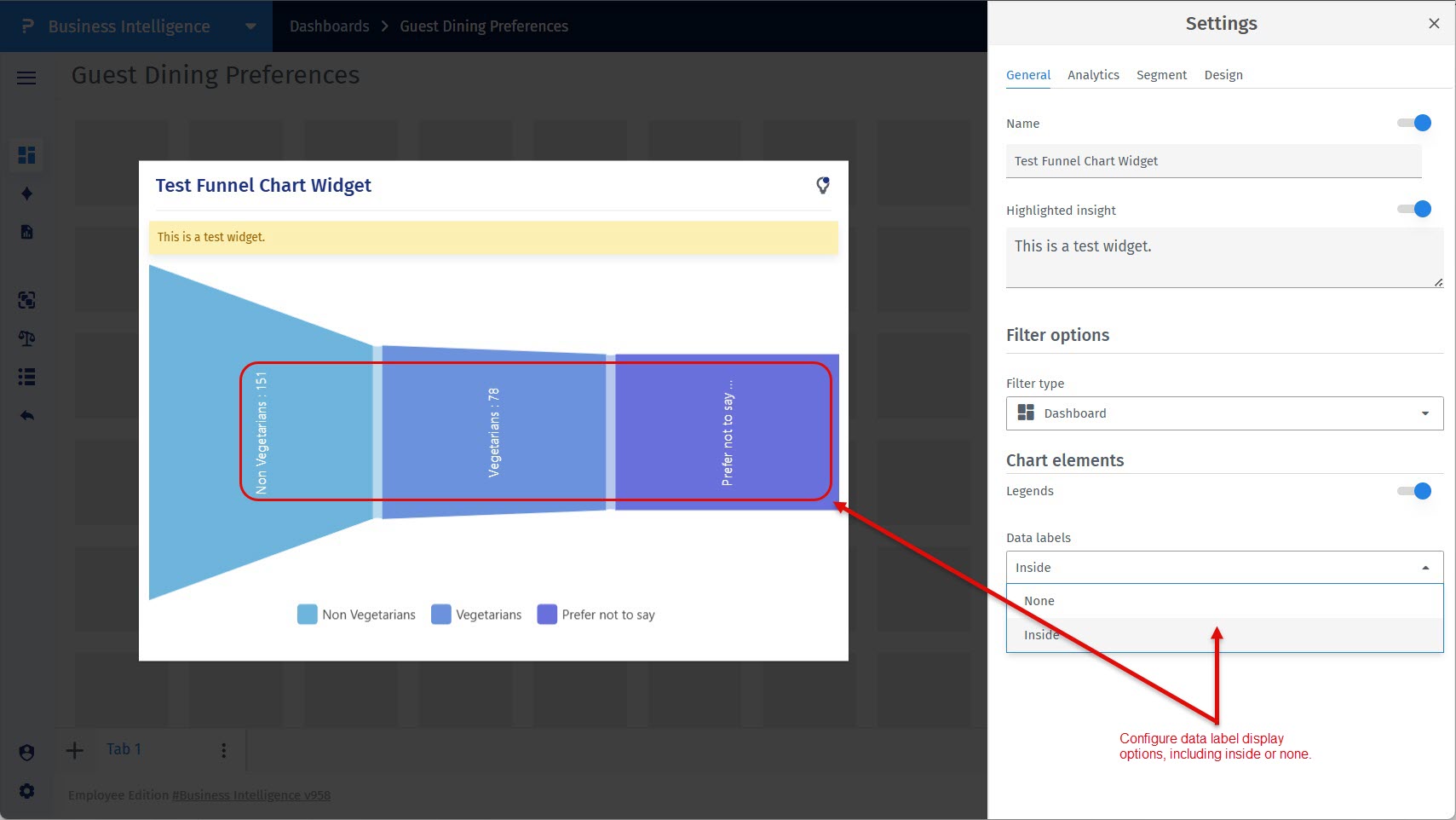
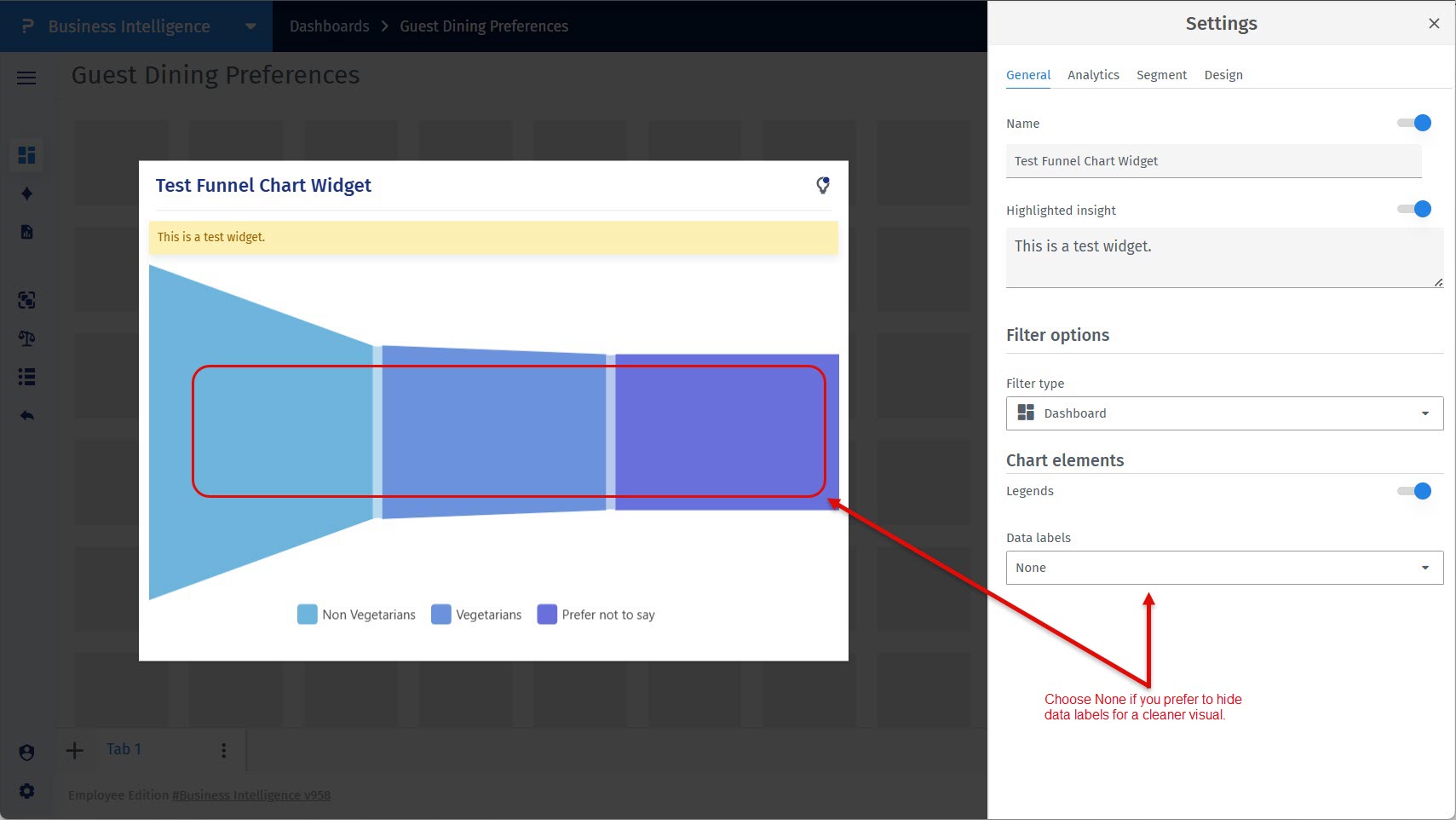
How to configure data labels in the Funnel Chart?
Choose whether data labels appear inside the chart or are hidden using the data label options.
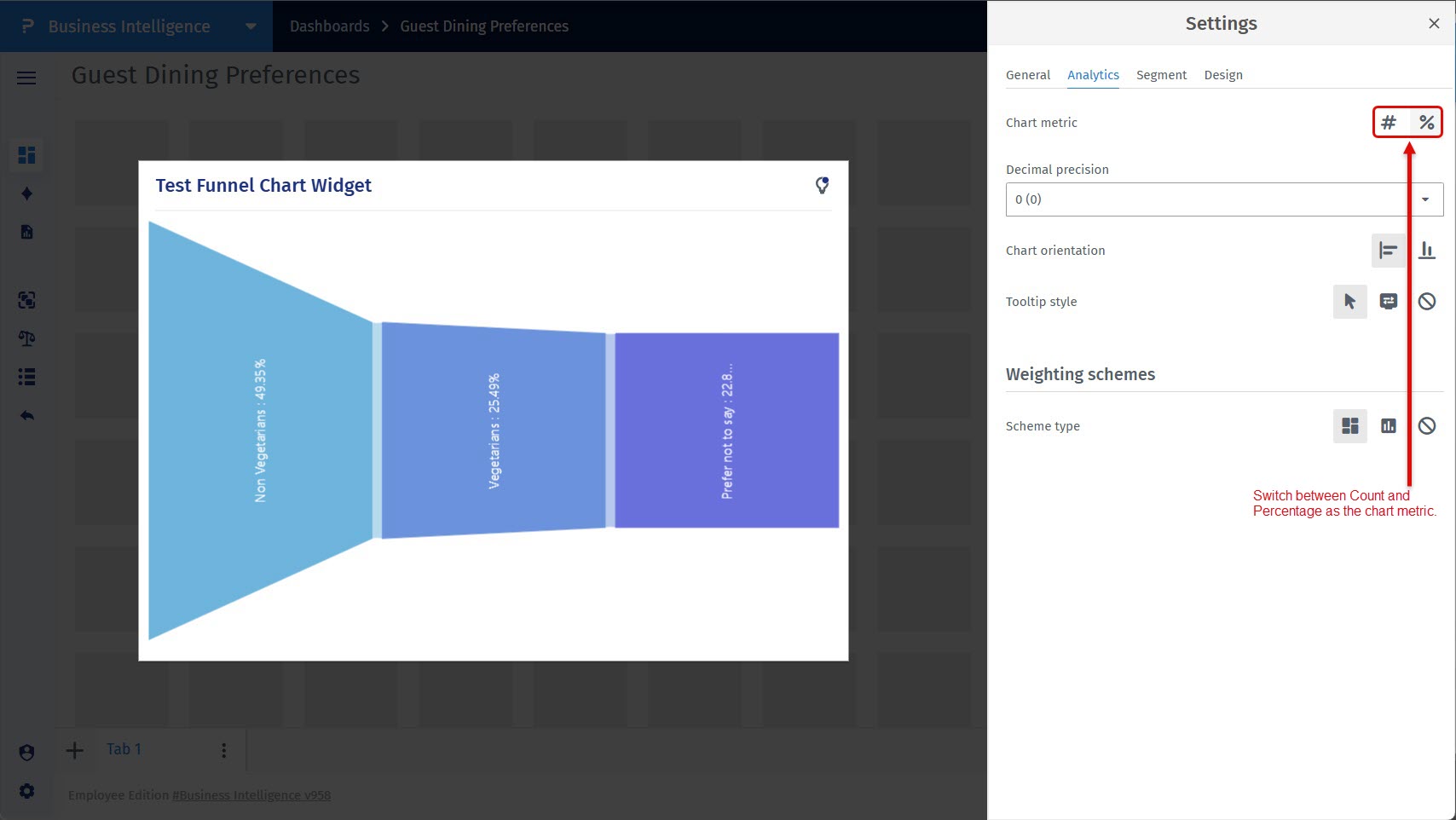
How to switch between count and percentage metrics?
Open the Analytics tab and use the Chart Metric option to switch between count and percentage.
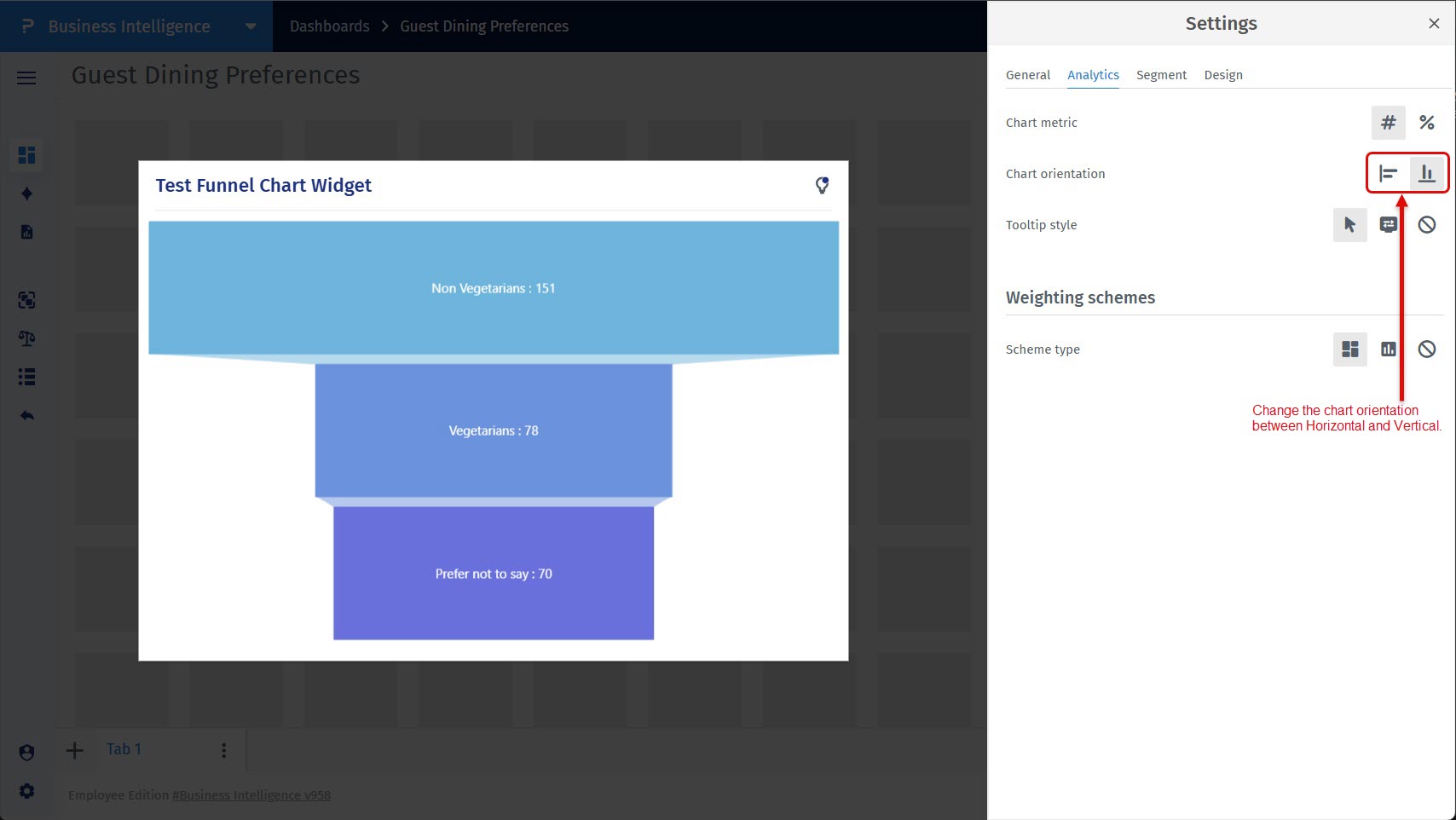
How to change the orientation of the Funnel Chart?
In the Analytics tab, select Horizontal or Vertical under Chart Orientation.
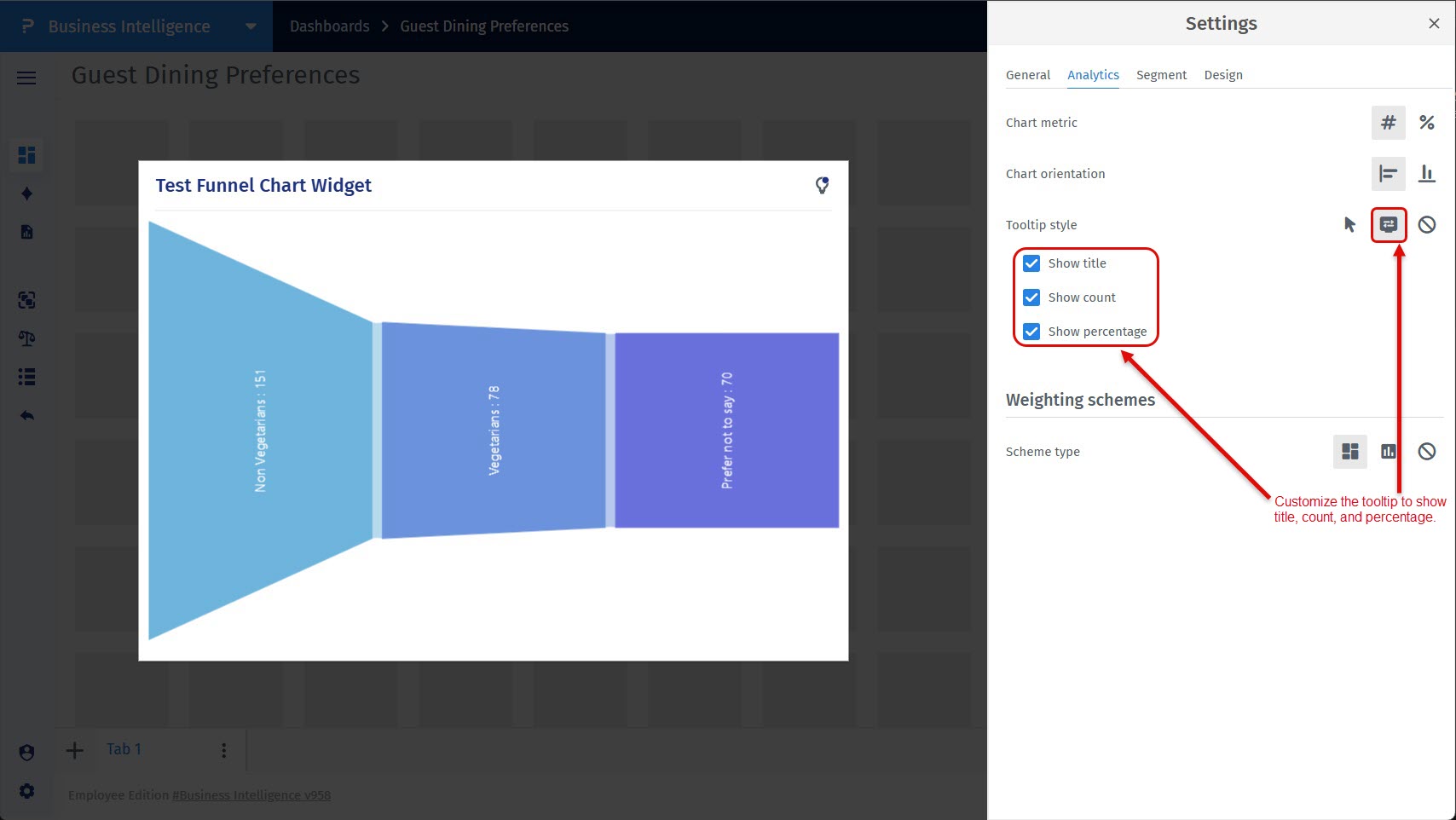
How to customize tooltip information?
Use the Tooltip Style option in the Analytics tab to customize the information shown on hover.
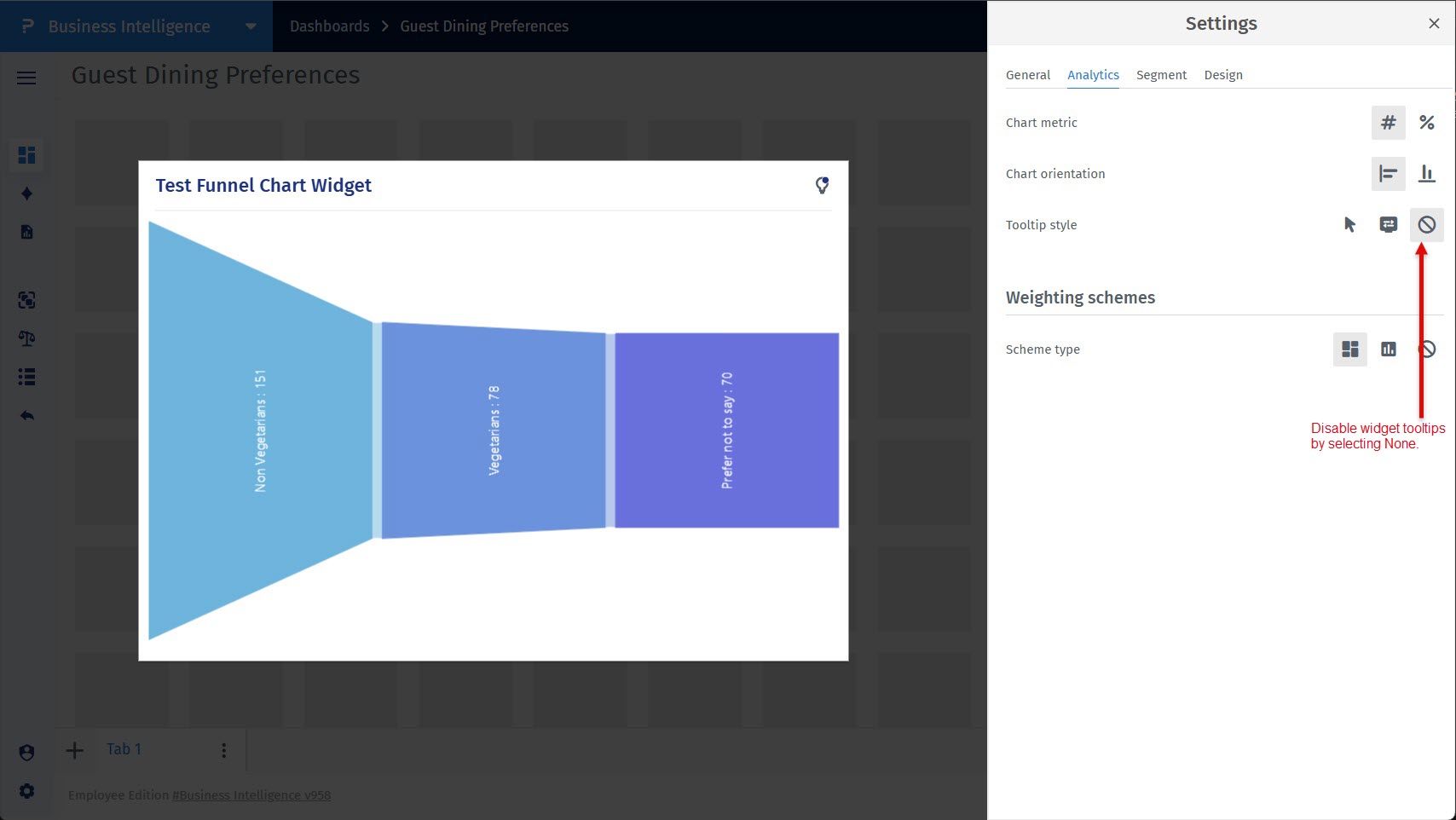
How to disable tooltips?
Select None under Tooltip Style to hide tooltips.
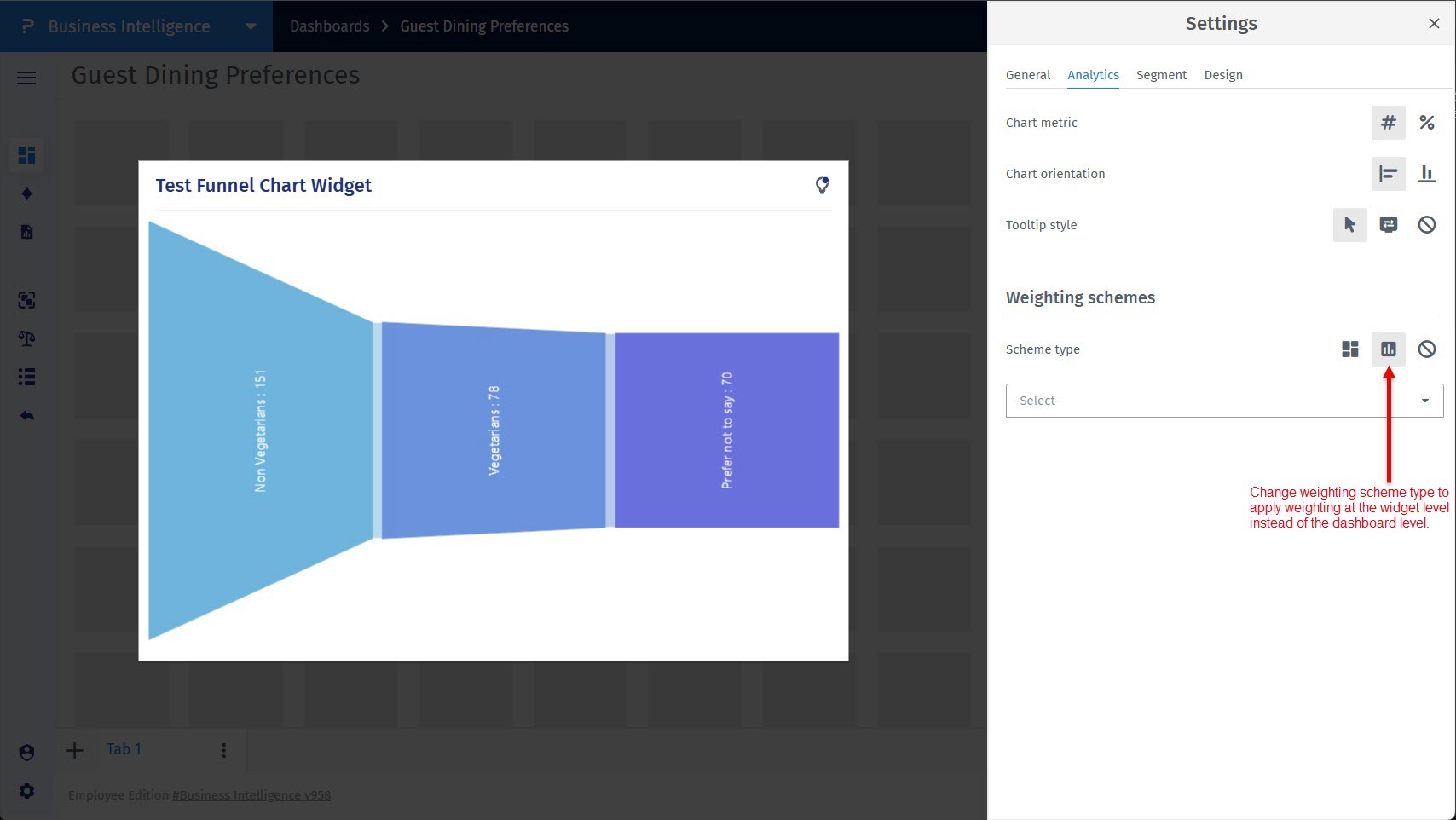
How to apply weighting at the widget level?
In the Analytics tab, change the Weighting Scheme to Widget level.
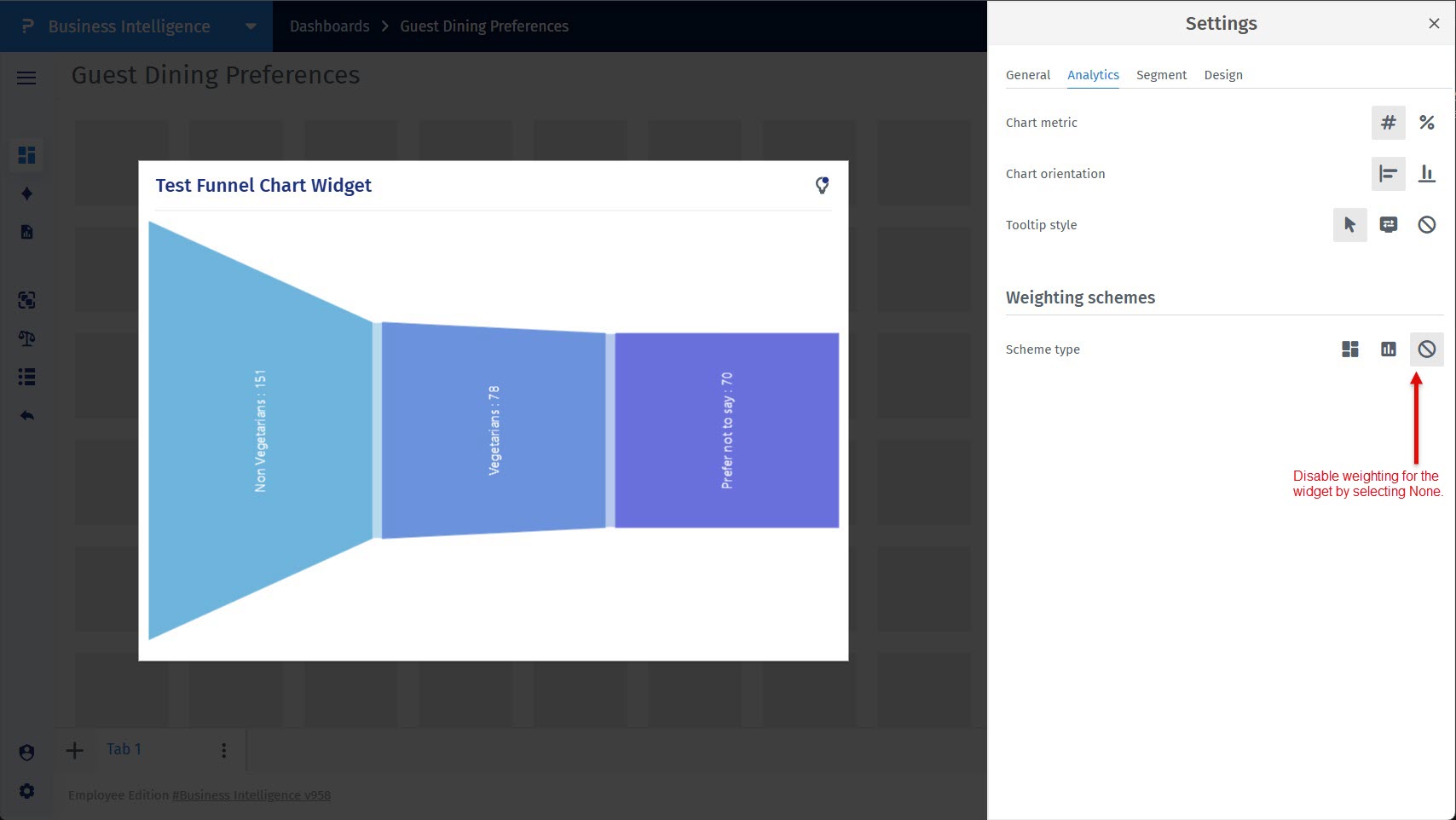
How to disable weighting?
Select None under Weighting Scheme to display unweighted data.
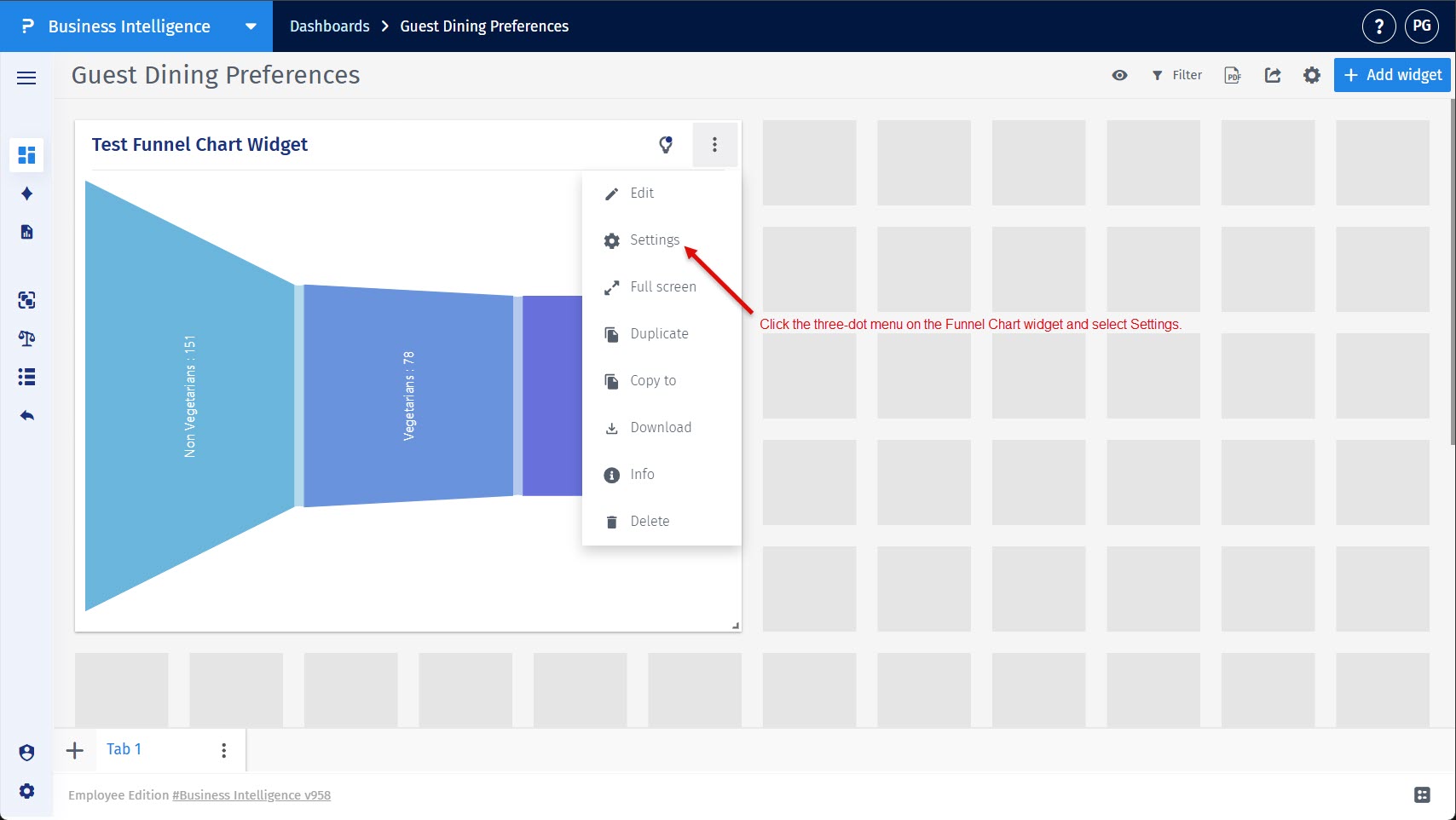
How to open segment settings for the Funnel Chart?
Click the three-dot menu on the Funnel Chart widget and select Settings, then open the Segment tab.
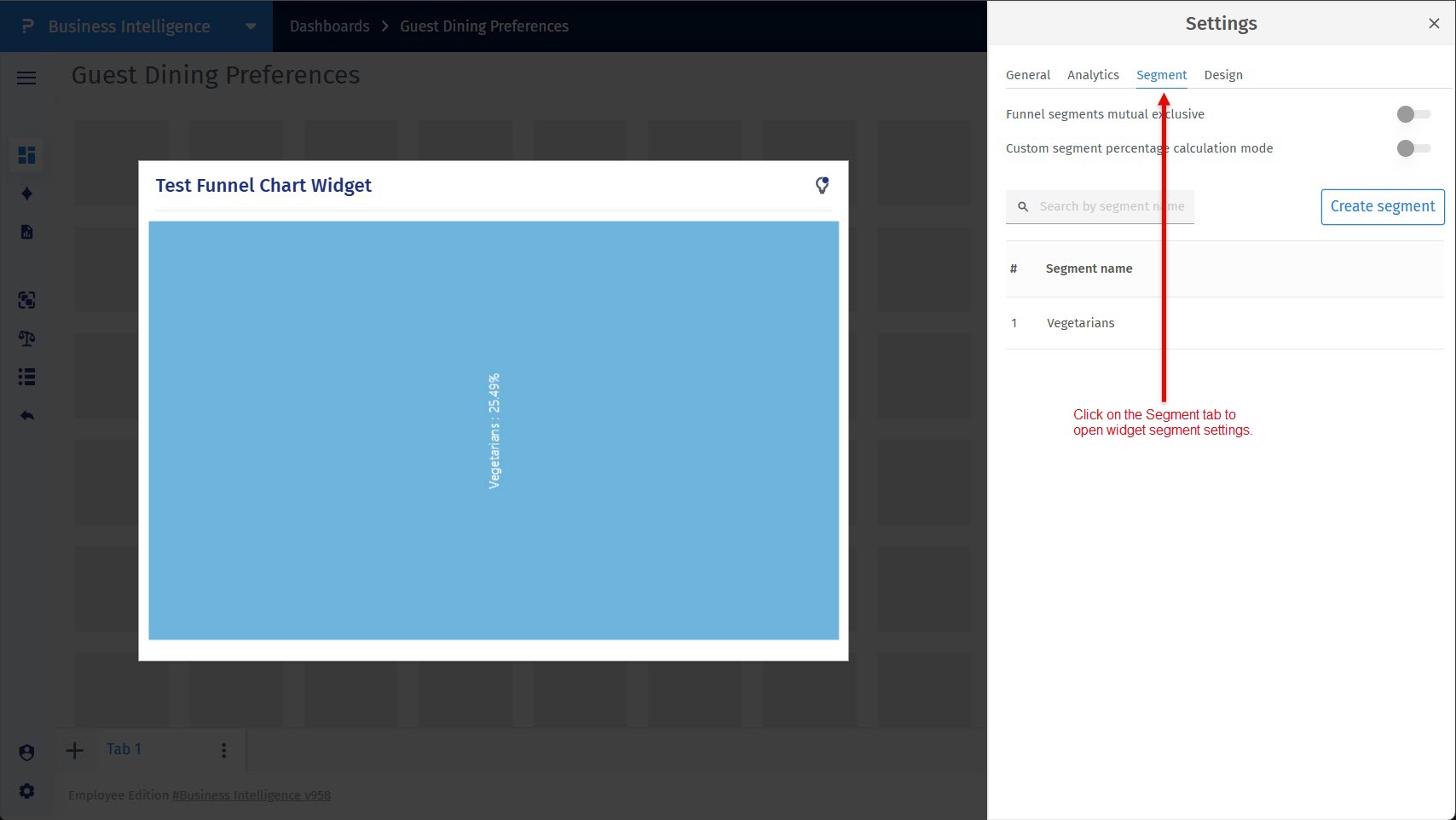
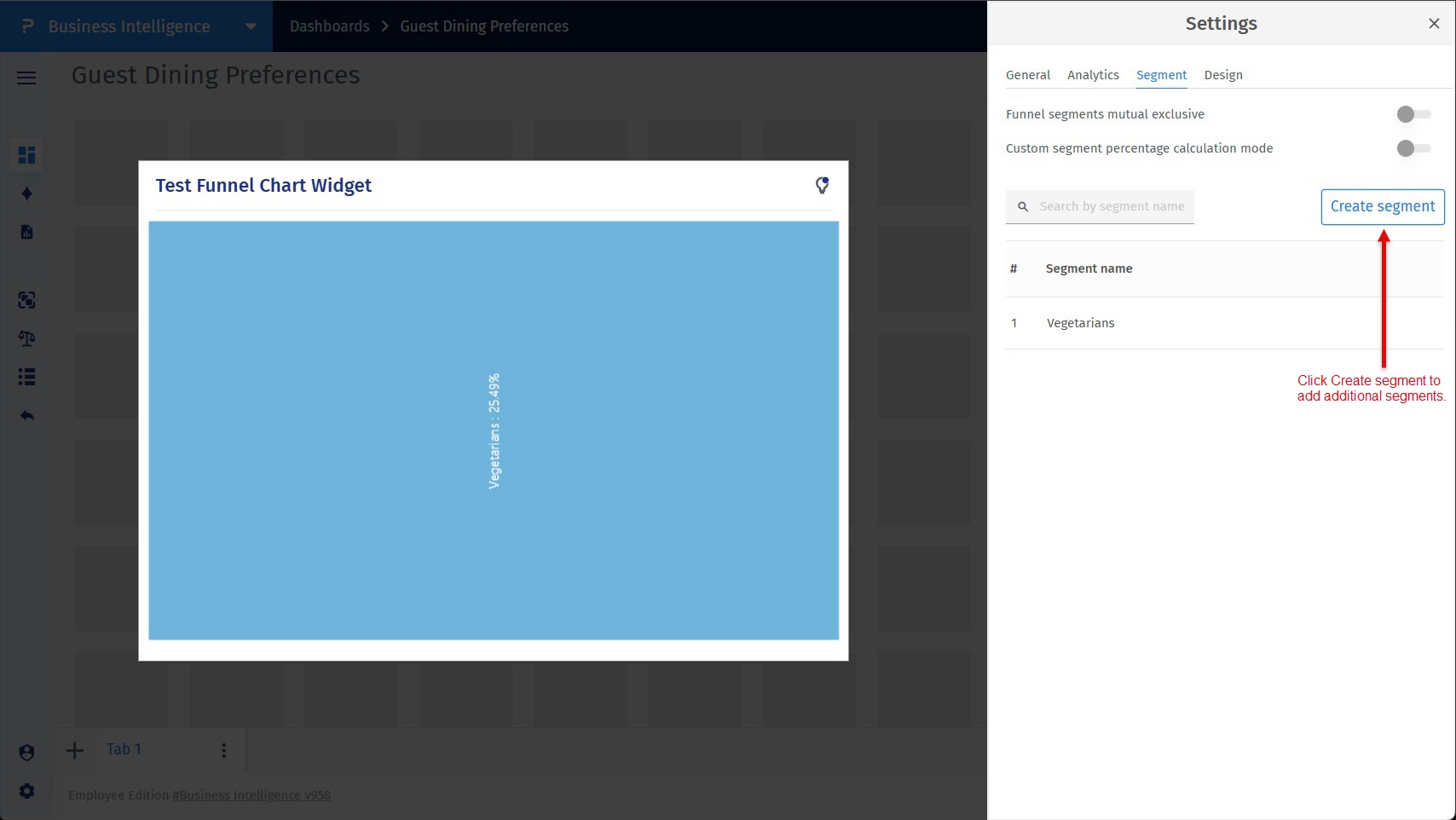
How to add more segments in a Funnel Chart?
In the Segment tab, click the Create segment button to define additional segments.
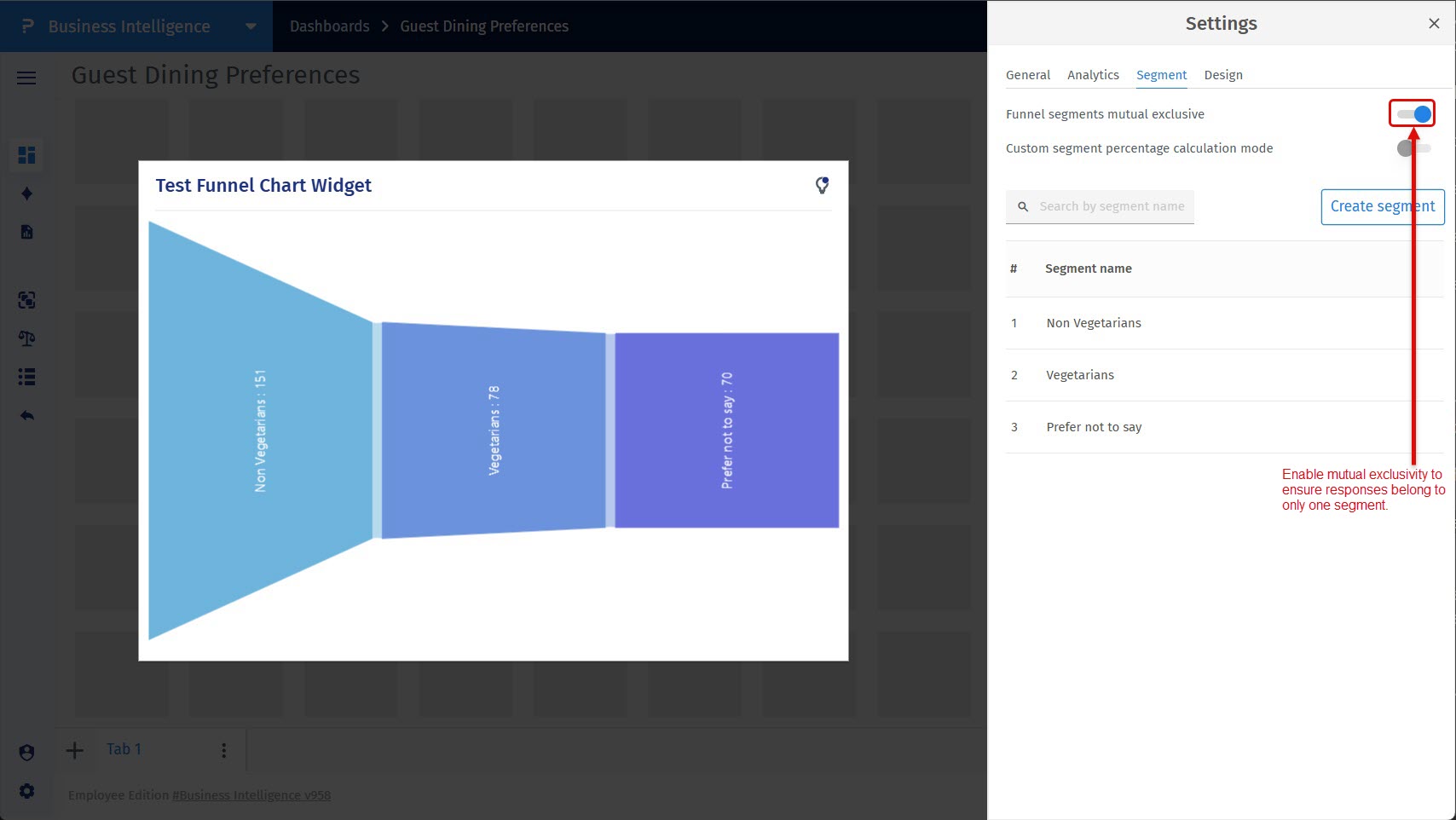
How to ensure responses belong to only one segment?
Enable the Funnel segments mutual exclusive toggle to prevent overlap between segments.
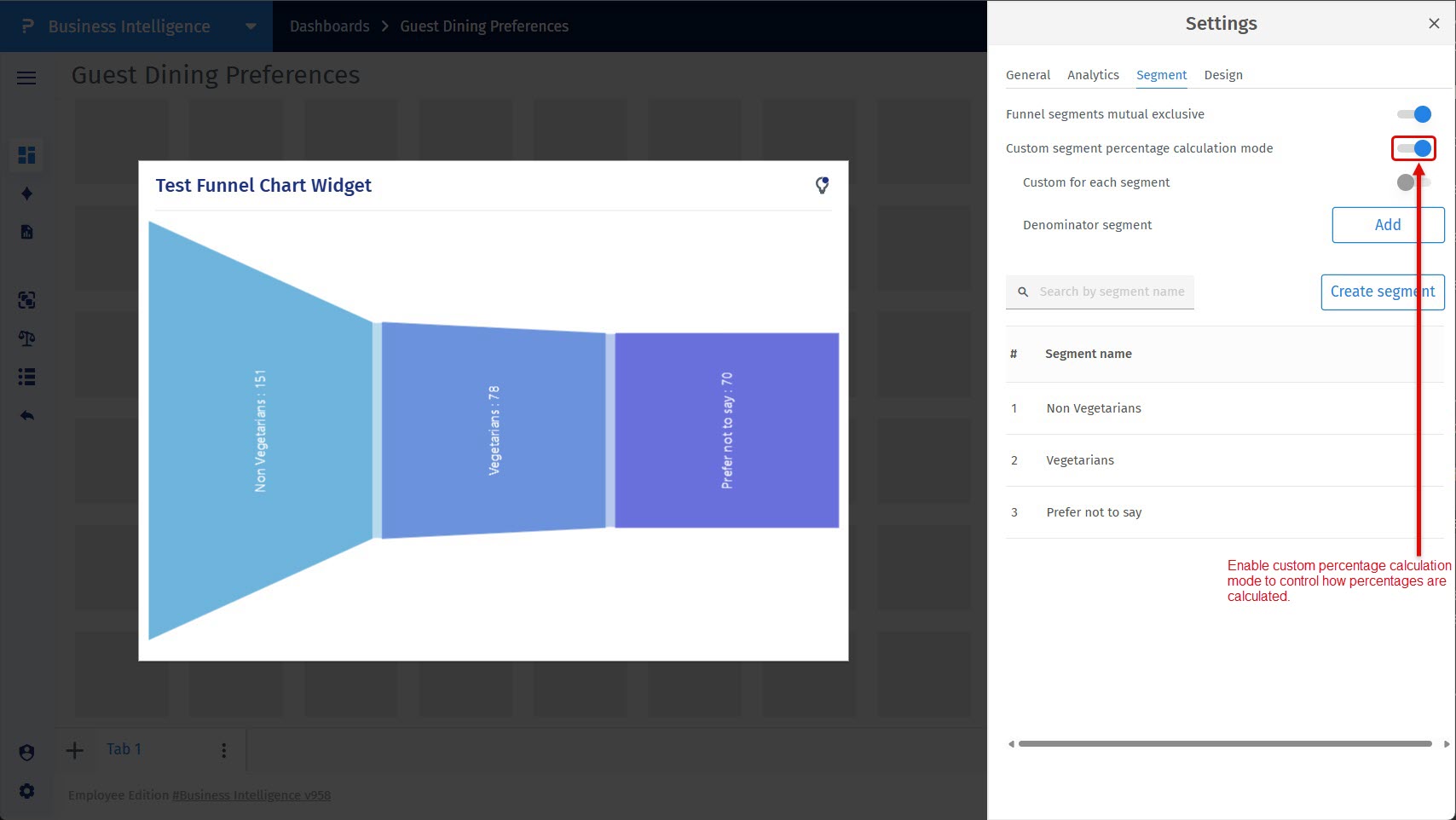
How to control percentage calculation logic?
Turn on Custom segment percentage calculation mode to define how percentages are calculated.
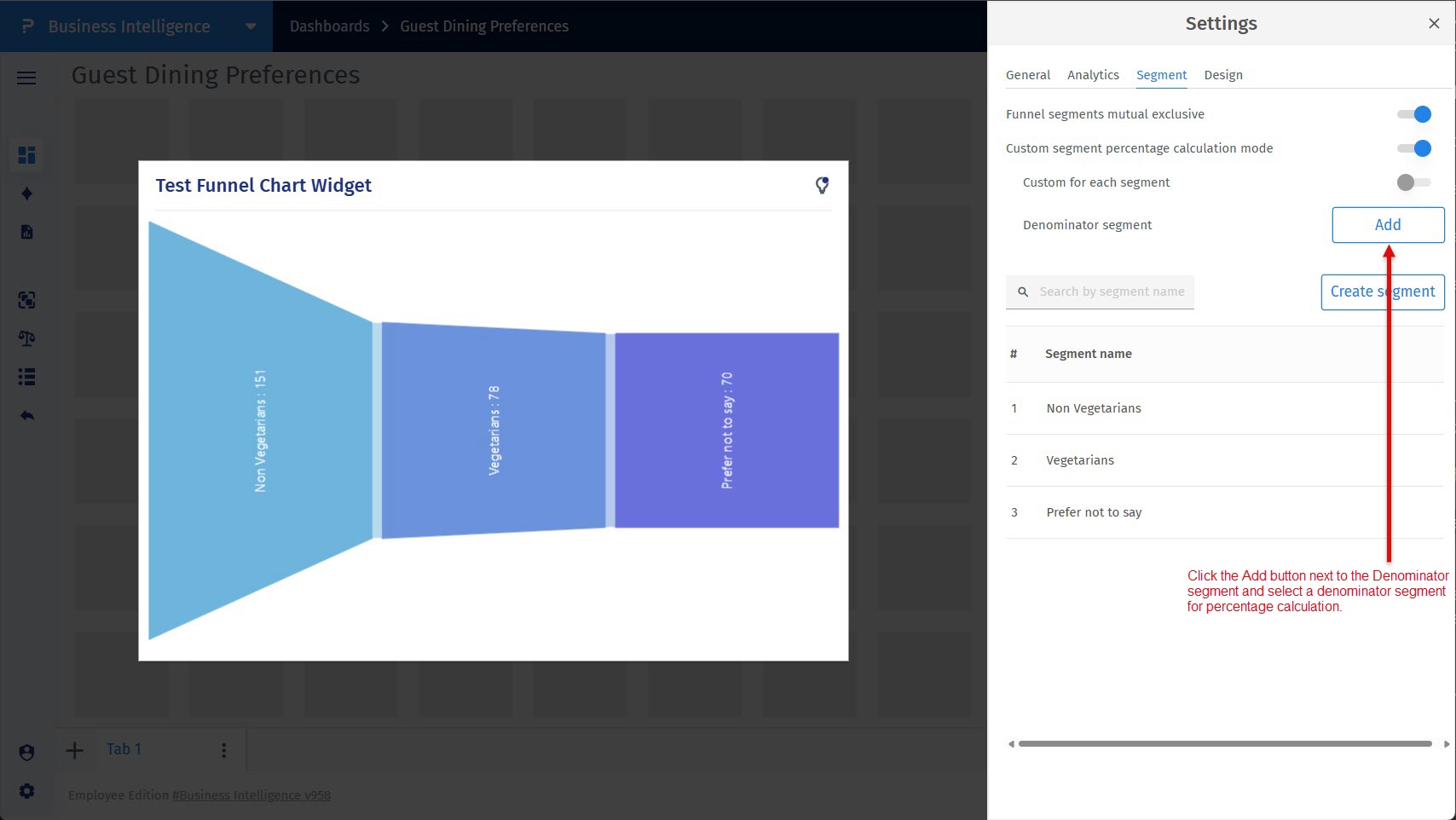
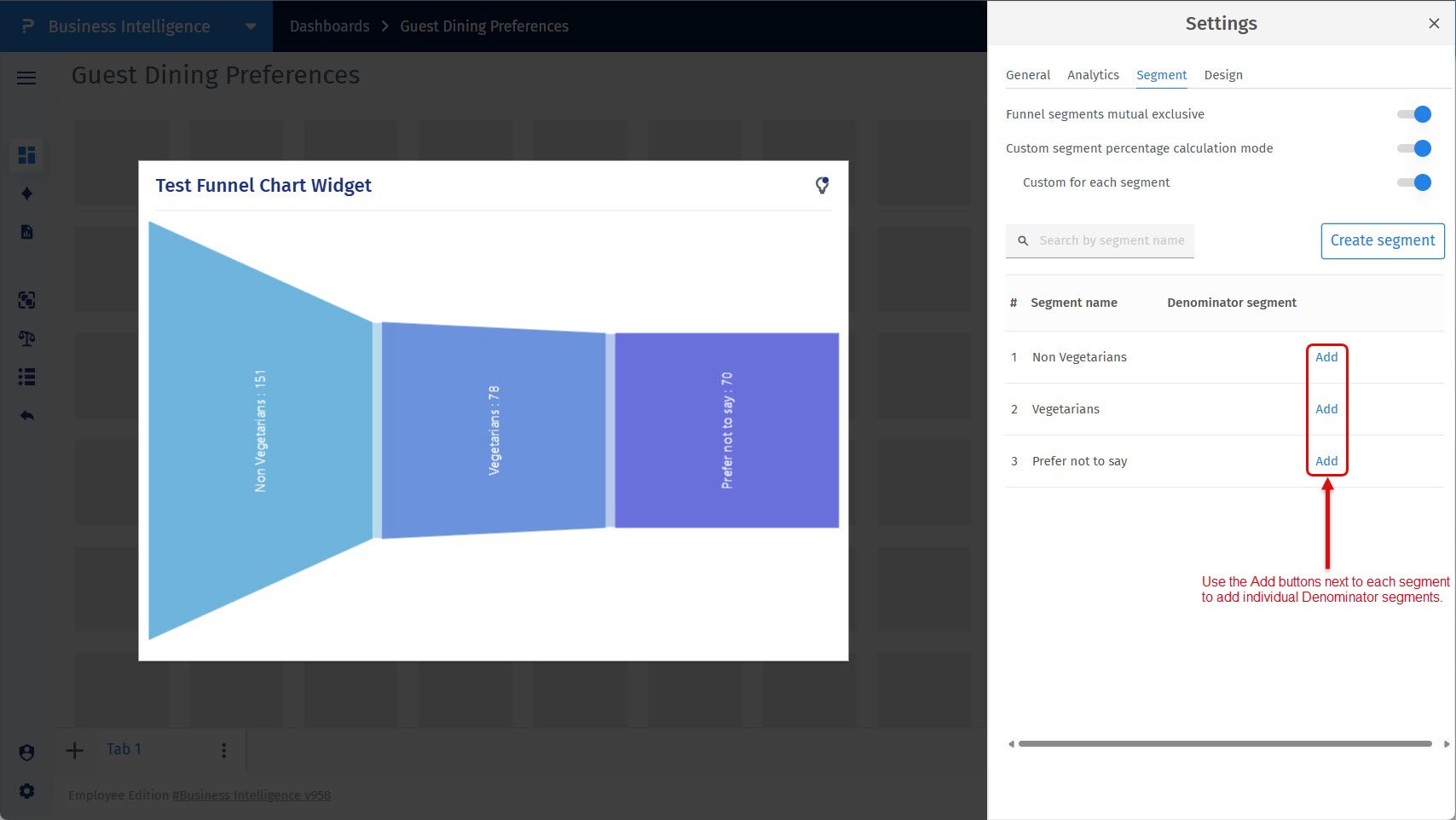
How to define a denominator segment?
Use the Add option under Denominator Segment to select a reference segment for percentage calculations.
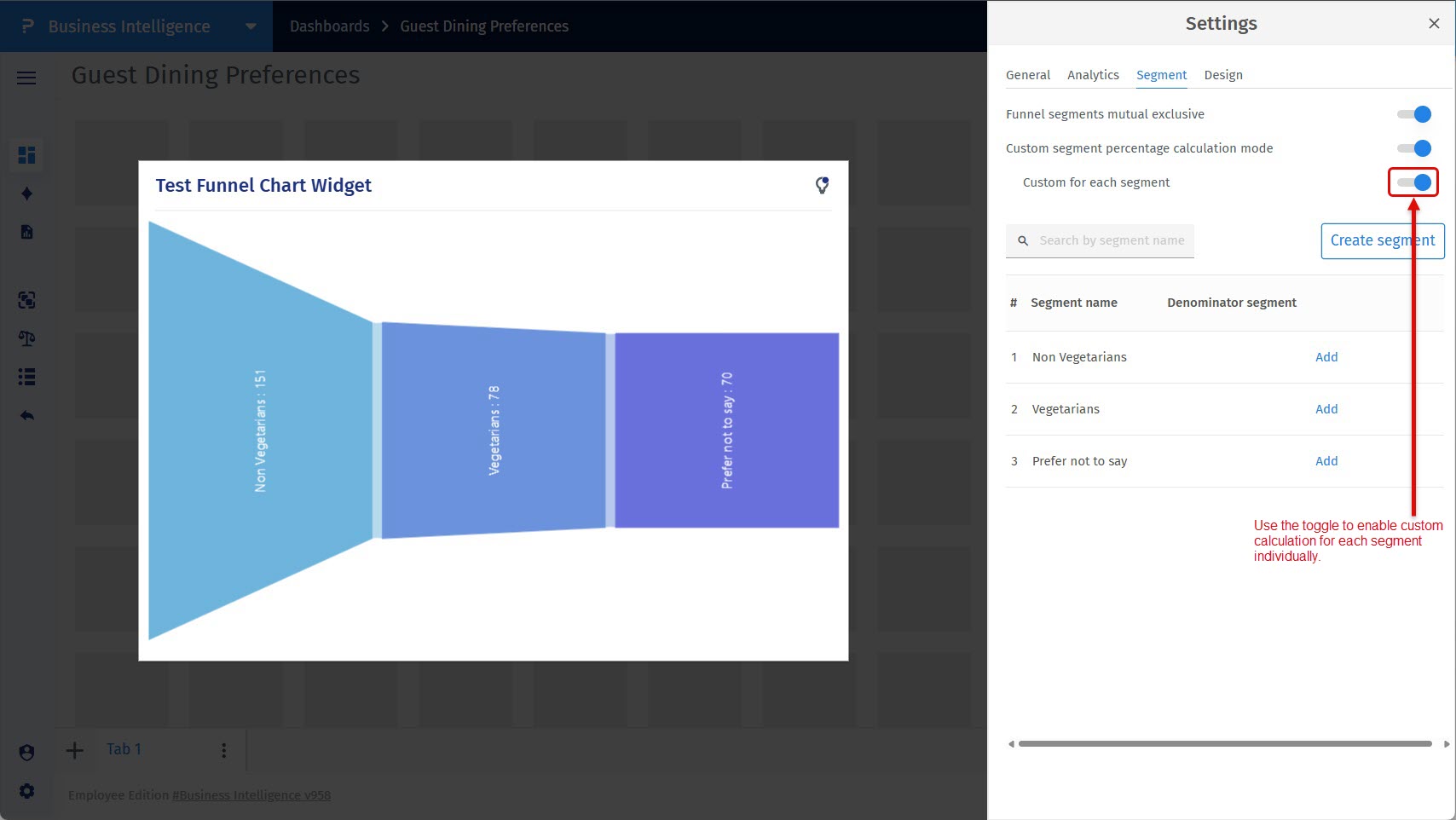
How to apply different denominator logic for each segment?
Enable Custom for each segment to assign different denominator segments per segment.
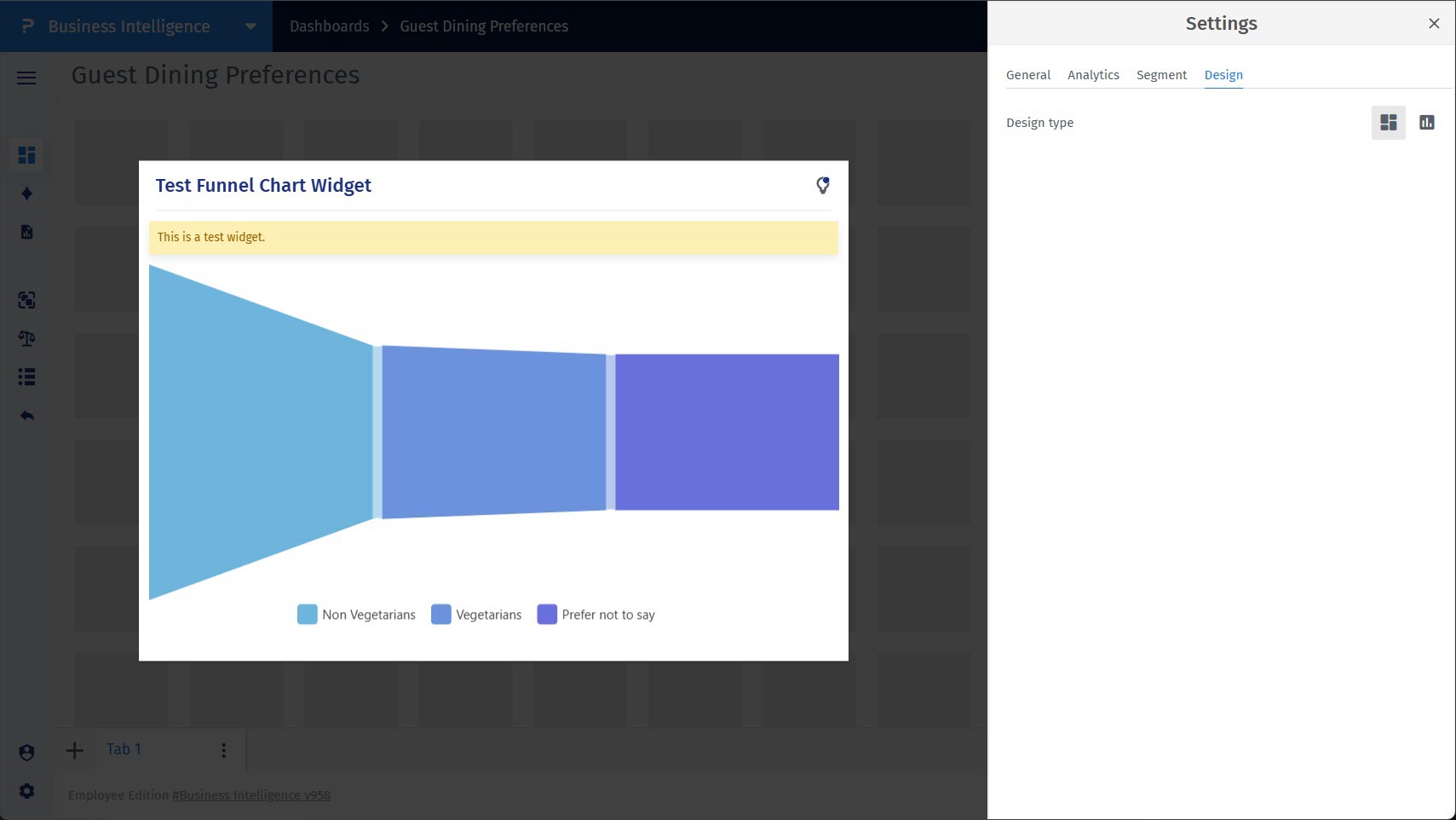
How to switch between dashboard and widget design types?
Open the Design tab and choose whether the Funnel Chart should inherit dashboard styling or use widget-level styling.
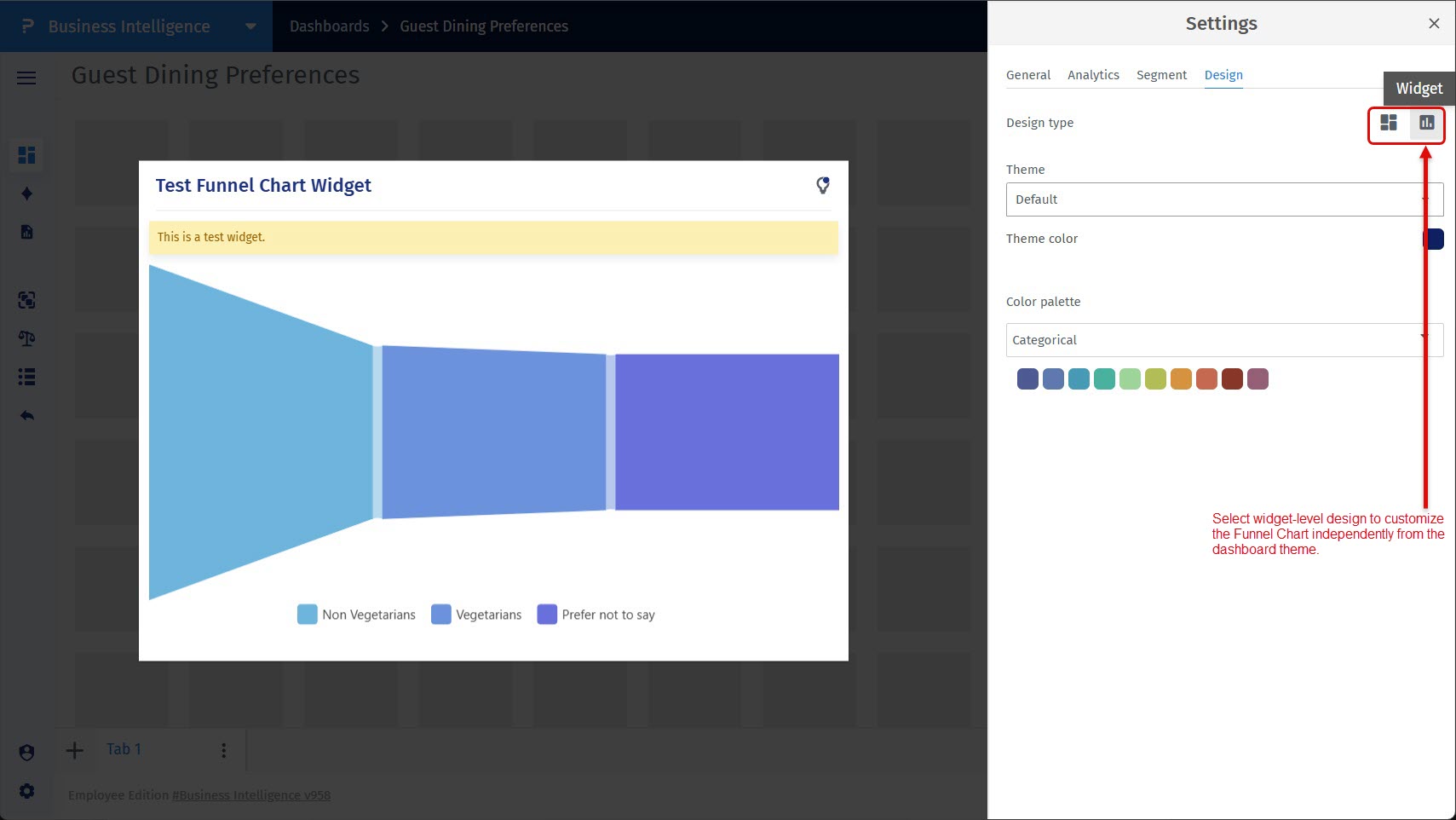
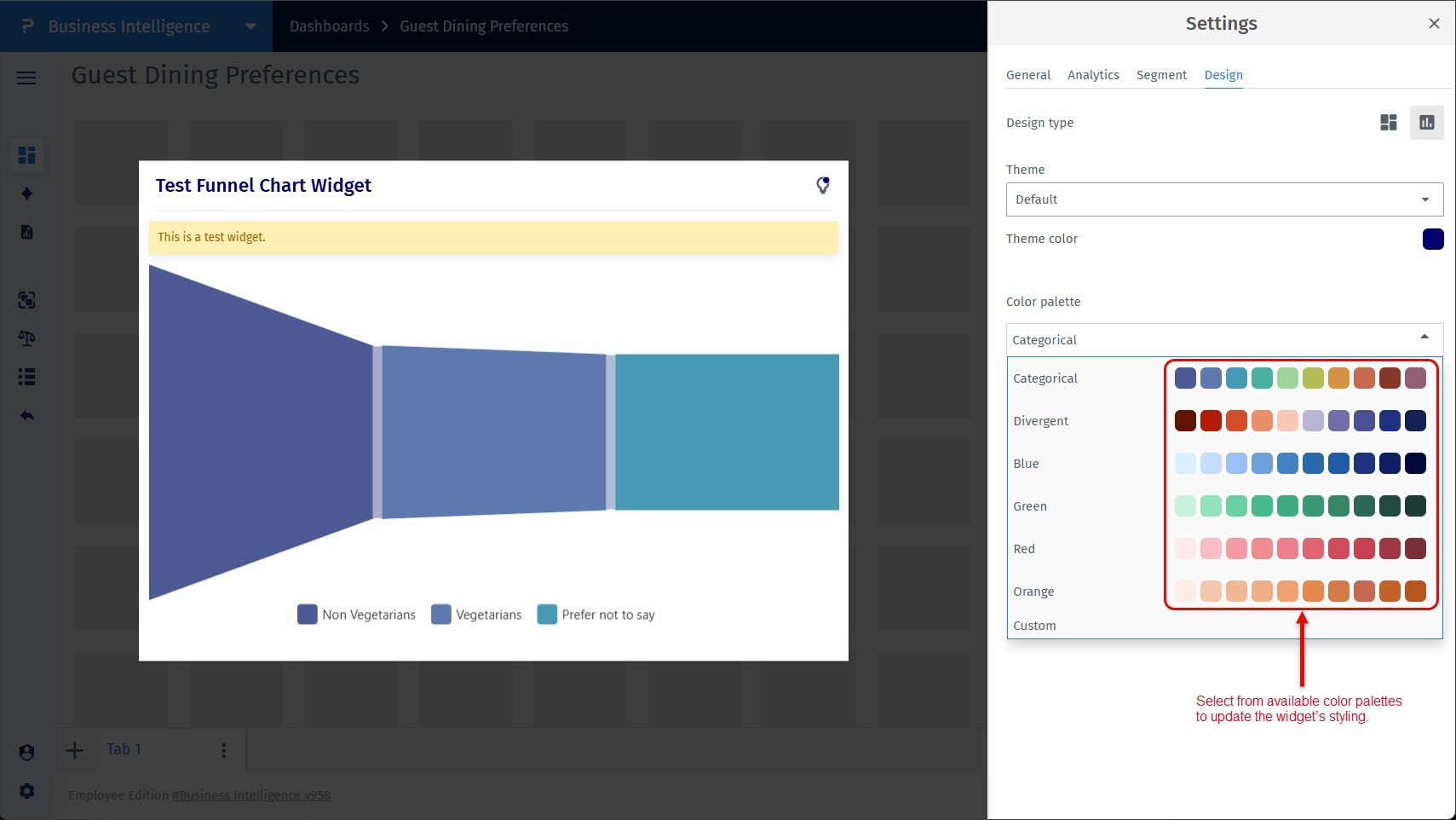
How to apply a different theme or color palette?
After selecting widget-level design, choose a theme and color palette to customize the Funnel Chart’s appearance.
- Funnel Chart: An advanced BI visualization that displays how survey responses are distributed across multiple segments, helping users compare proportions and identify drop-offs between groups.
- General Settings: Controls that manage the overall behavior and readability of the Funnel Chart, such as highlighted insights, filter application, legends, and data labels.
- Analytics Settings: Options that define how data is calculated and displayed in the Funnel Chart, including metric type, chart orientation, tooltip behavior, and weighting.
- Segment Settings: Tools used to create, manage, and structure response segments, including rules for exclusivity and percentage calculation logic.
- Design Settings: Customization options that control the visual appearance of the Funnel Chart, such as theme selection, color palettes, and widget-level styling.
This feature is available with the following licenses :
Research Edition Communities Customer Experience Employee Experience
