


Customize fonts and styling in BI dashboards
BI design settings help you create readable, consistent dashboards. Choose a font family and font size, select a theme, and set chart and sentiment colors to suit your reporting needs.
Configure the design at dashboard level for a shared appearance. Individual widgets can use the dashboard design or their own styling when a chart needs a different presentation.
- Open your BI dashboard. Click the Dashboard settings icon in the top-right toolbar, then select Design.
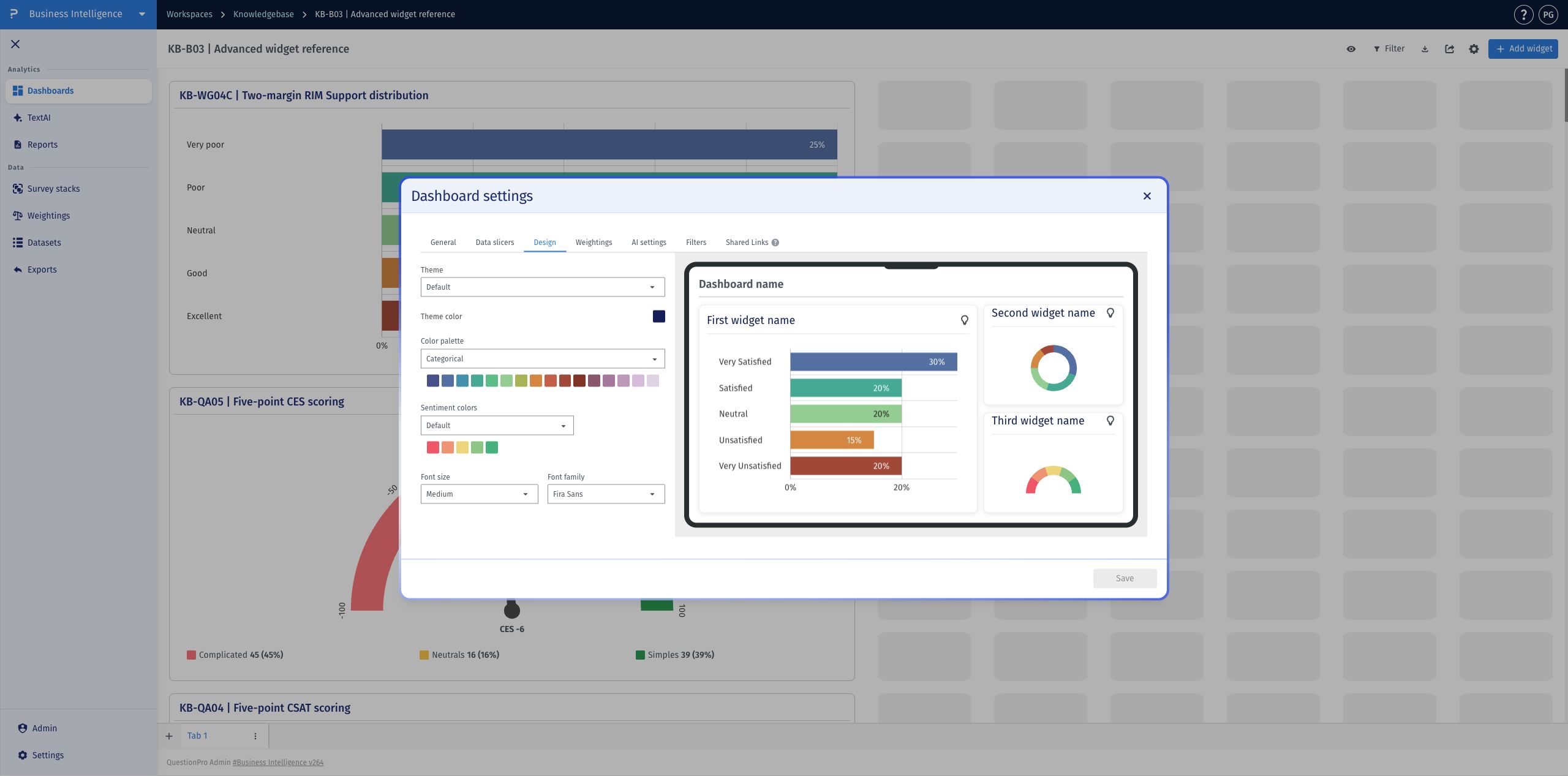
- Choose Font family and Font size. Use the preview on the right to review the dashboard and sample chart appearance.
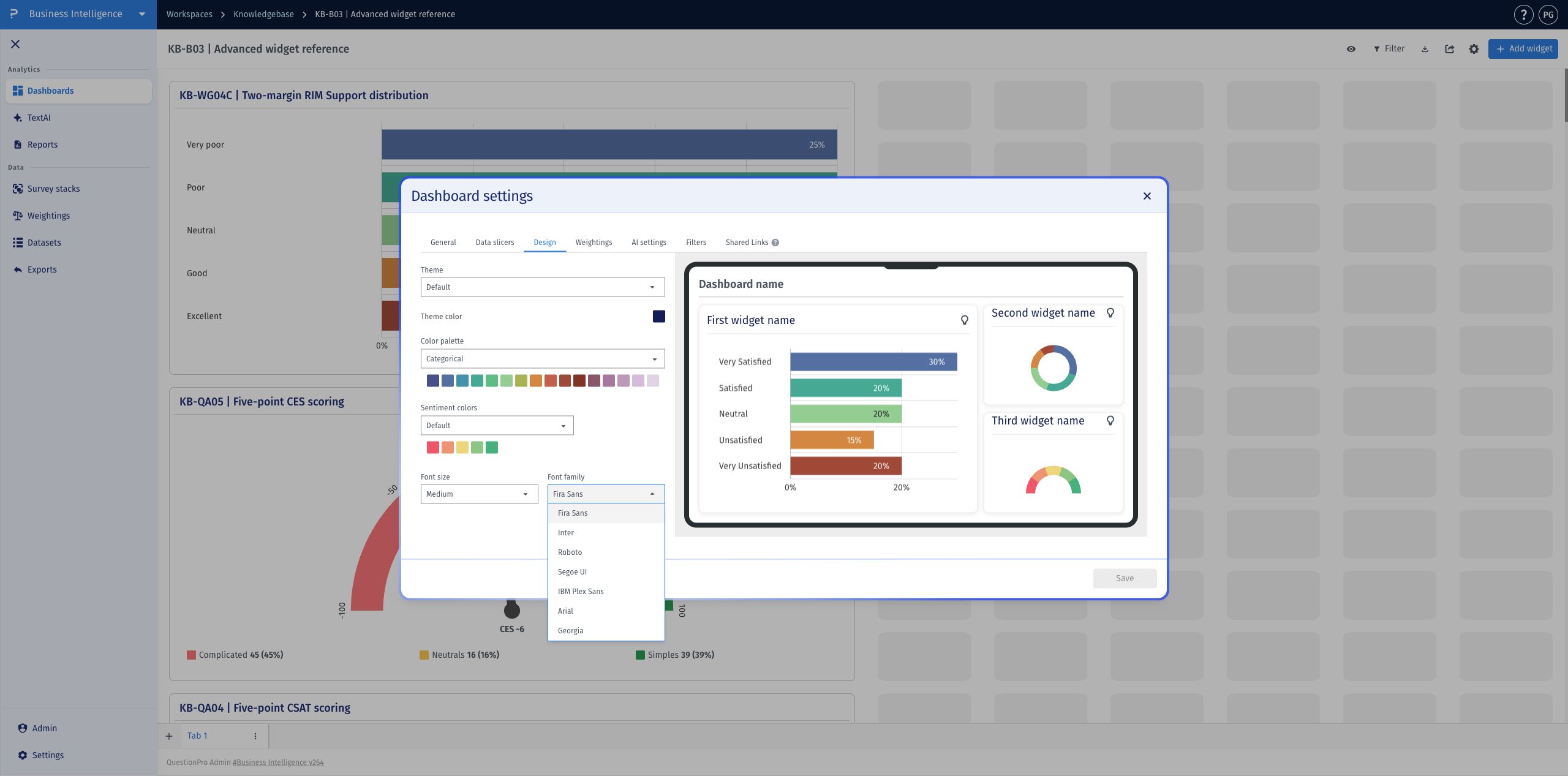
Available font families are Fira Sans, Inter, Roboto, Segoe UI, IBM Plex Sans, Arial, and Georgia.
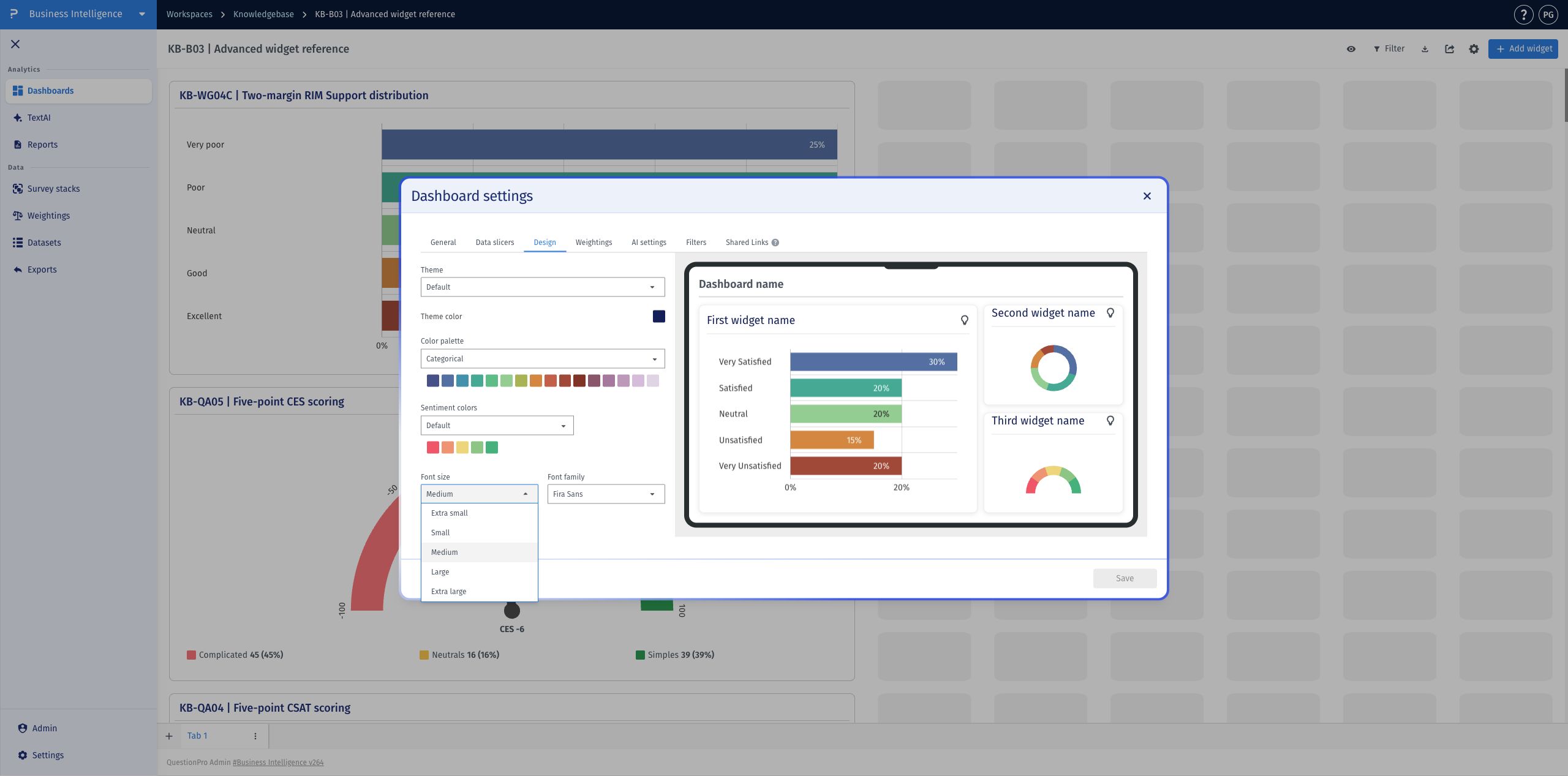
Available font sizes are Extra small, Small, Medium, Large, and Extra large.
- Adjust Theme, Theme color, Color palette, or Sentiment colors as needed. Review the preview before applying the design.
- Click Save to save the dashboard design changes.
- Open the widget's three-dot menu and select Settings.
- Select Design. Under Design type, select the widget option to configure a separate design for this widget.
- Choose the widget's theme, theme color, color palette, font size, and font family from the available controls.
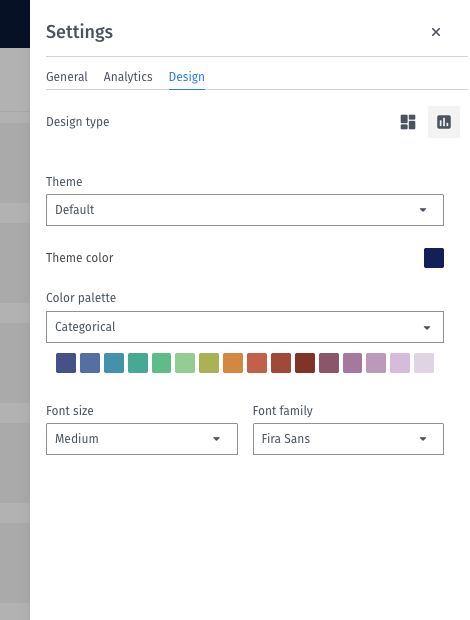
To return to the dashboard design, select the dashboard option under Design type. Widget-specific styling is configured in the widget's settings, while the dashboard-wide design is configured in Dashboard settings.
Can I use a different font for one widget?
Yes. Open the widget's Settings, select Design, and choose the widget option under Design type. You can then select that widget's font family and font size.
How do I make a widget use the dashboard design again?
Open the widget's Settings, select Design, and choose the dashboard option under Design type.
Where do I change colors for sentiment charts?
Open Dashboard settings, select Design, and use Sentiment colors. The preview lets you review the selected colors before saving.
Which fonts and sizes can I choose?
BI provides seven font families: Fira Sans, Inter, Roboto, Segoe UI, IBM Plex Sans, Arial, and Georgia. Font size choices are Extra small, Small, Medium, Large, and Extra large.
