


Impact on KPI in TextAI
Impact on KPI connects open-ended feedback with the measures your team tracks. The widget brings themes and sub-themes, their KPI scores, observed impact, response counts and share of the analysis base into one table. Use it to see which experiences are associated with stronger or weaker results and decide where to investigate first.
Choose a KPI question linked to the same survey response or dataset row as the feedback. Configure its calculation as NPS, CSAT, CES or Mean, then compare topics and open their underlying comments. A named KPI and consistent calculation help teams move from a broad score to specific customer experiences and a clearer discussion of priorities.
Watch this video to learn how to connect feedback themes to a KPI in TextAI:
Click to download the video
Start with a TextAI dashboard containing analyzed feedback and a KPI answer linked to the same response or row.
1. Open the TextAI dashboard containing the analyzed feedback you want to explore.

2. Click Add widget.

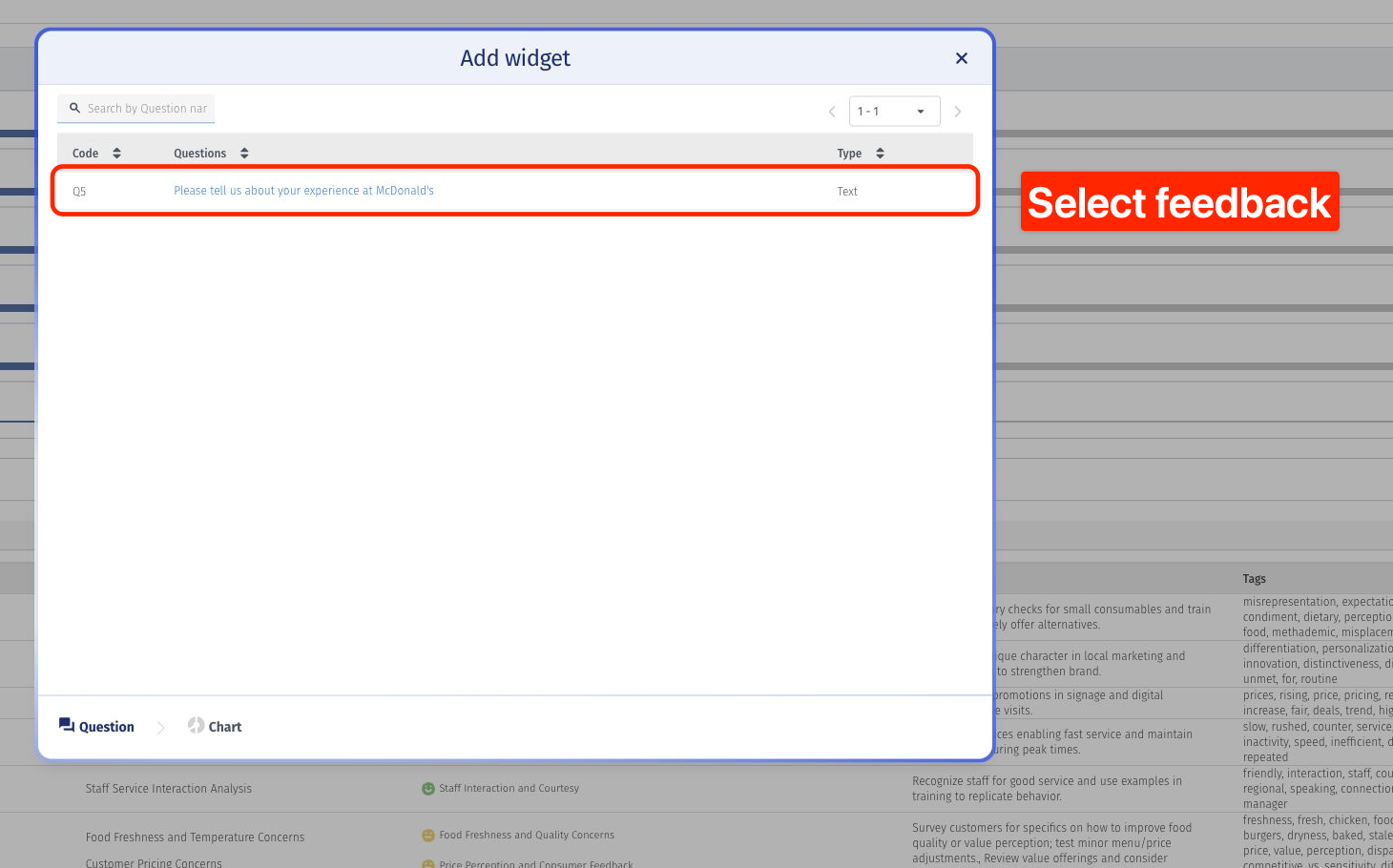
3. Select the text question or dataset field from the questions table. Use search to find it.
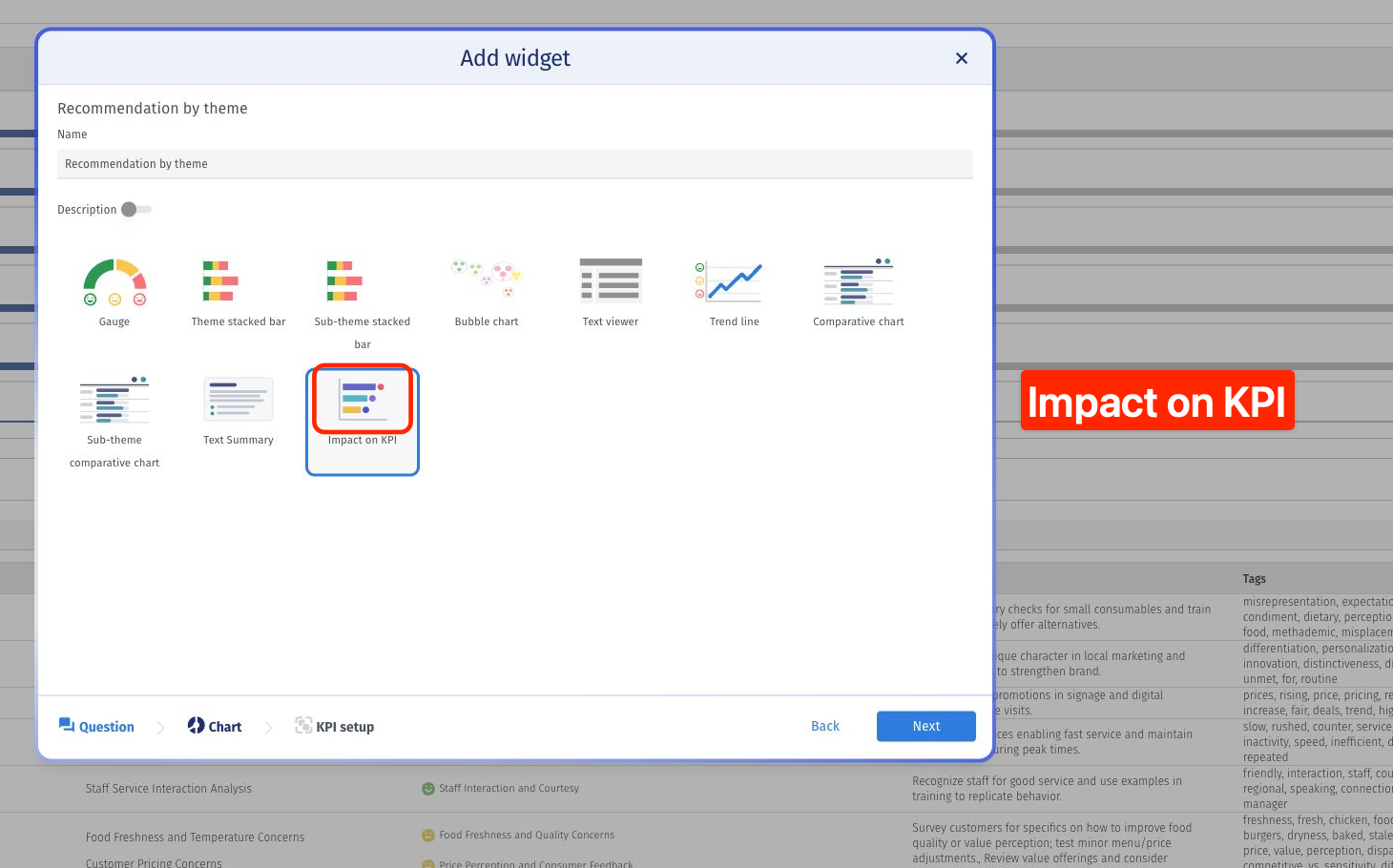
4. Enter a widget name and choose Impact on KPI.
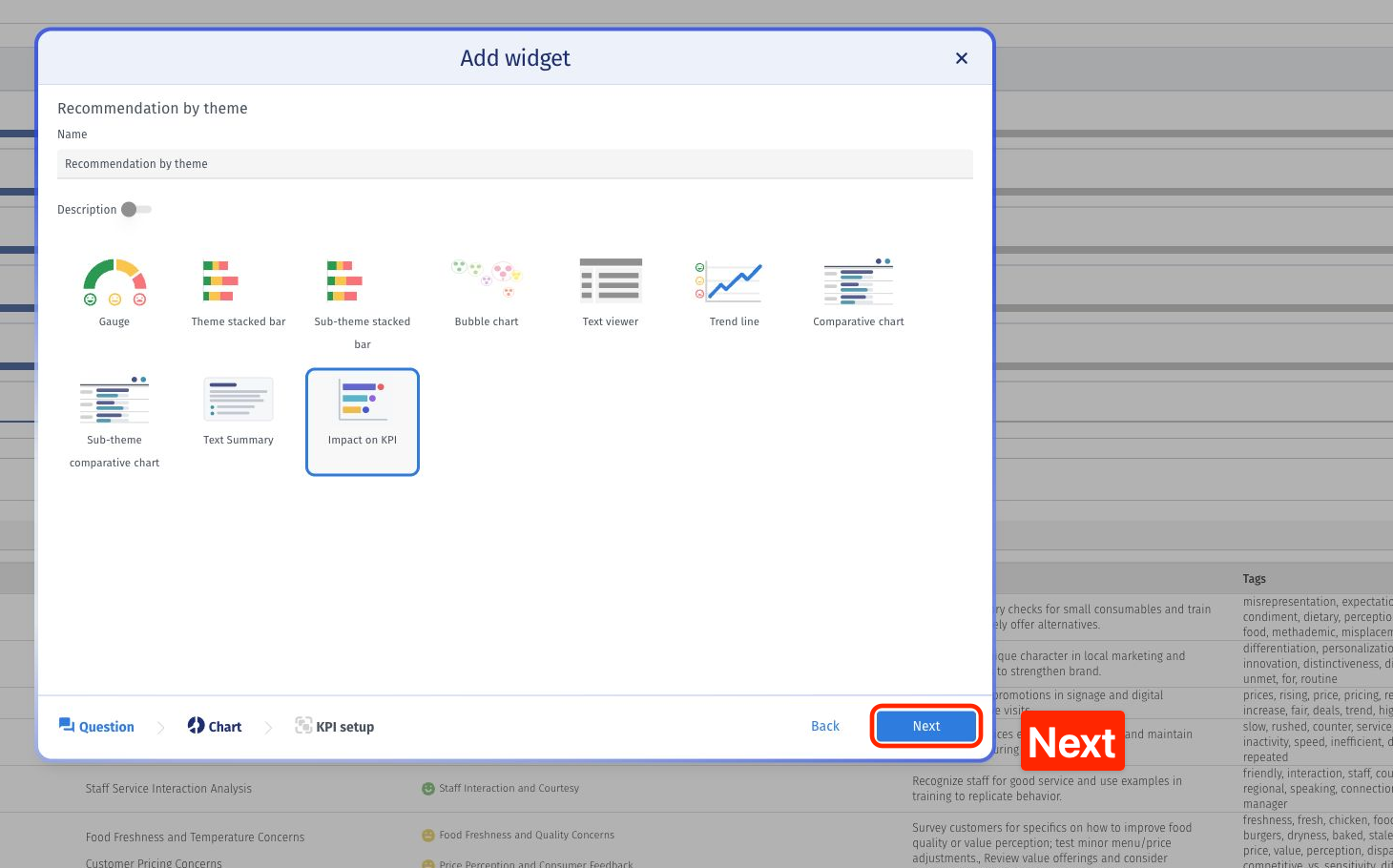
5. Click Next to open KPI setup.
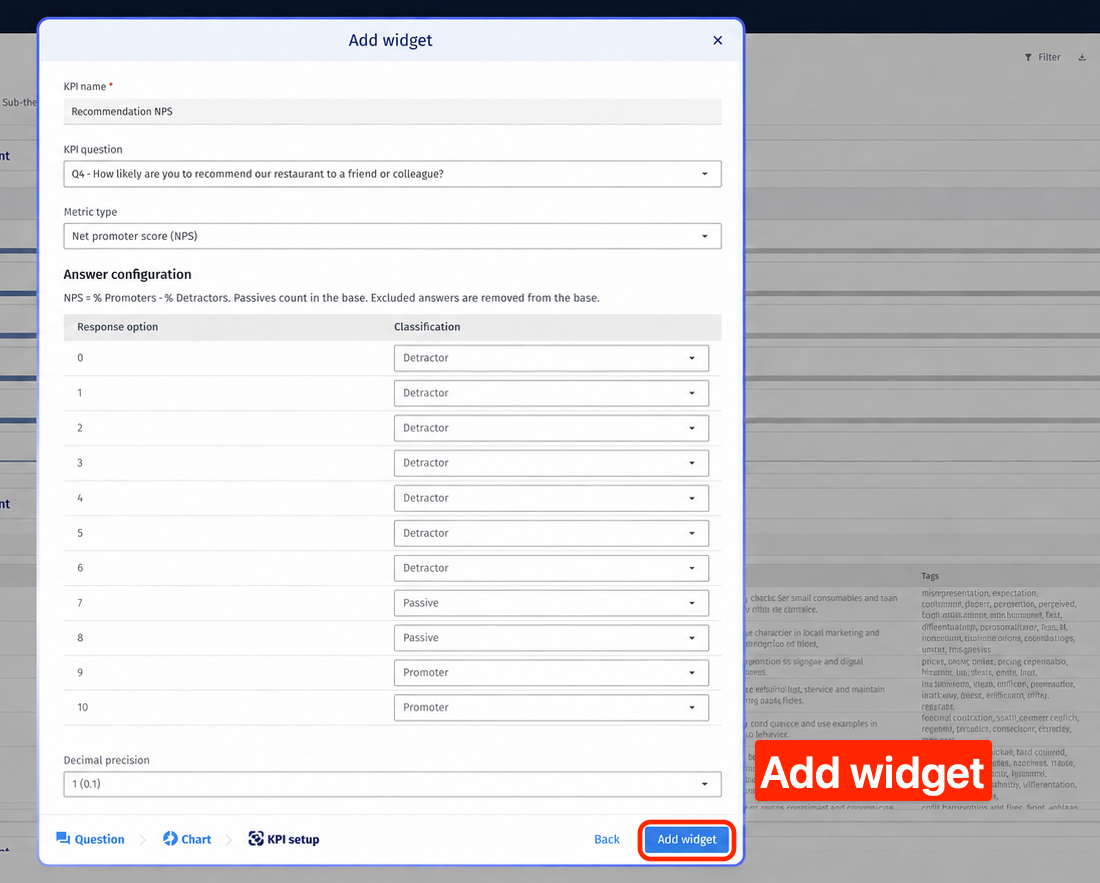
6. Give the KPI a name that reflects what it measures. In this example, we use Recommendation NPS. The name becomes the metric column heading.
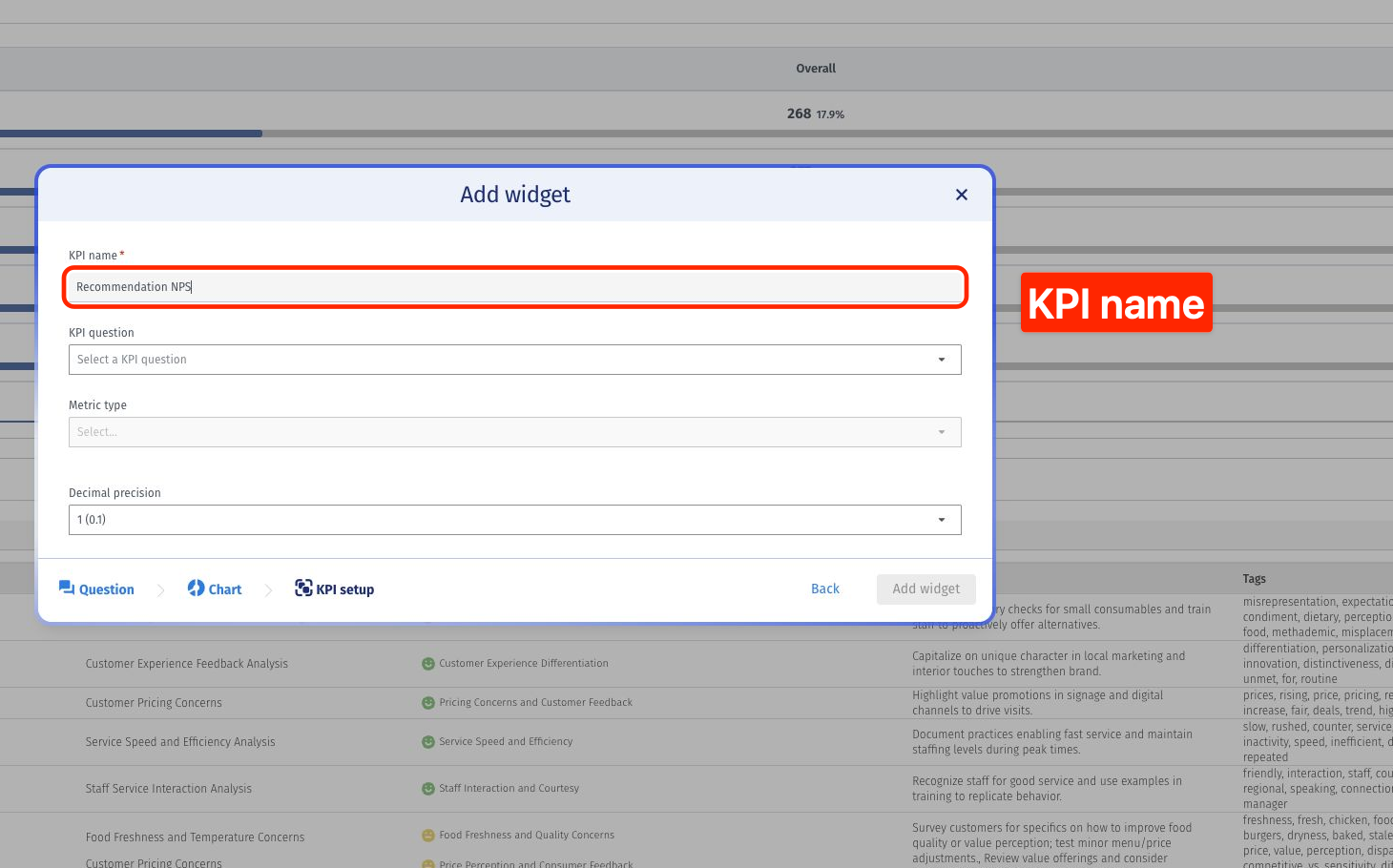
7. Select the KPI question linked to the feedback. This example uses the likelihood-to-recommend question.
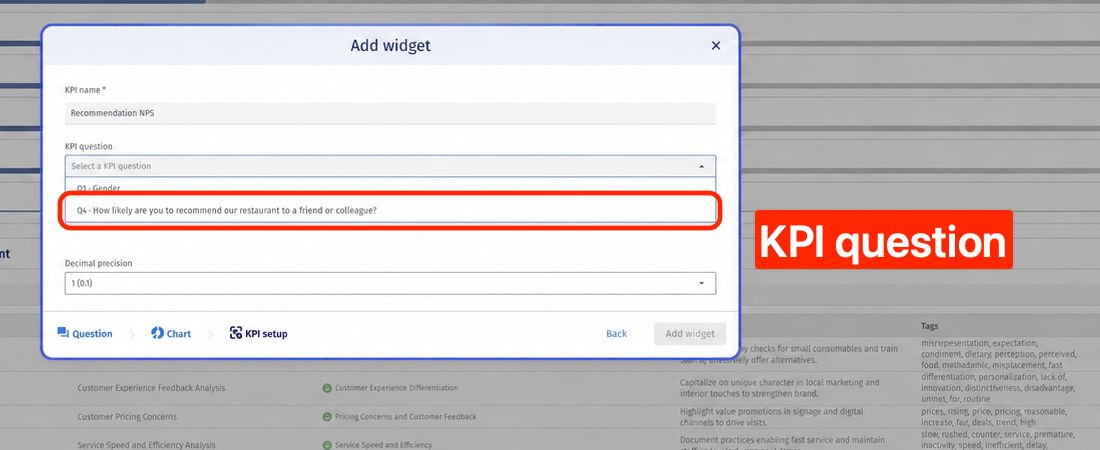
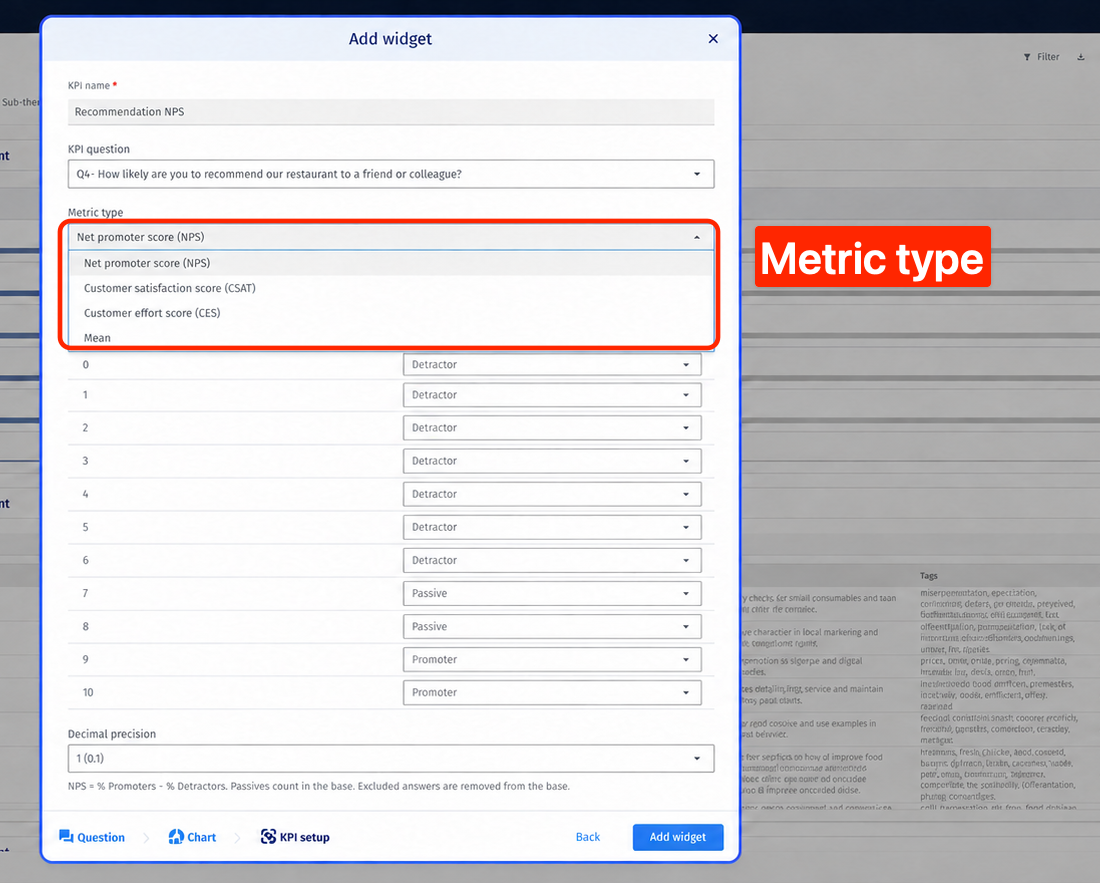
8. Select the metric type: NPS, CSAT, CES or Mean. For this example, choose Net promoter score (NPS).
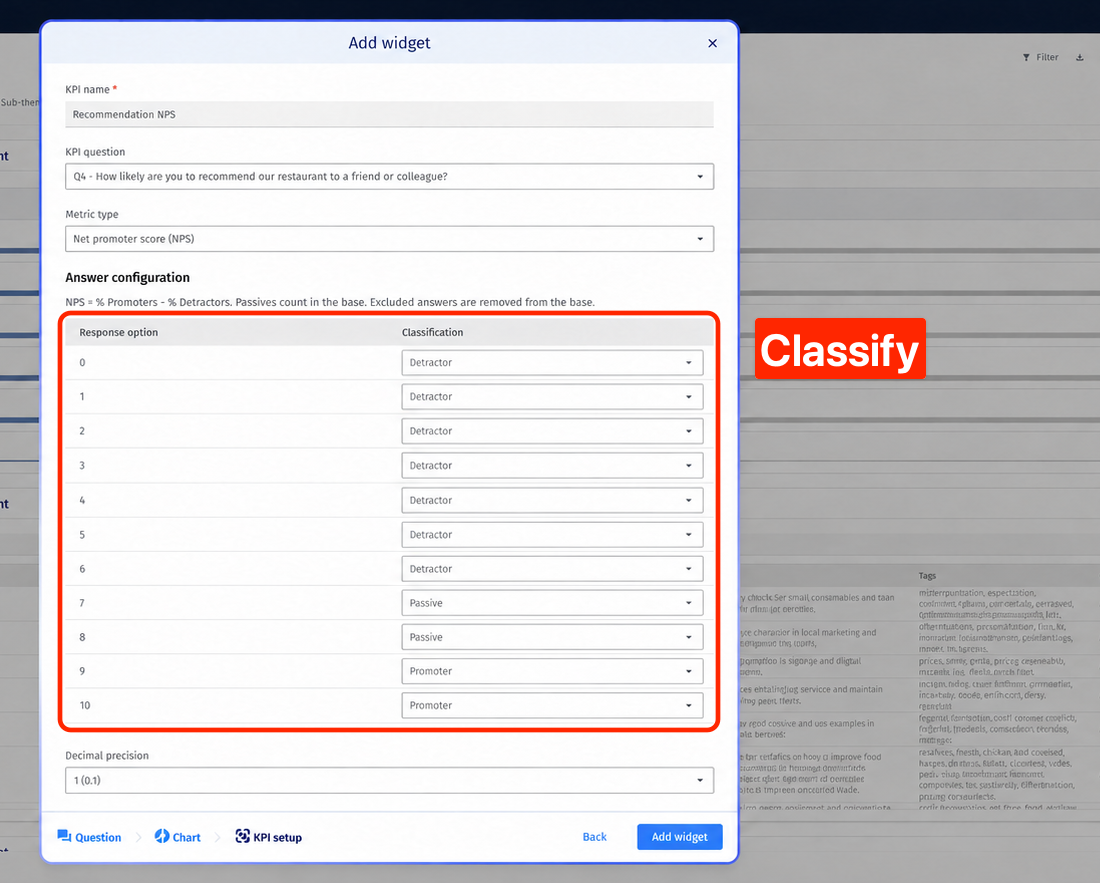
9. Configure the classifications for the available answers. For this 0–10 NPS example, classify 0–6 as Detractor, 7–8 as Passive and 9–10 as Promoter.
10. Select the decimal precision for the displayed results.
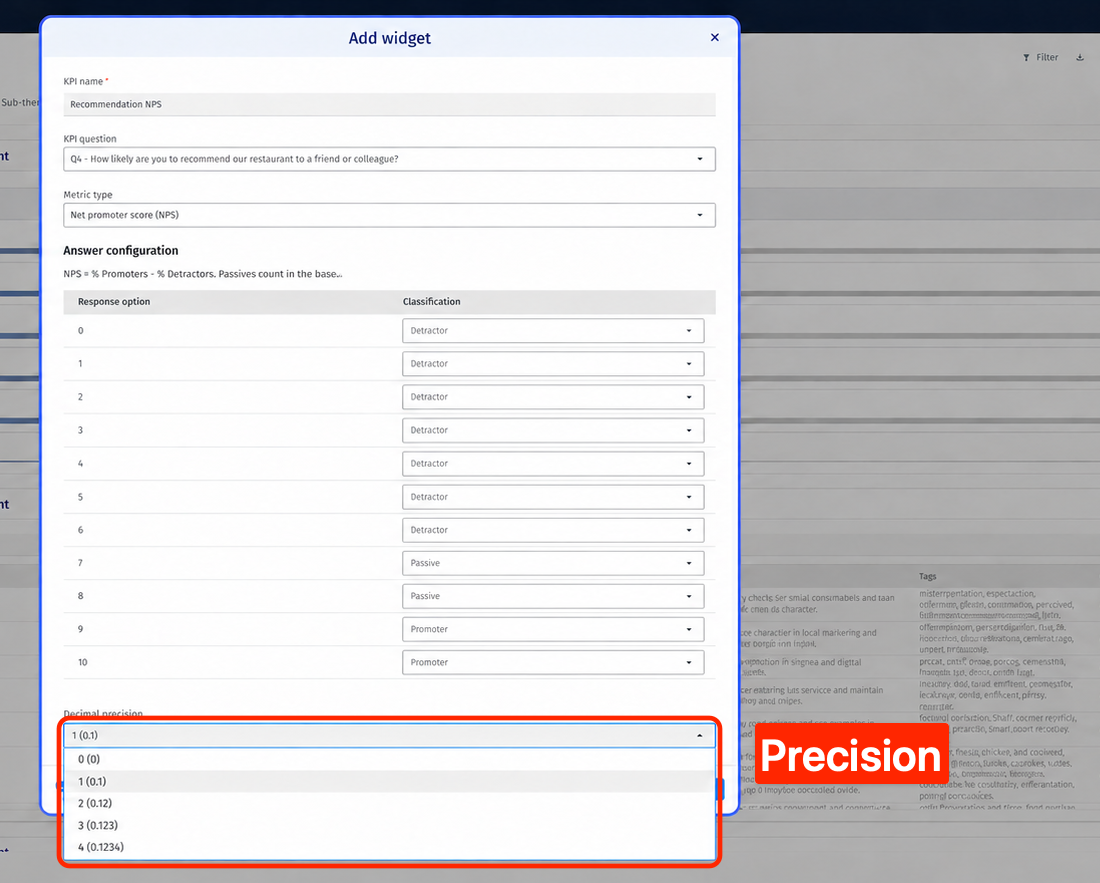
11. Click Add widget to create the table.
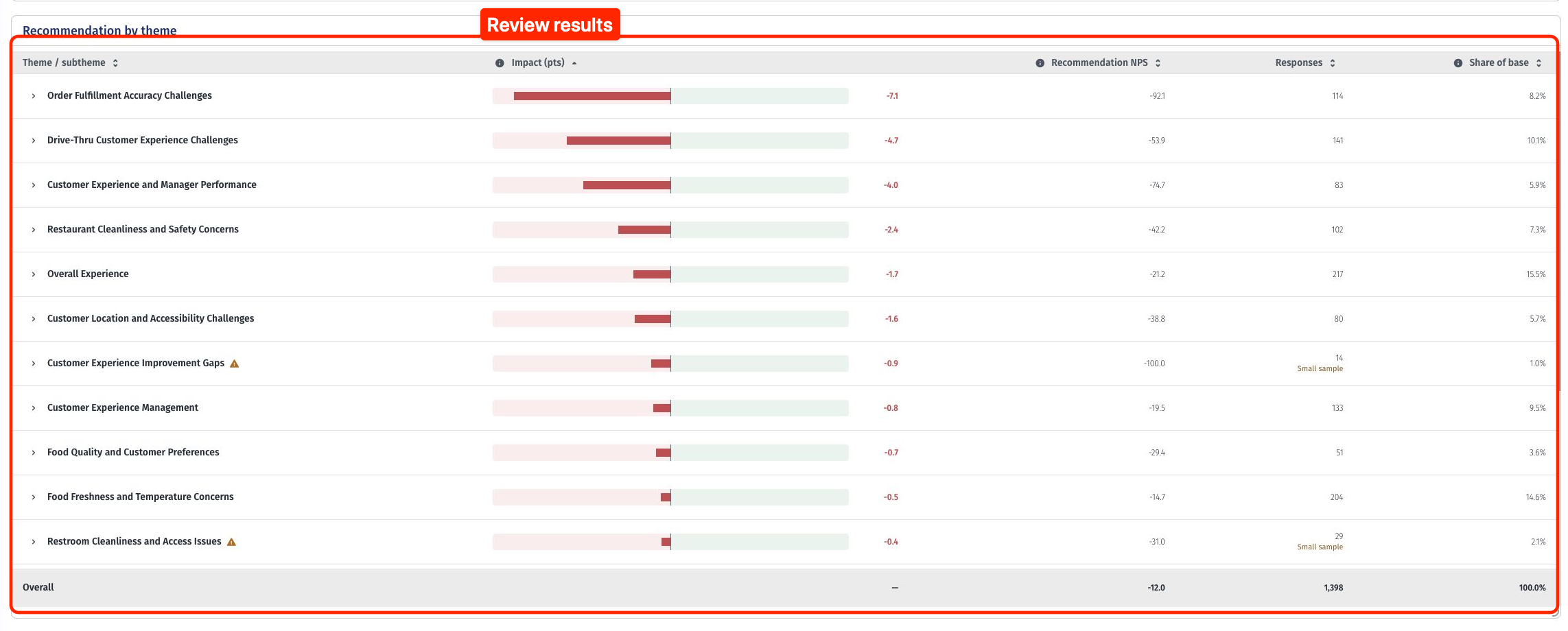
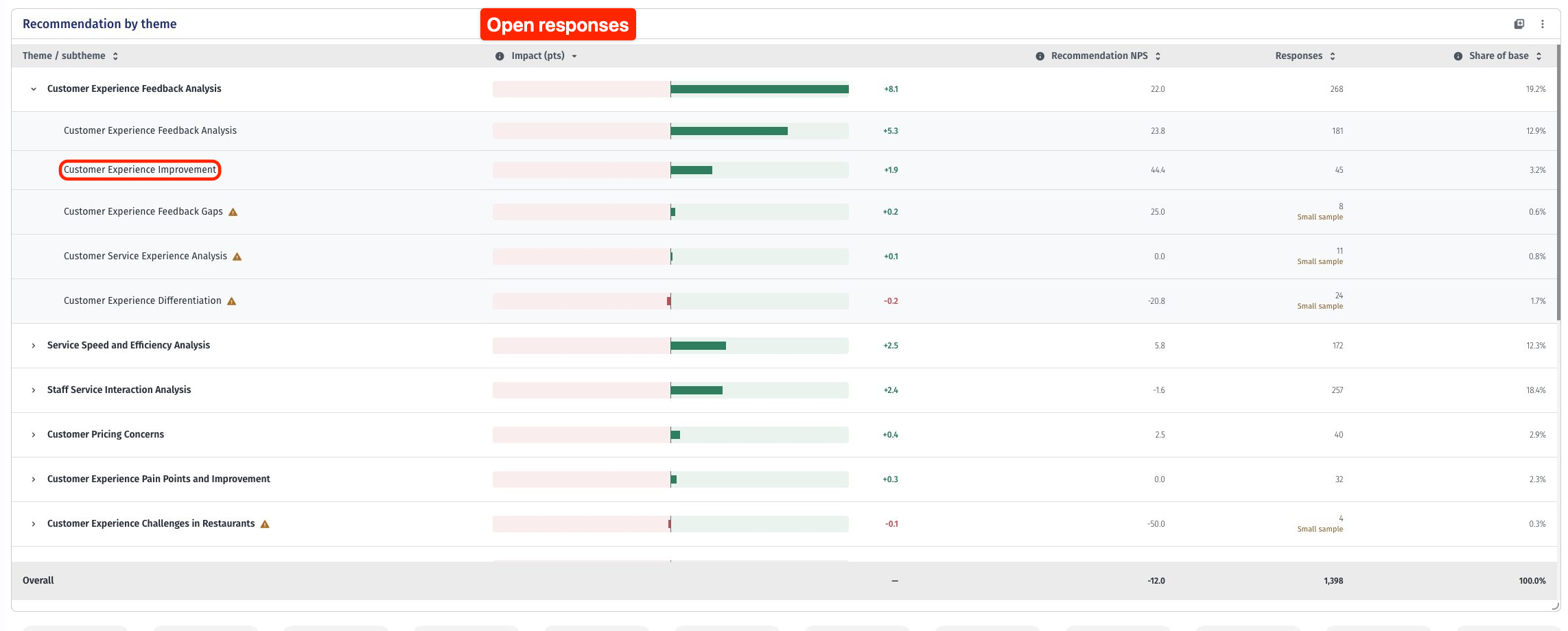
1. View the themes and their KPI scores, impact, response counts and share of base in the table. Scroll within the table to see more themes.
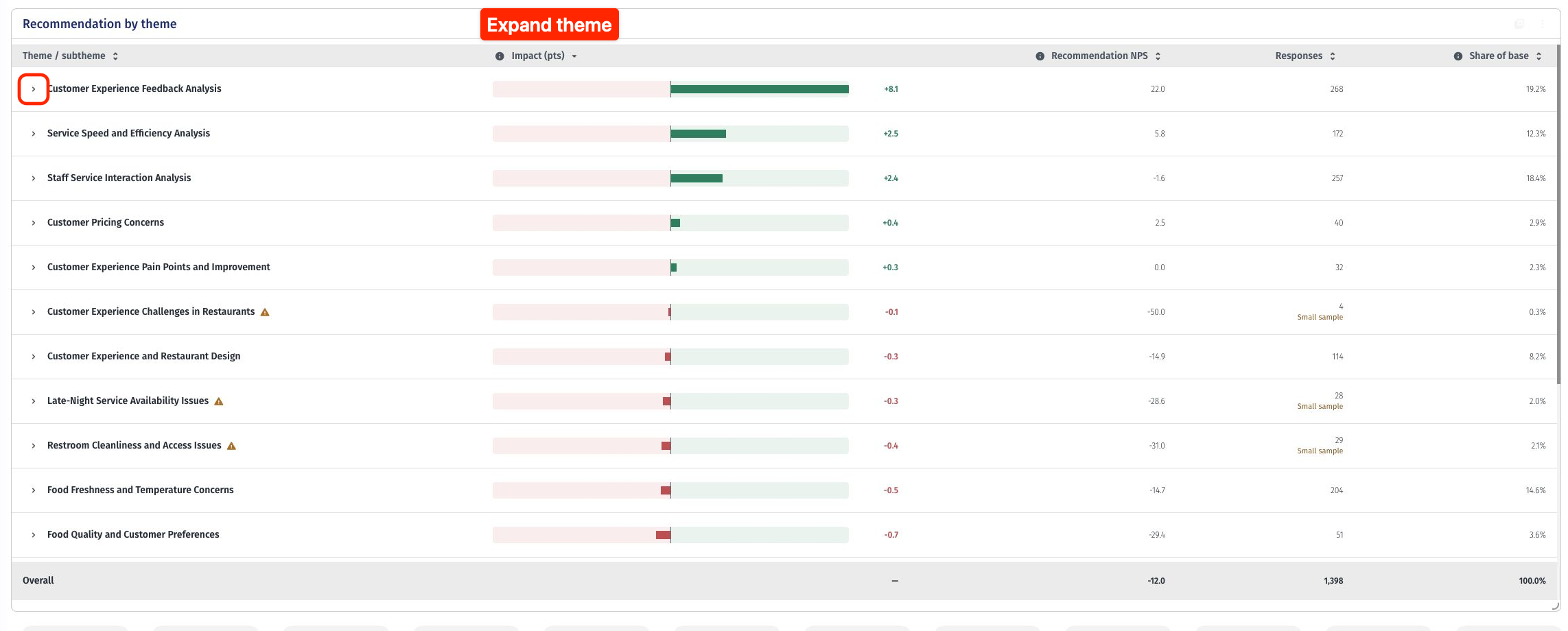
2. Click the arrow beside a theme to view its sub-themes. Use the Expand all sub-themes icon to expand all themes.
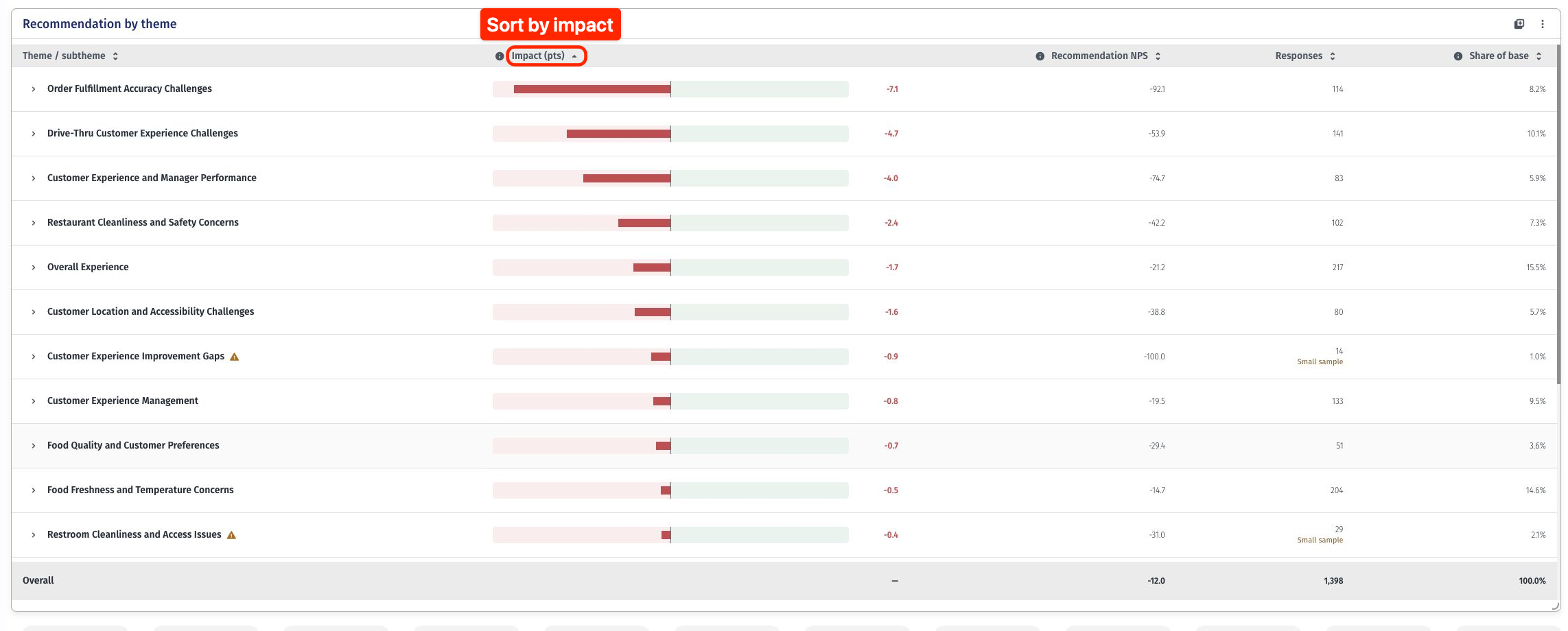
3. Click a column heading to sort by theme or sub-theme, impact, KPI score, responses or share of base. Click it again to reverse the sort order. The Overall row stays at the bottom.
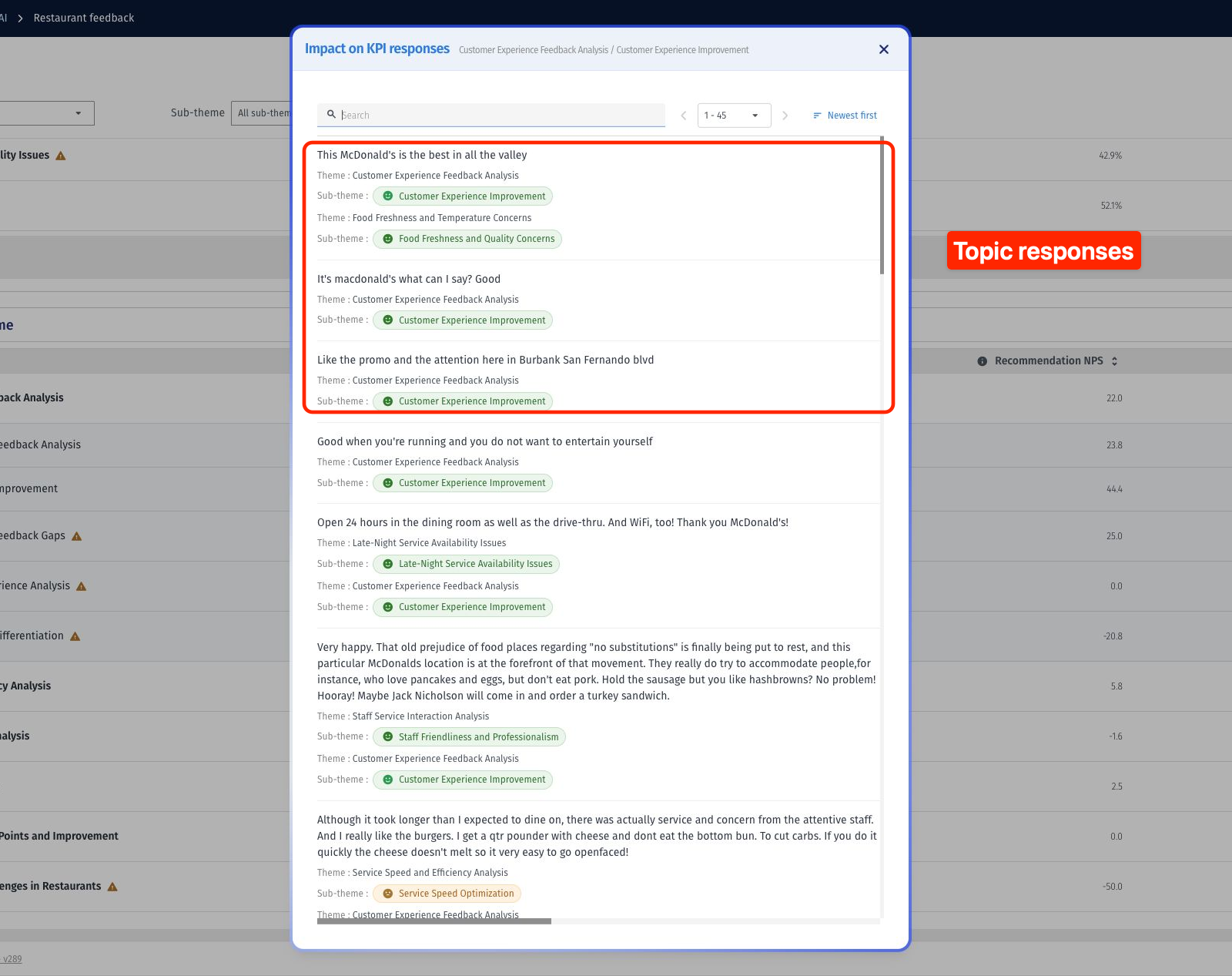
1. Click a theme name to view its responses. To view a sub-theme’s responses, expand its theme and click the sub-theme name.
2. Read the comments to understand the experiences behind the topic’s numbers.
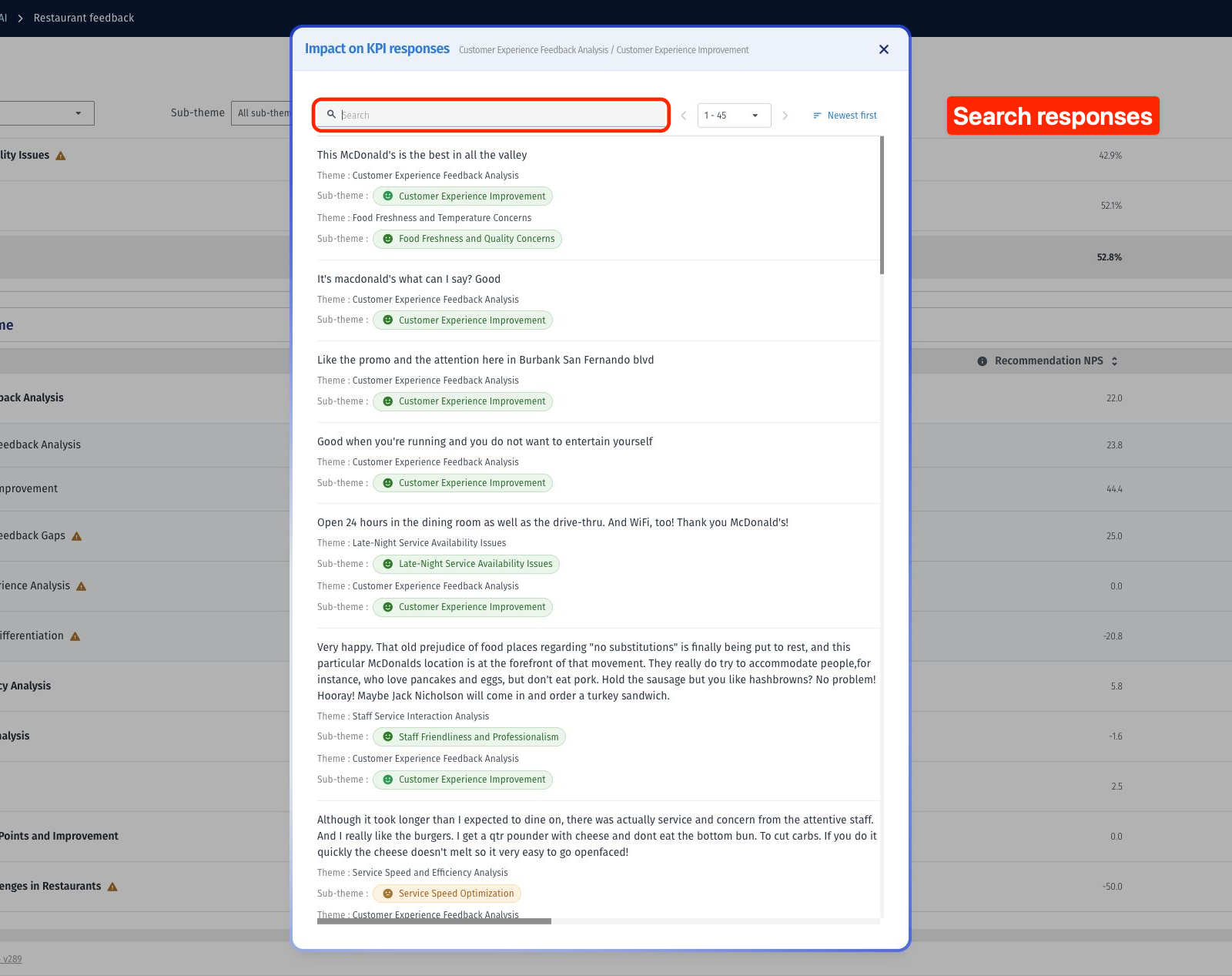
3. Use search to find specific words in the responses.
Theme / sub-theme: The topic identified in the analyzed feedback. Expand a theme to see its sub-themes; click a topic name to open its responses.
KPI score: The configured metric calculated for eligible responses that mention the topic. The column heading uses your KPI name.
Impact: Overall KPI minus the KPI for eligible responses that do not mention the topic. A positive value means including the topic group is associated with a higher overall score; a negative value means a lower score. Interpret the direction using the metric’s scale. Differences between percentage scores are percentage points.
Responses: The number of distinct eligible responses mentioning the topic.
Share of base: Responses mentioning the topic ÷ all eligible responses × 100.
Overall: The KPI for all eligible responses, their total count and 100% of the base.
Eligible responses have analyzed text and a valid, included KPI answer. Each response is counted once within a topic. A response can belong to multiple topics, so topic shares and impacts should be read separately rather than added together. Header information icons explain the calculations.
