


Sub-theme Comparative Chart Widget in TextAI
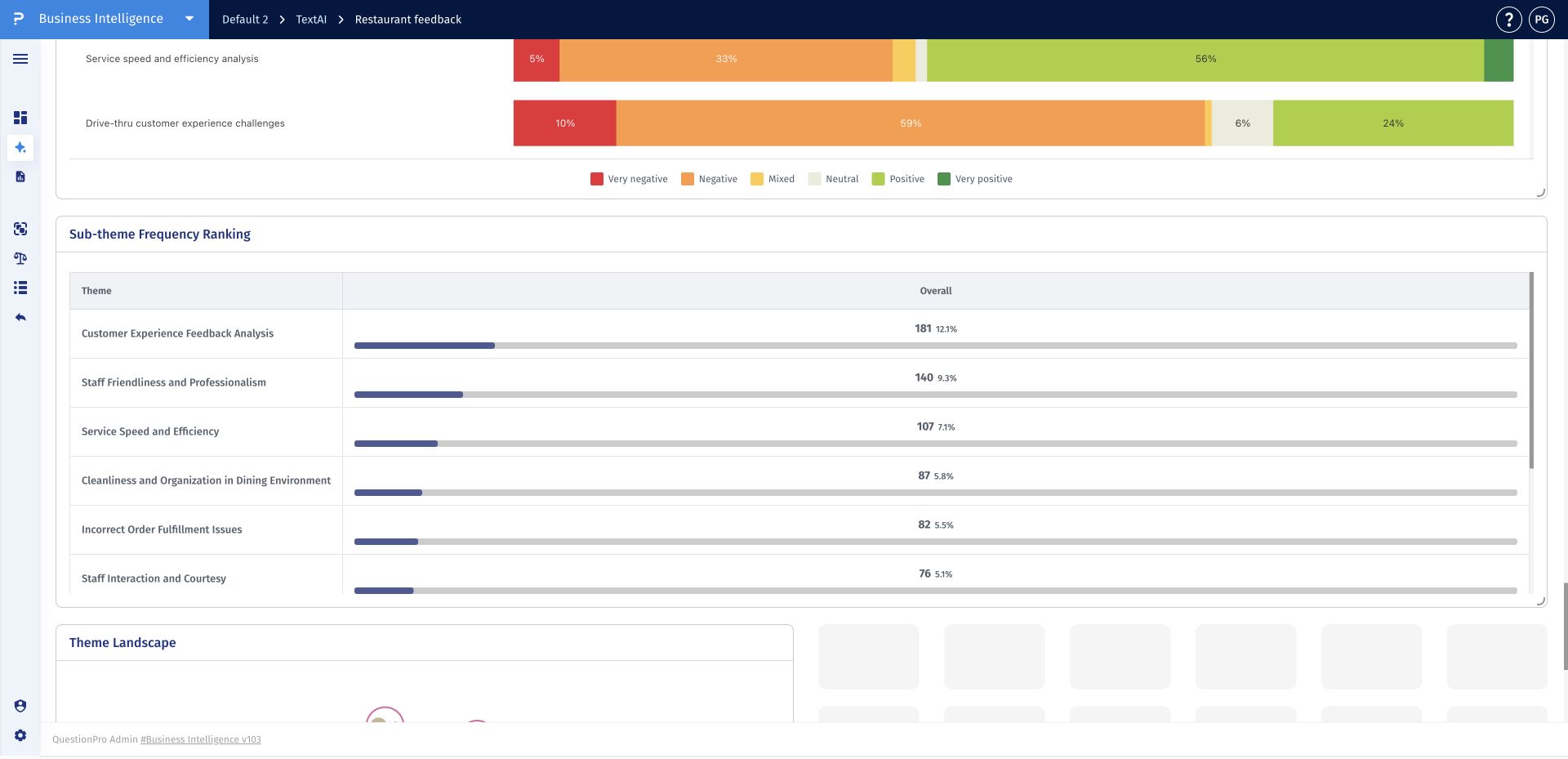
The Sub-theme comparative chart widget ranks the detailed sub-themes detected within an open-ended question. It displays counts, percentages, and horizontal bars so analysts can compare the prominence of specific issues and experiences.
Use this widget after themes have identified the broad areas that matter. The detailed ranking provides a more precise view of the categories contributing to each theme and helps teams choose focused follow-up actions.
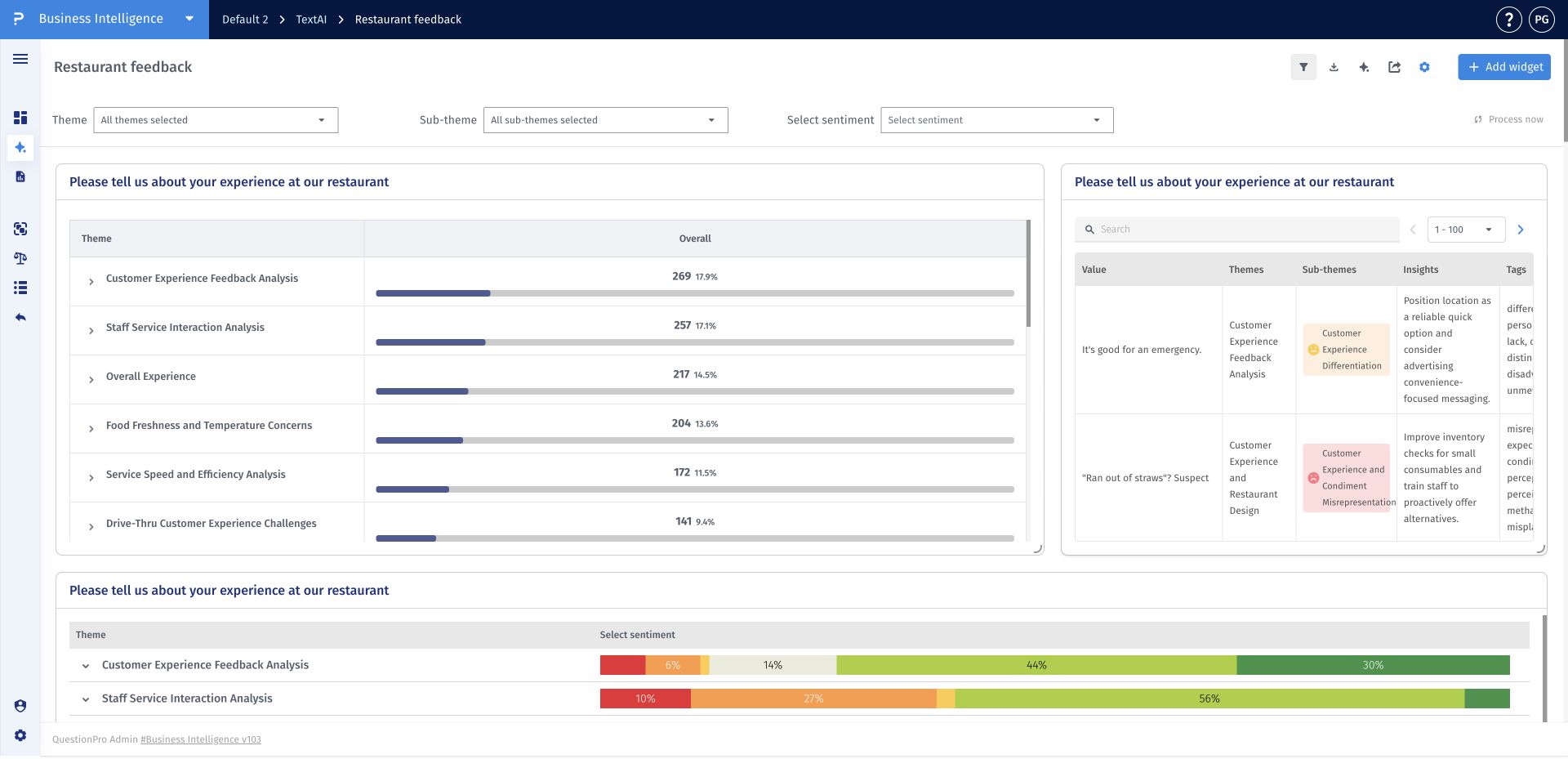
- Step 1: Open a TextAI dashboard and click Add widget.
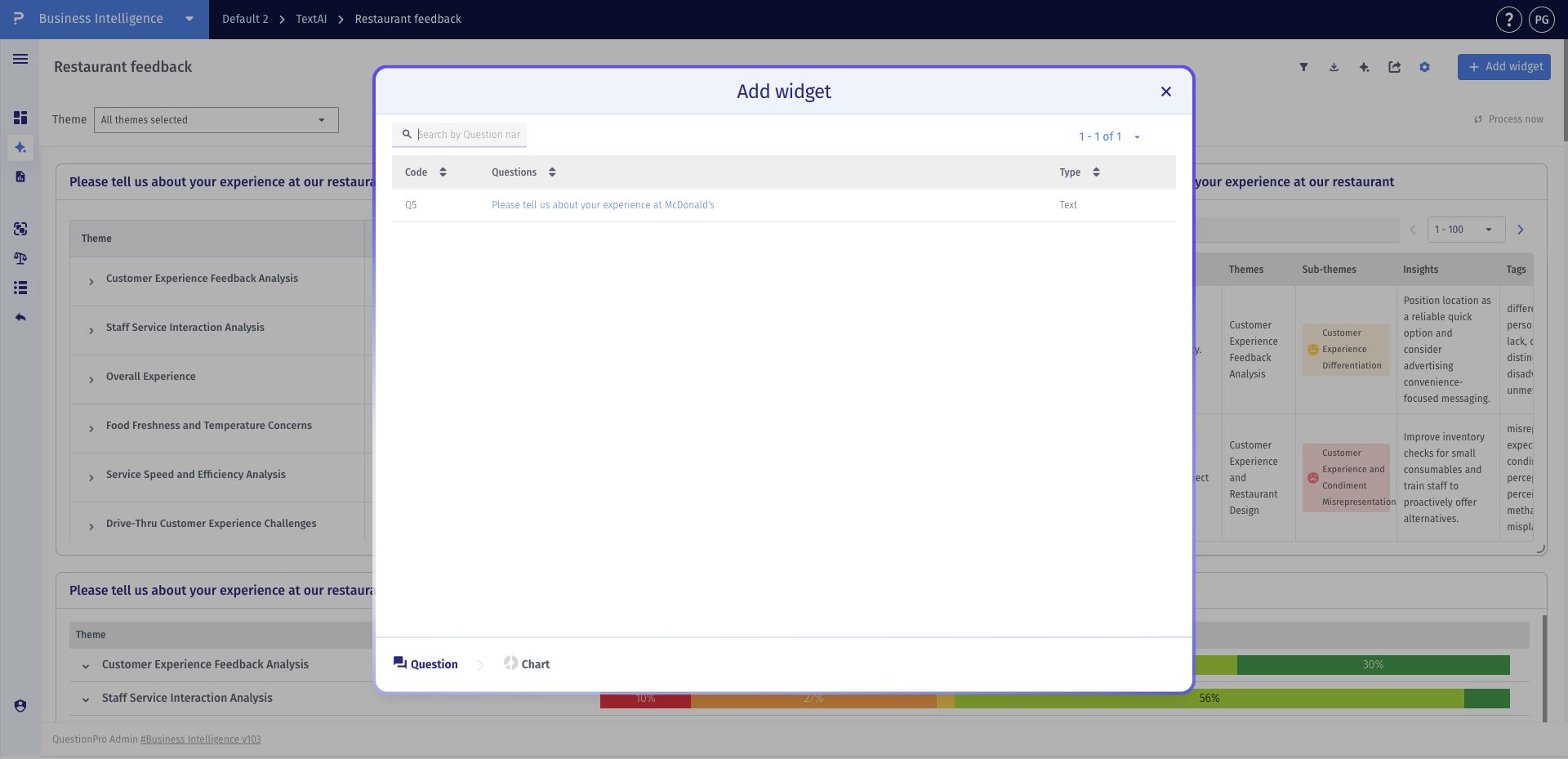
- Step 2: Select the open-ended question whose sub-themes you want to compare.
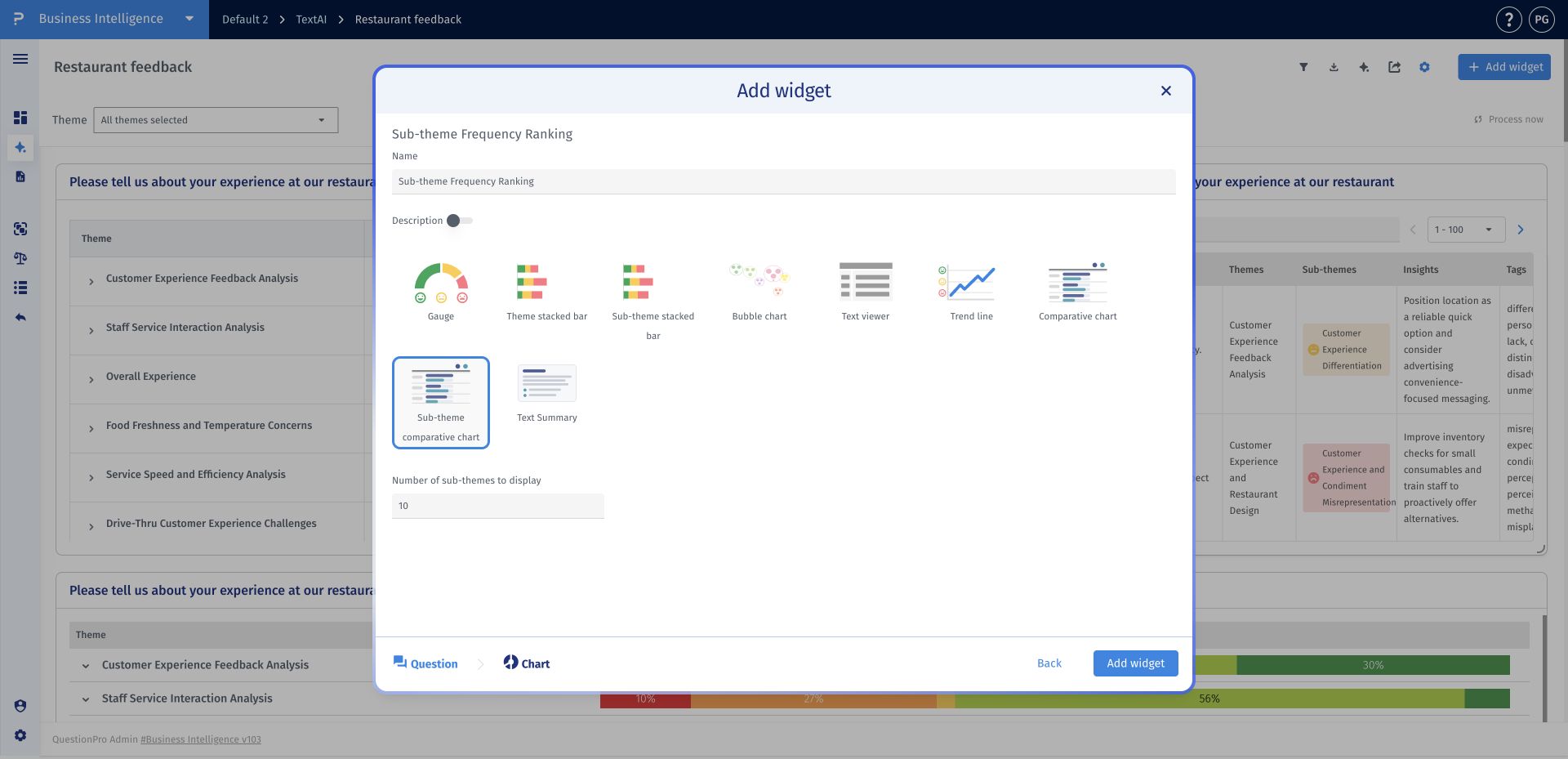
- Step 3: Choose Sub-theme comparative chart, enter a clear widget name, and click Add widget.
- Step 4: Compare the count, percentage, and horizontal bar for each sub-theme to identify the most prominent detailed categories.
How do I choose how many sub-themes appear in the chart?
When adding the widget, choose Sub-theme comparative chart and set Number of sub-themes to display. The default is 10. Use a smaller number for a focused ranking or a larger number when you want to show more of the available sub-themes, then click Add widget.
Does the displayed ranking show my entire codebook?
Not necessarily. The widget displays the number of sub-themes selected during setup. Review the full codebook in Theme Configuration when you need to inspect categories beyond that ranking.
Can one response be counted under more than one sub-theme?
Yes. A response can be assigned to several sub-themes when it discusses several issues. Adding sub-theme counts together therefore does not necessarily give the number of distinct responses.
How should I compare counts and percentages?
Counts show the response volume associated with a sub-theme. Percentages put that volume in the context of the applicable response base. Review the selected question, segment, and active filters before comparing percentages across views.
This feature is available with the following licenses :
Research Edition Communities Customer Experience Employee Experience University - Research Edition
