


Theme Configuration in TextAI
Theme Configuration in QuestionPro TextAI helps you review and manage the themes and sub-themes generated from open-ended responses. From this dashboard, you can search responses, filter by individual or multiple sub-themes, explore raw coded data, and review response distribution across your dataset.
The configuration workflow also lets you refine the AI-generated structure by creating new themes and sub-themes, merging related sub-themes, assigning responses manually, removing tags, and running recoding. This gives teams more control over how qualitative feedback is categorized before continuing with deeper analysis.
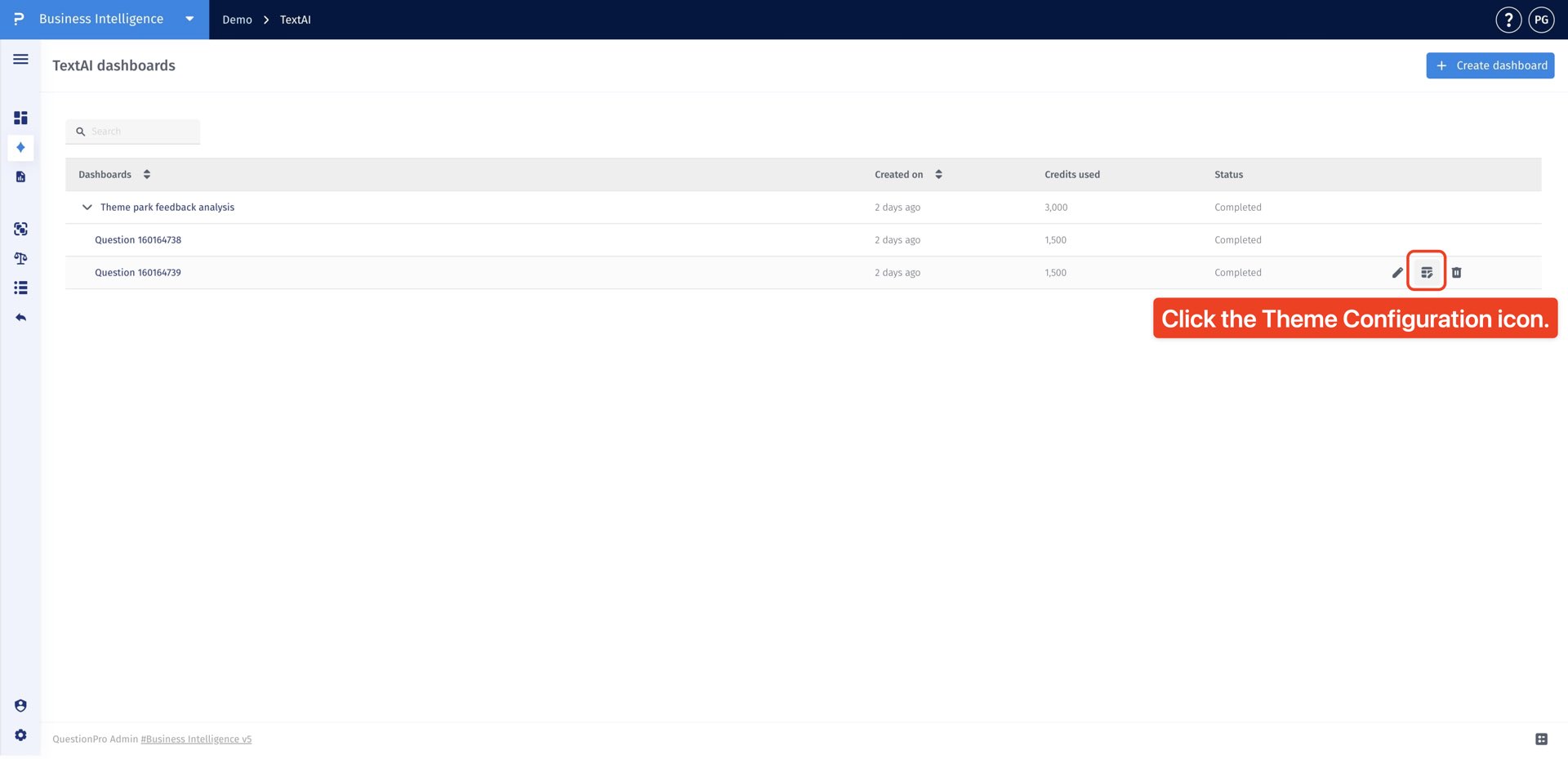
- Hover over the TextAI dashboard name in the dashboard list and click the Theme Configuration icon from the available actions.
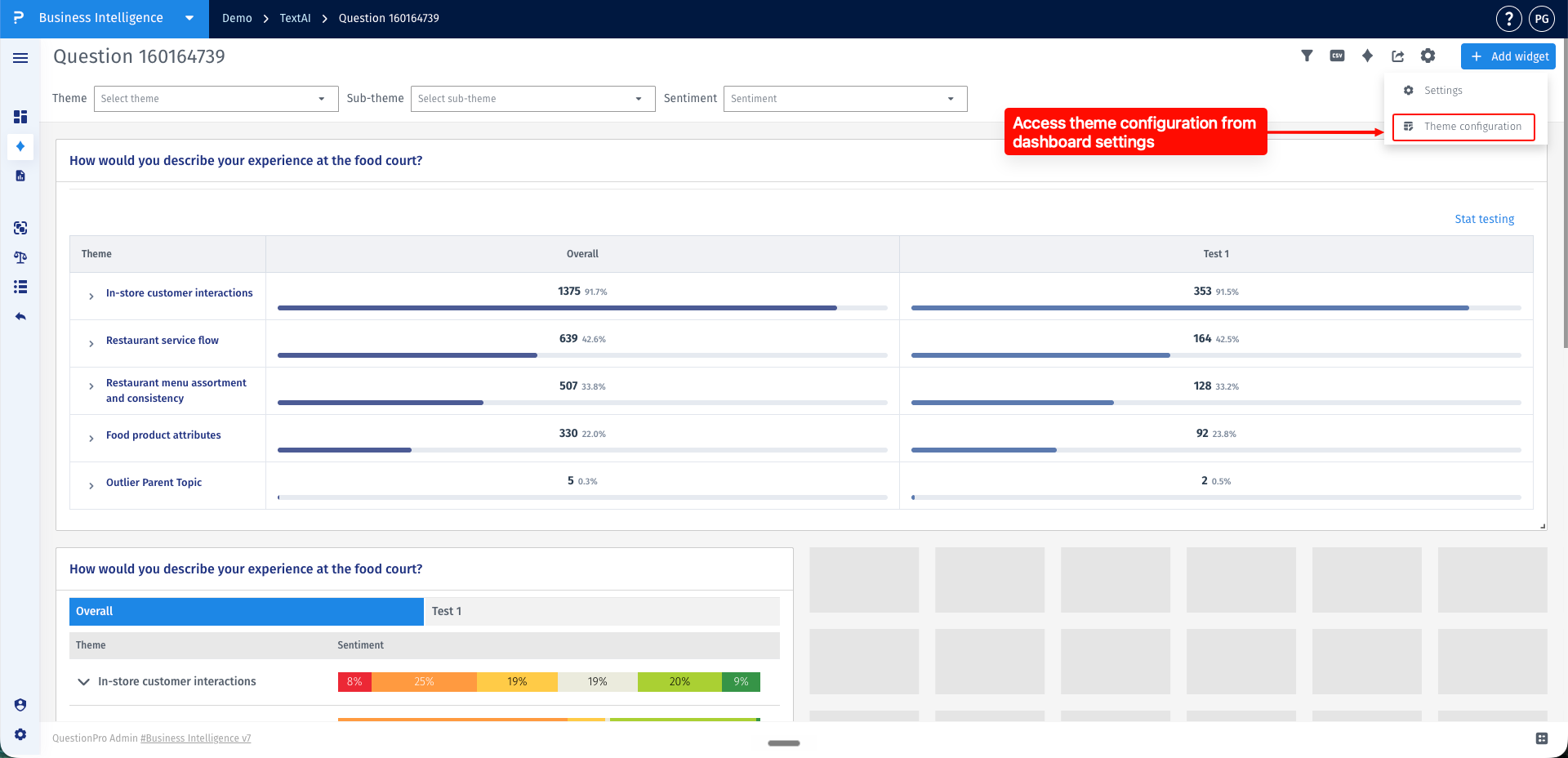
- Alternatively, open the TextAI dashboard, click the Settings icon in the top-right corner, and select Theme Configuration from the available options.
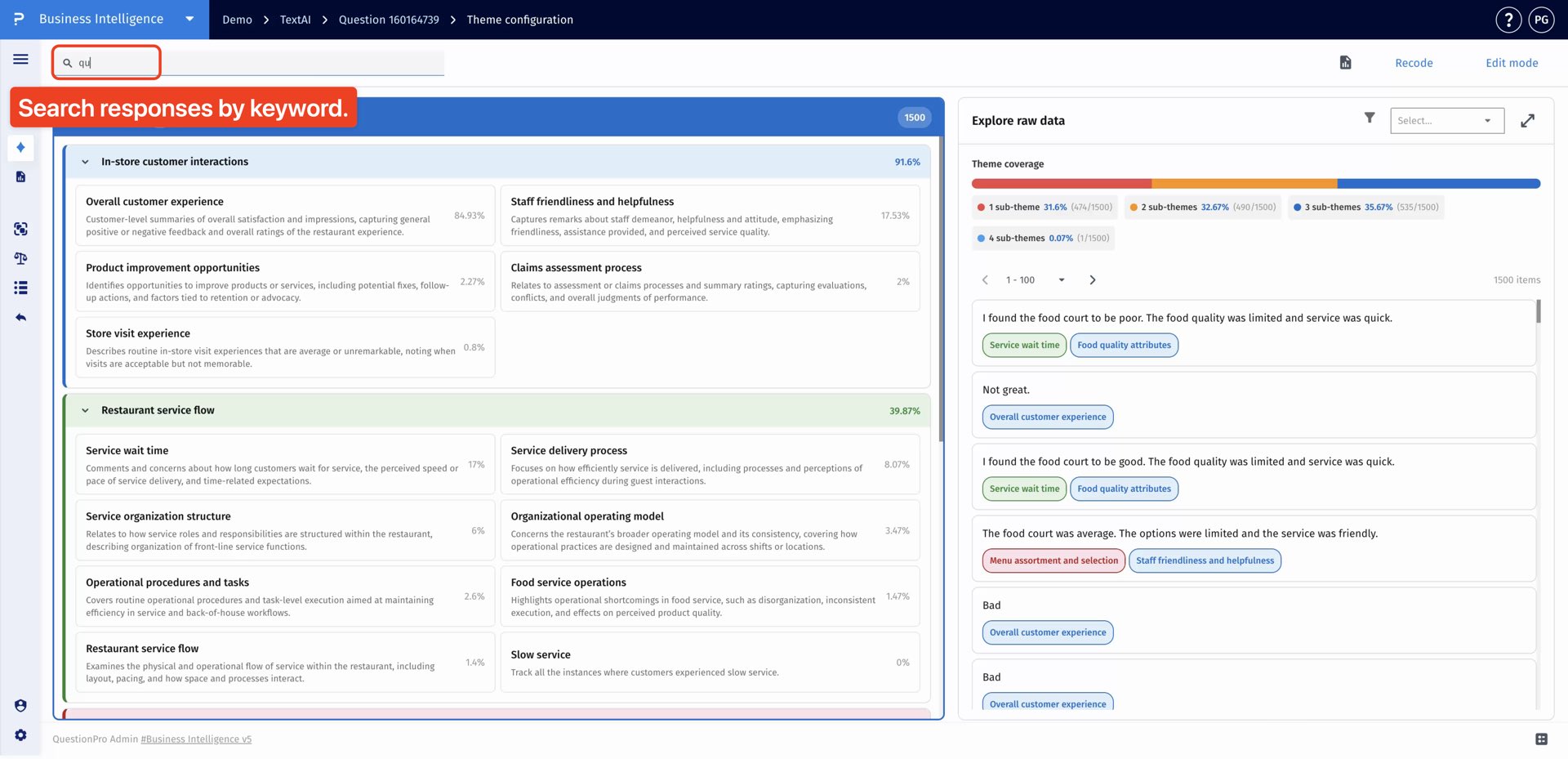
- Use the search bar to filter responses by keyword.
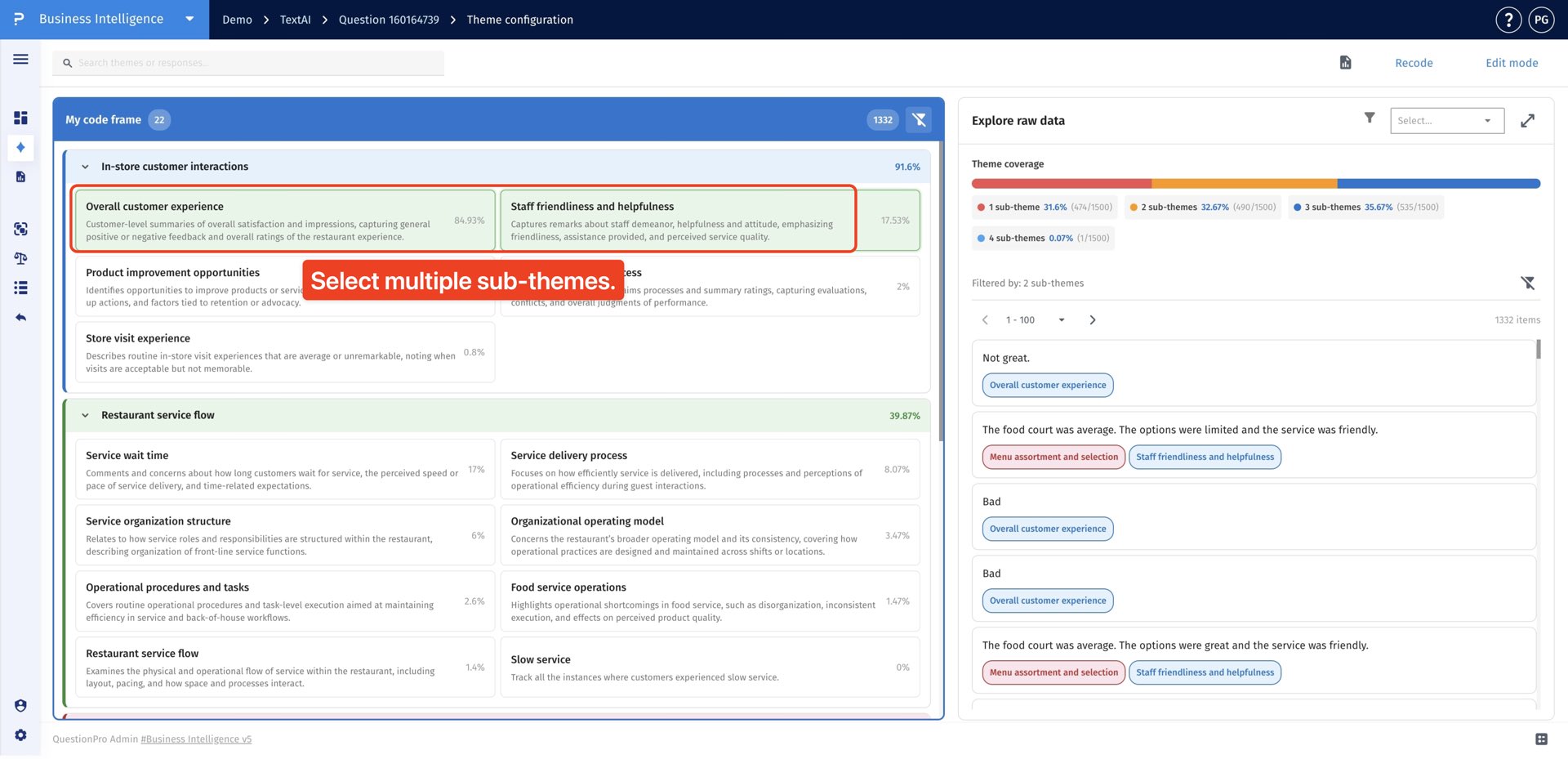
- Select single or multiple sub-themes when you want to filter responses across several categories.
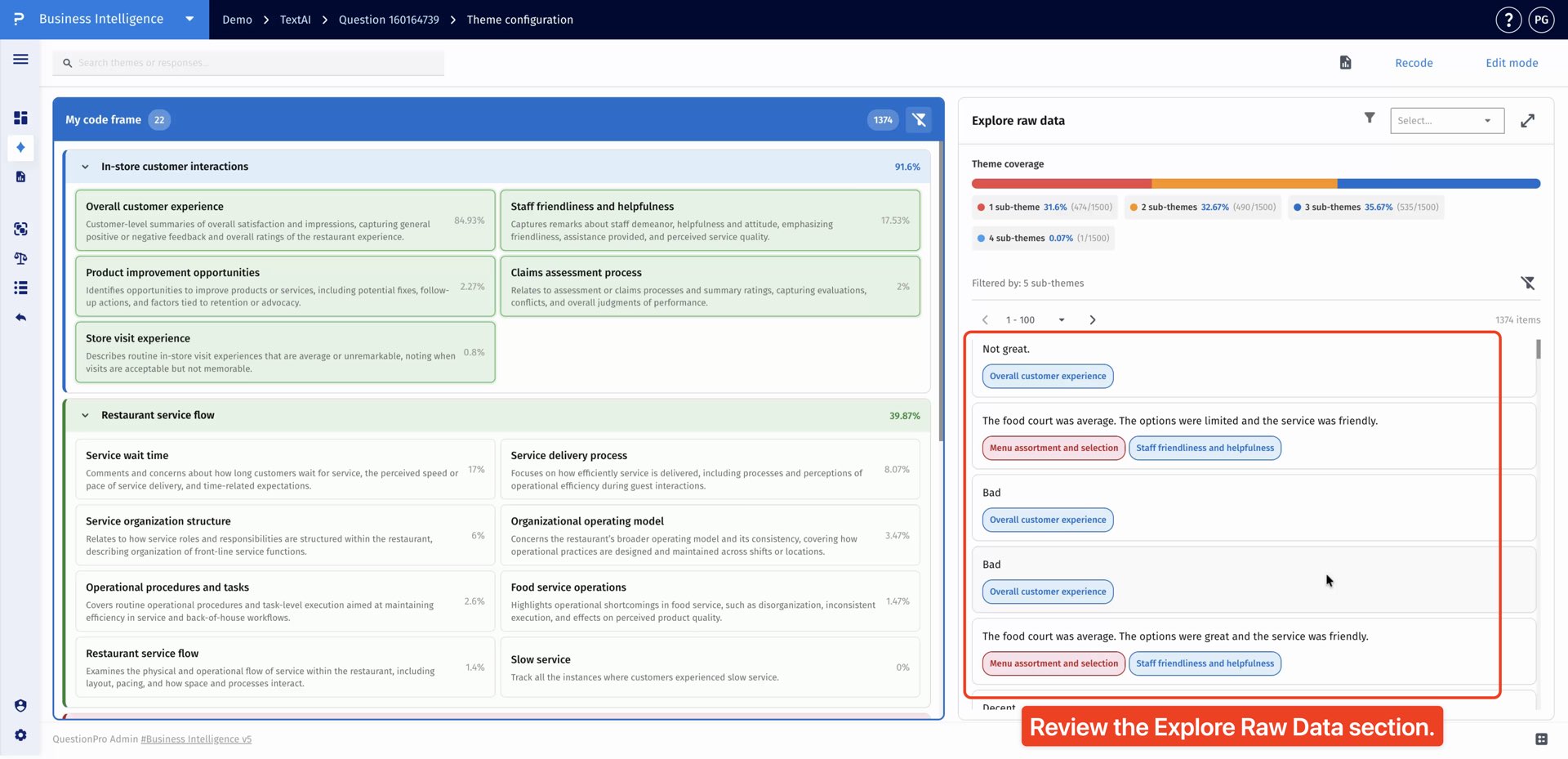
- Review the Explore Raw Data section on the right side of the dashboard.
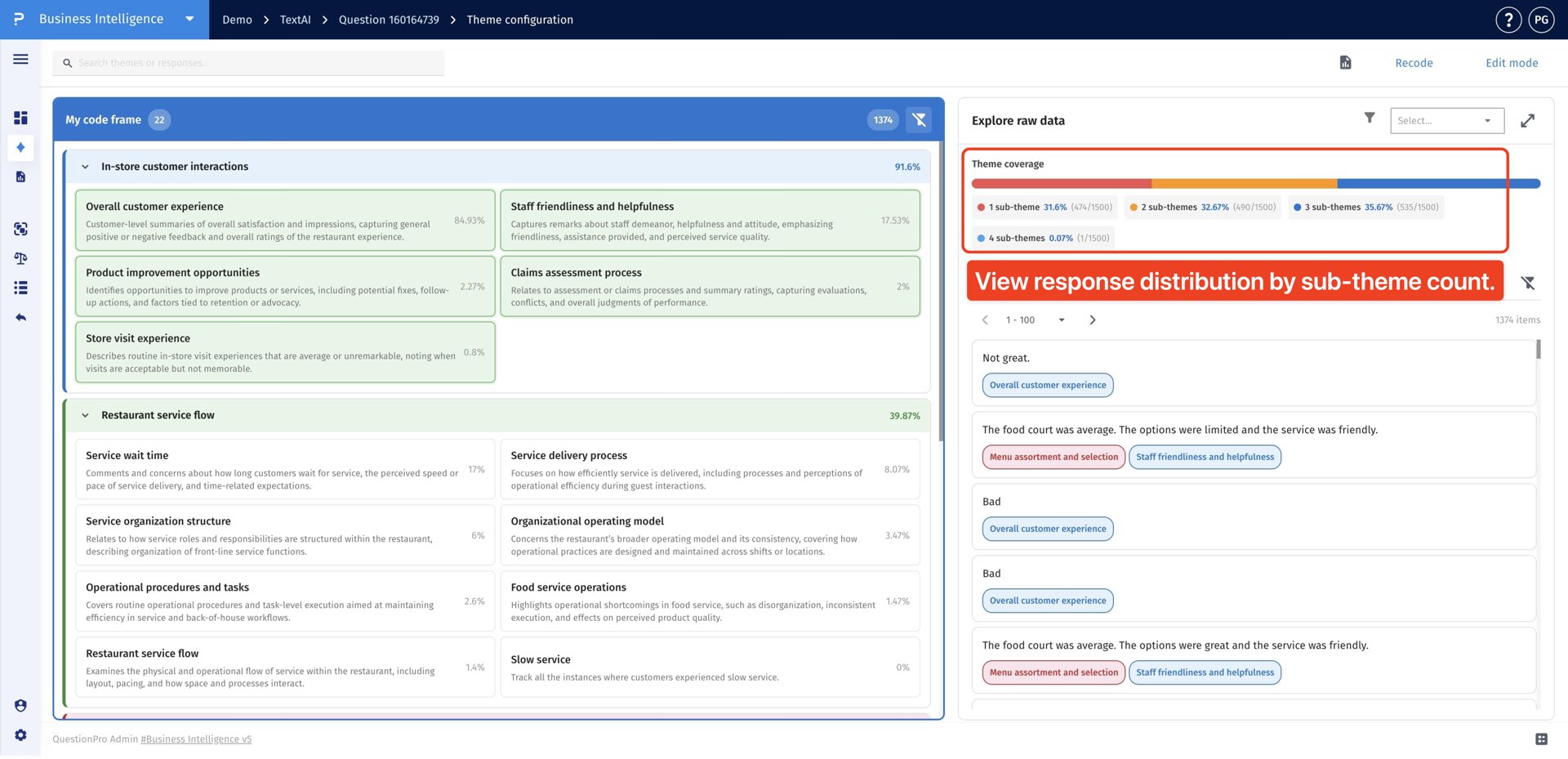
- Use the response distribution view to see how responses are spread across sub-theme counts.
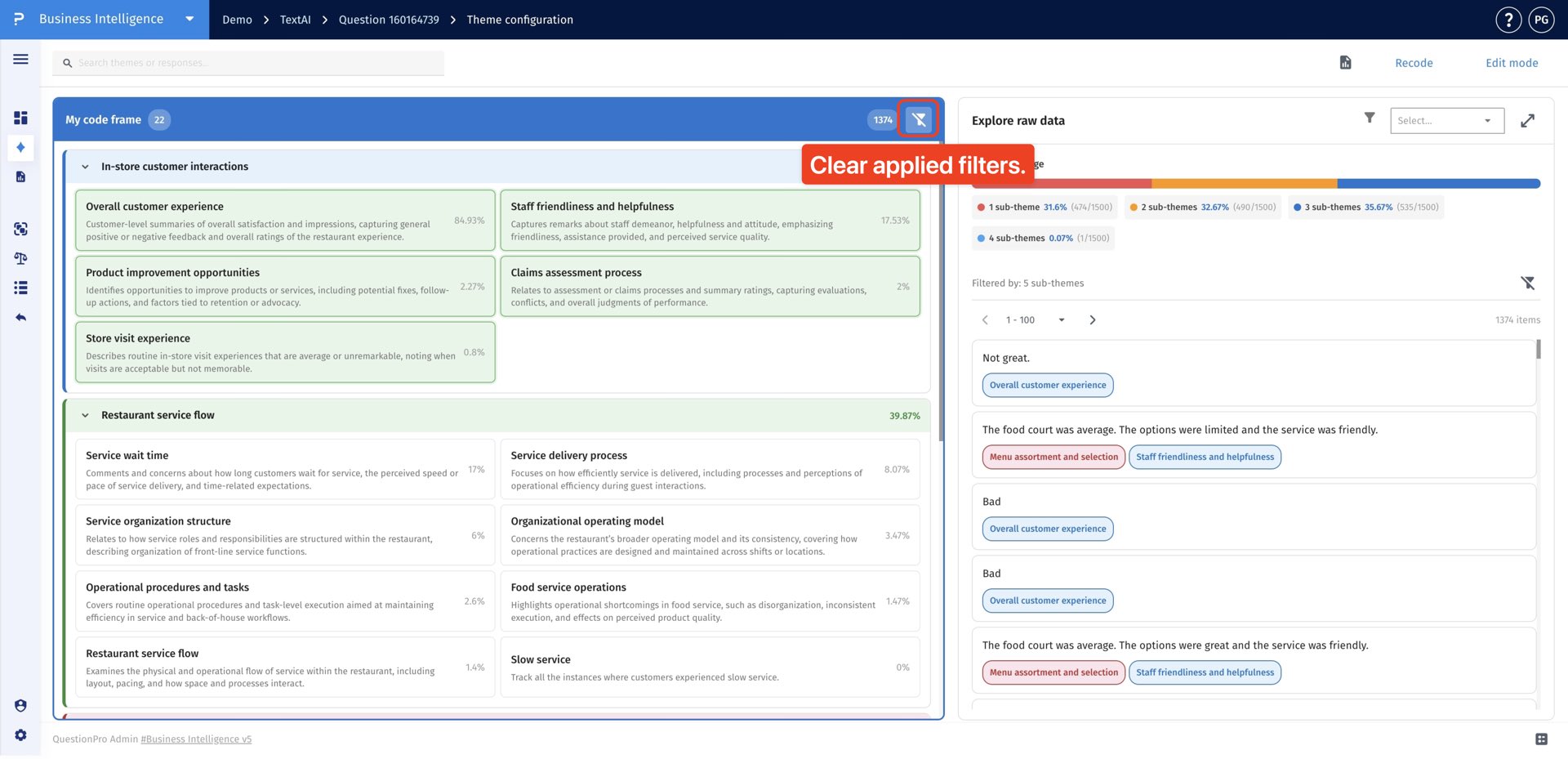
- Click the filter reset icon to clear applied filters.
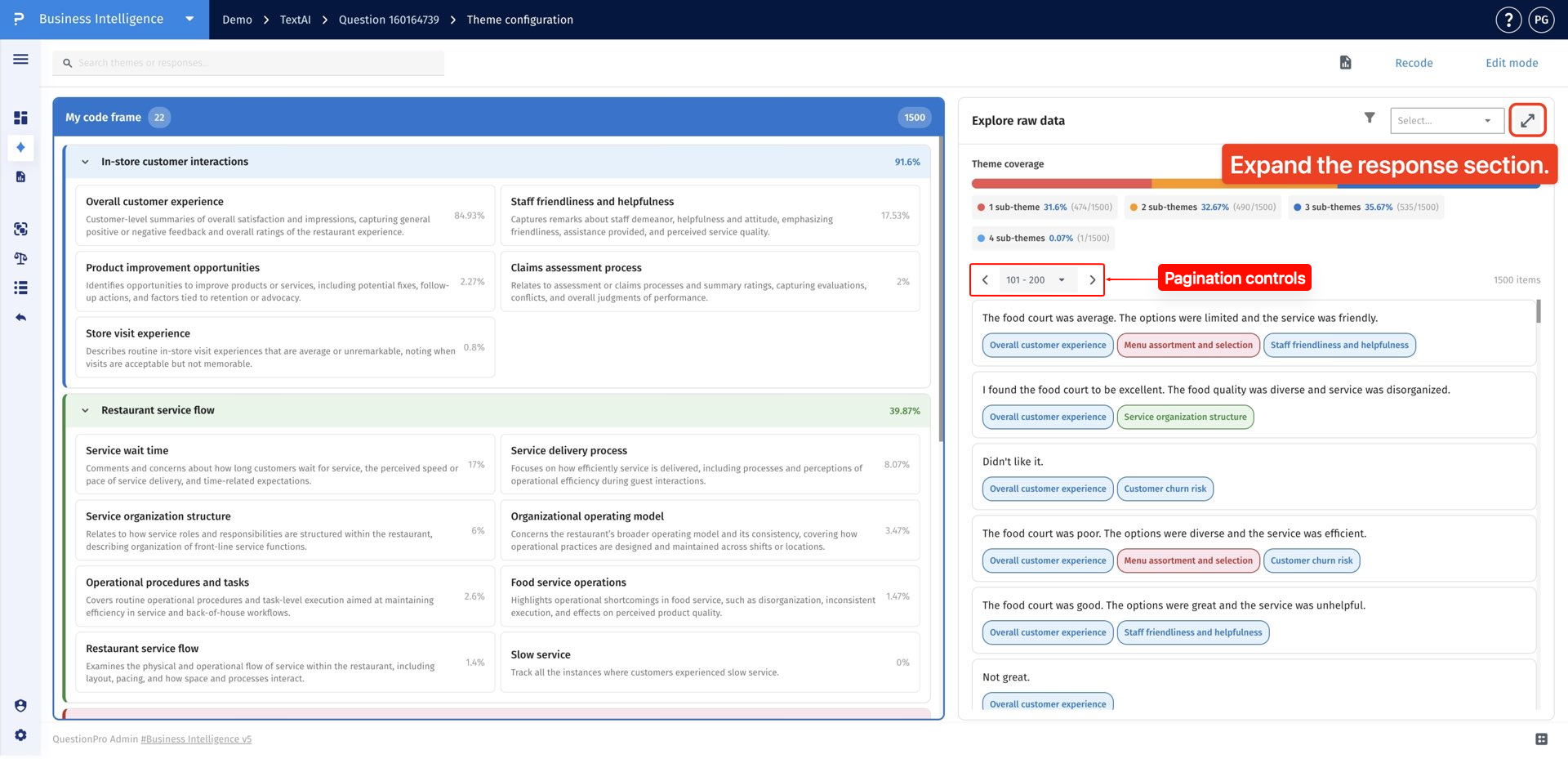
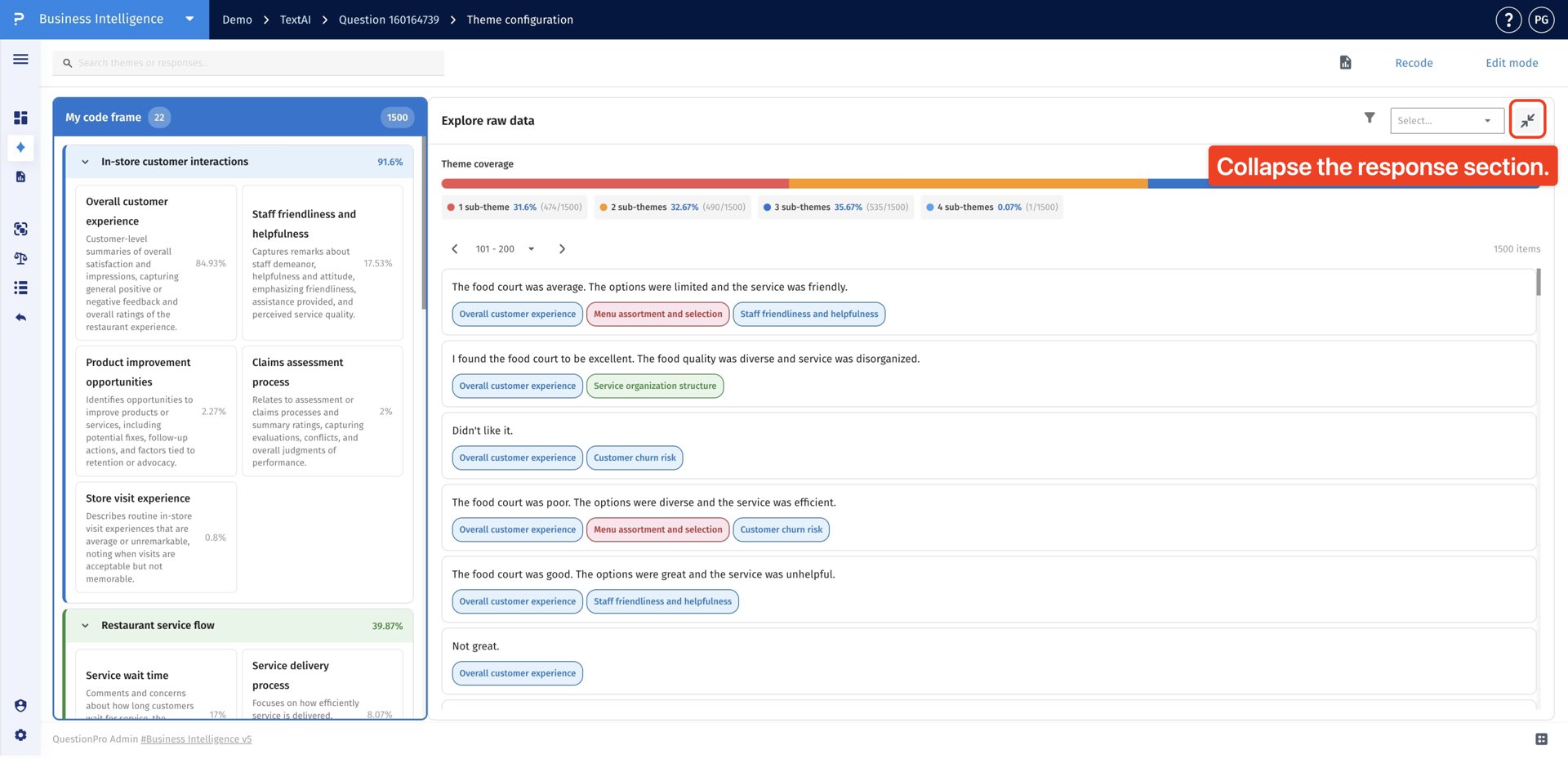
- Use the pagination controls to navigate between response pages. Click the expand icon to open the response section in a larger view.
- Click the same icon again to collapse the response section.
Themes are top-level categories that organize related feedback patterns in TextAI. Create a new theme when the current theme structure does not fully represent an important group of responses in your dataset.
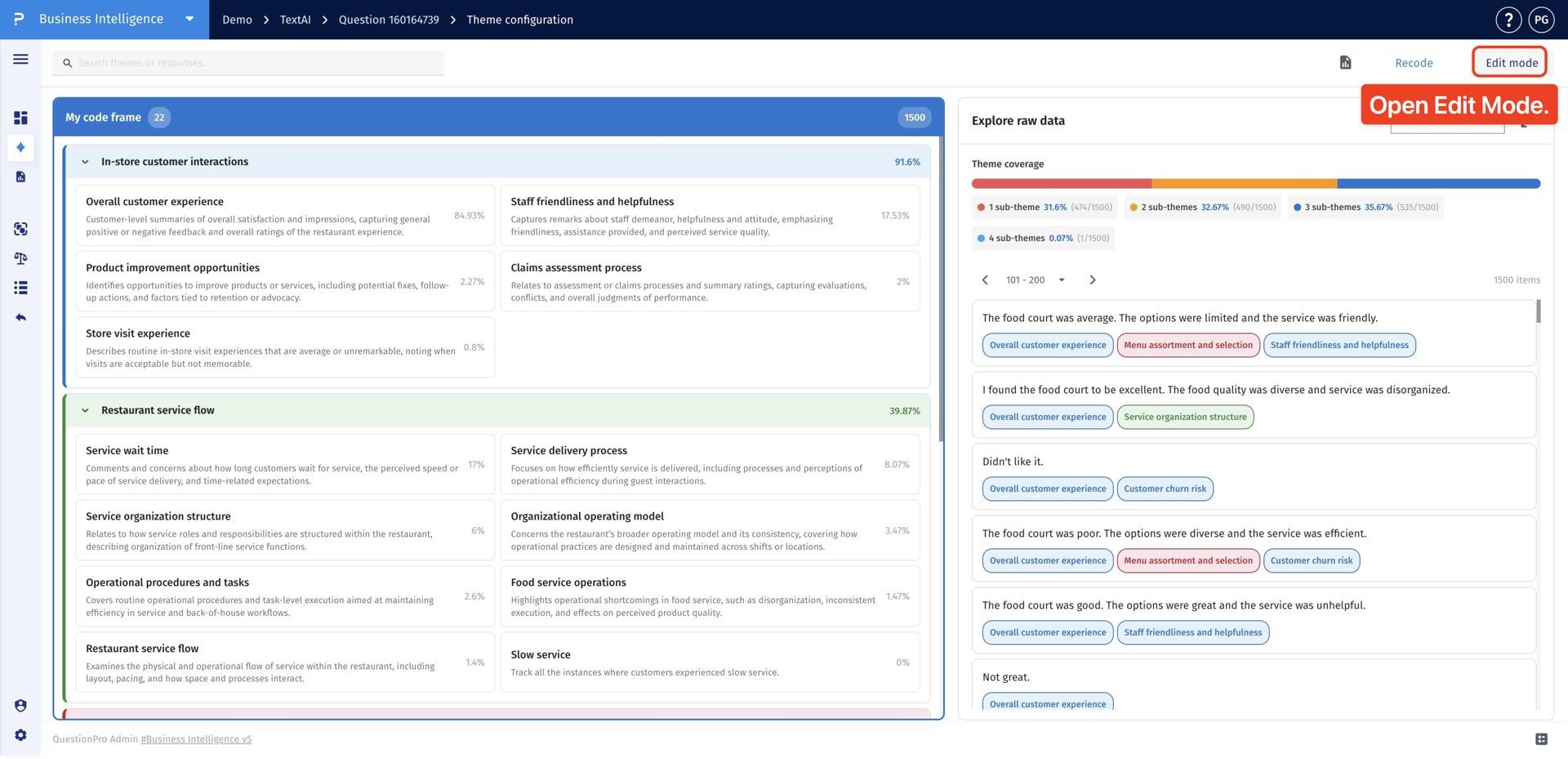
- Click Edit Mode to enable the controls for managing themes and sub-themes in the Theme Configuration dashboard.
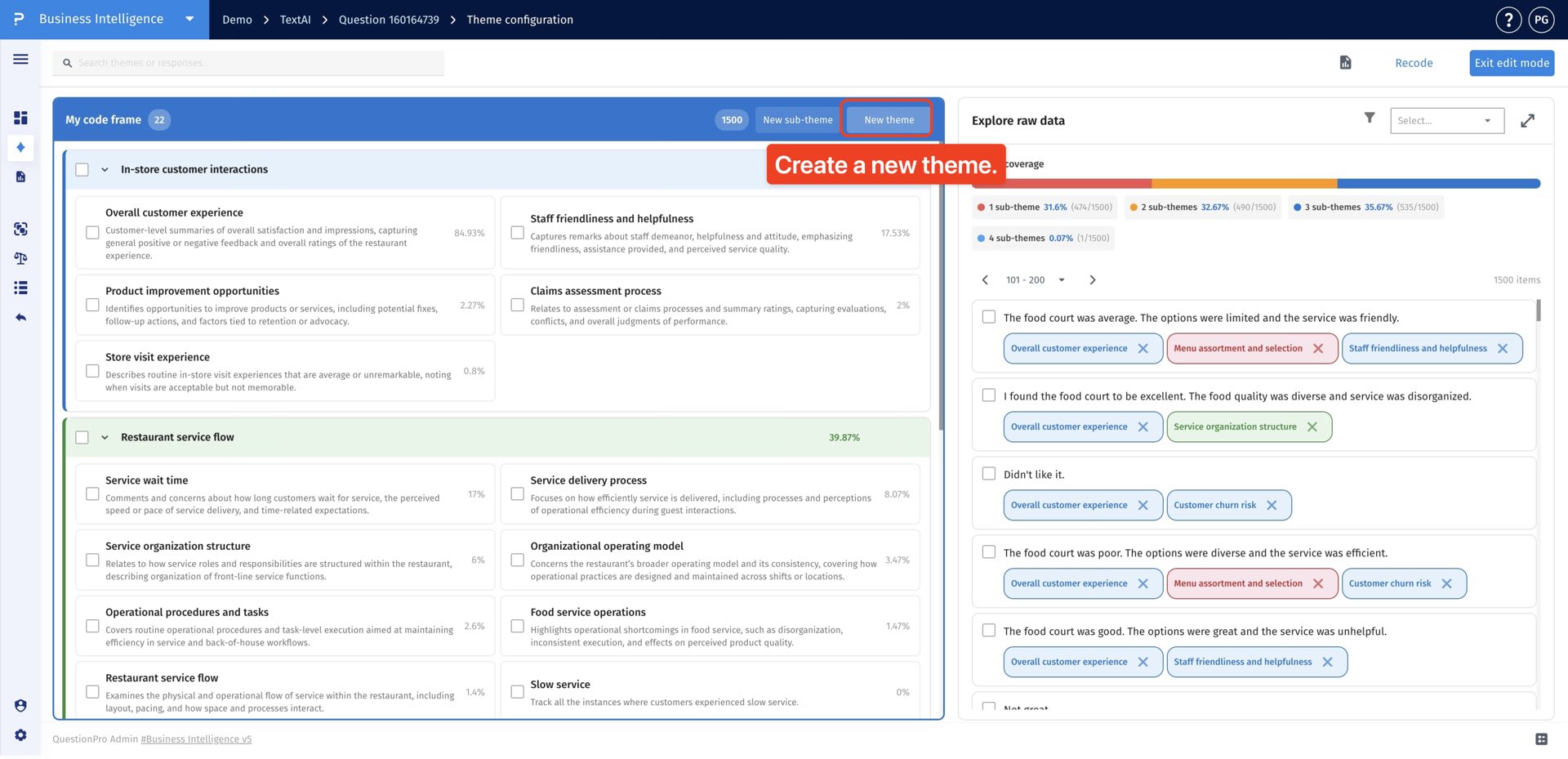
- Click New Theme when the responses need a broader top-level category. A theme acts as the main group that can contain multiple related sub-themes.
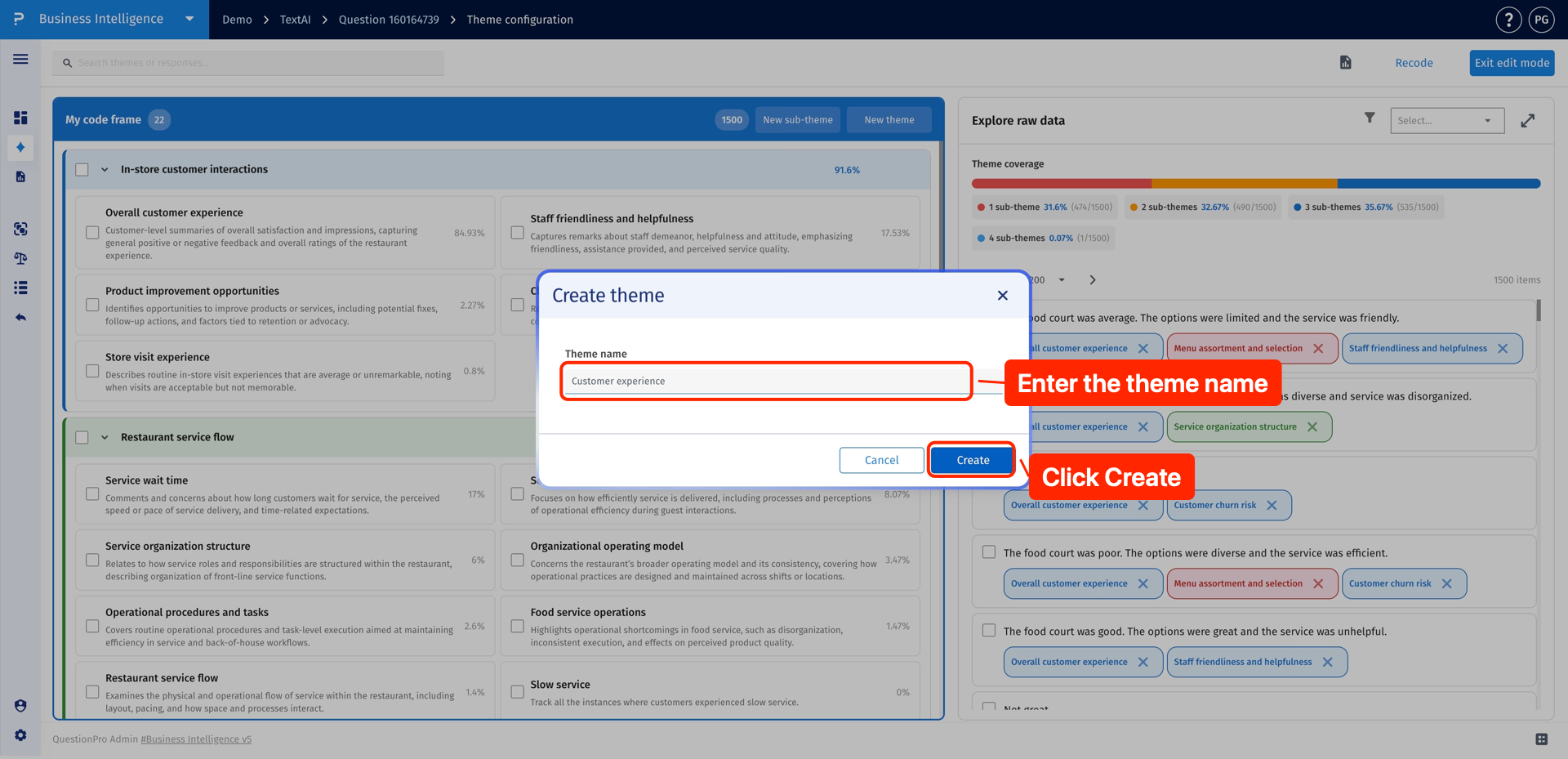
- Enter a clear theme name and click Create to save the theme. The new theme becomes available for organizing existing or newly created sub-themes.
Sub-themes are more specific categories within a theme. Use them to capture finer patterns in responses, especially when a broad theme contains feedback that should be reviewed or reported separately.
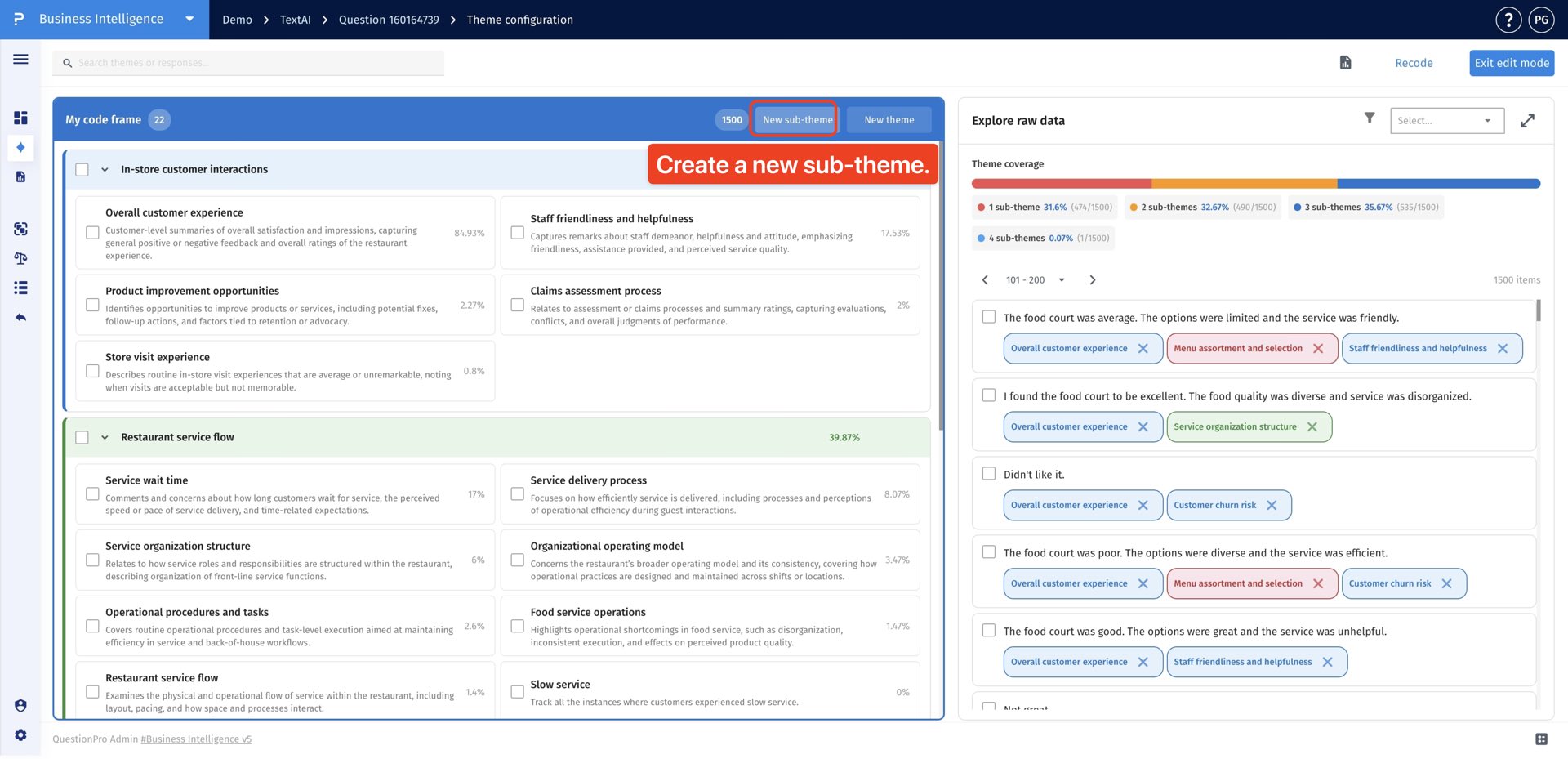
- Click New Sub-theme when you need a more specific category under an existing theme. Sub-themes help refine broad AI-generated themes into smaller groups that better describe the responses.
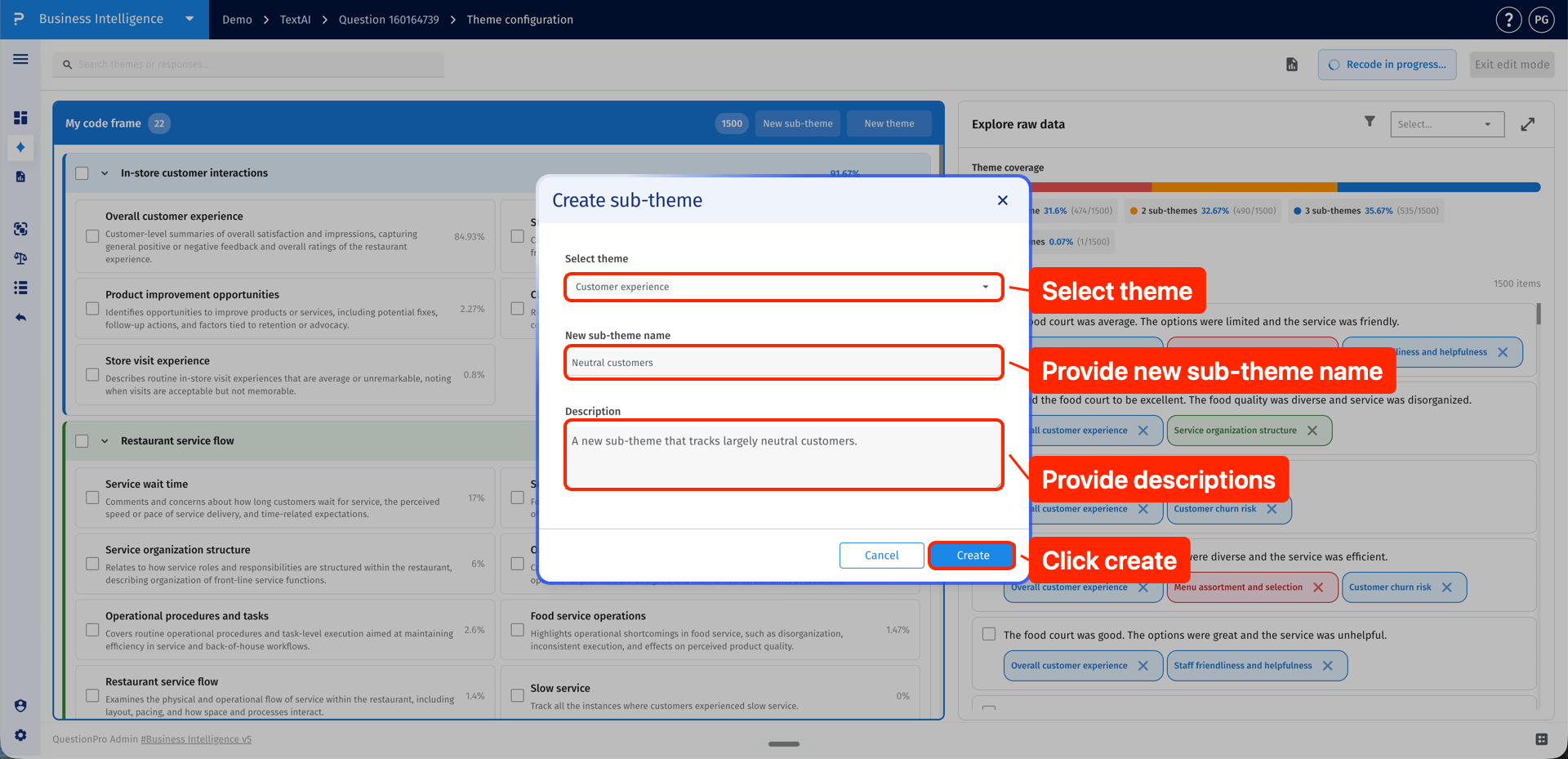
- Select the parent theme, provide the new sub-theme name and description, then click Create to save the sub-theme.
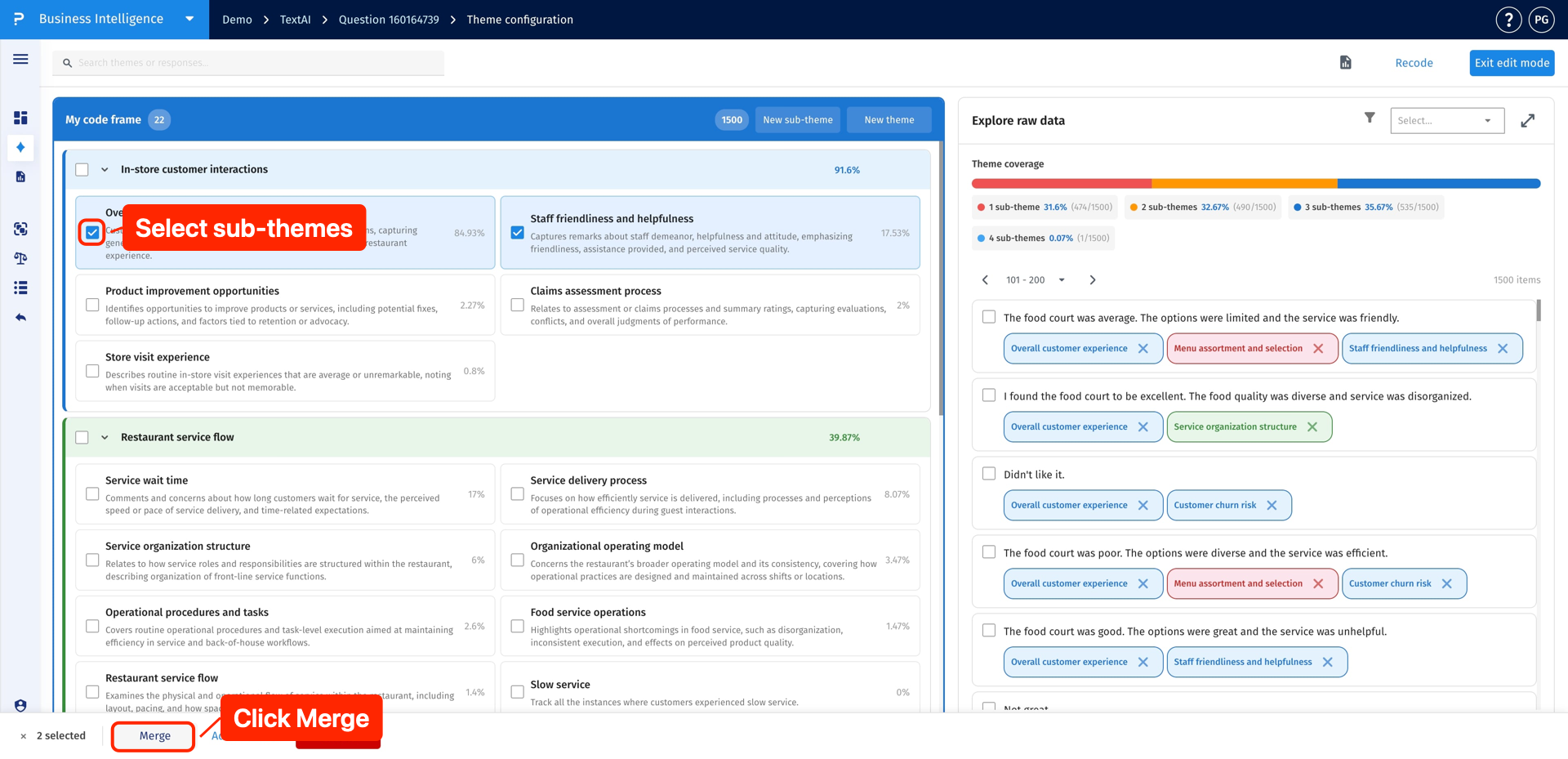
Merging sub-themes helps clean up overlapping or duplicate categories. Use this option when separate sub-themes describe the same idea and should be combined into one clearer classification.
- Select the sub-themes that represent the same idea or should be analyzed together, then click Merge to start the merge flow.
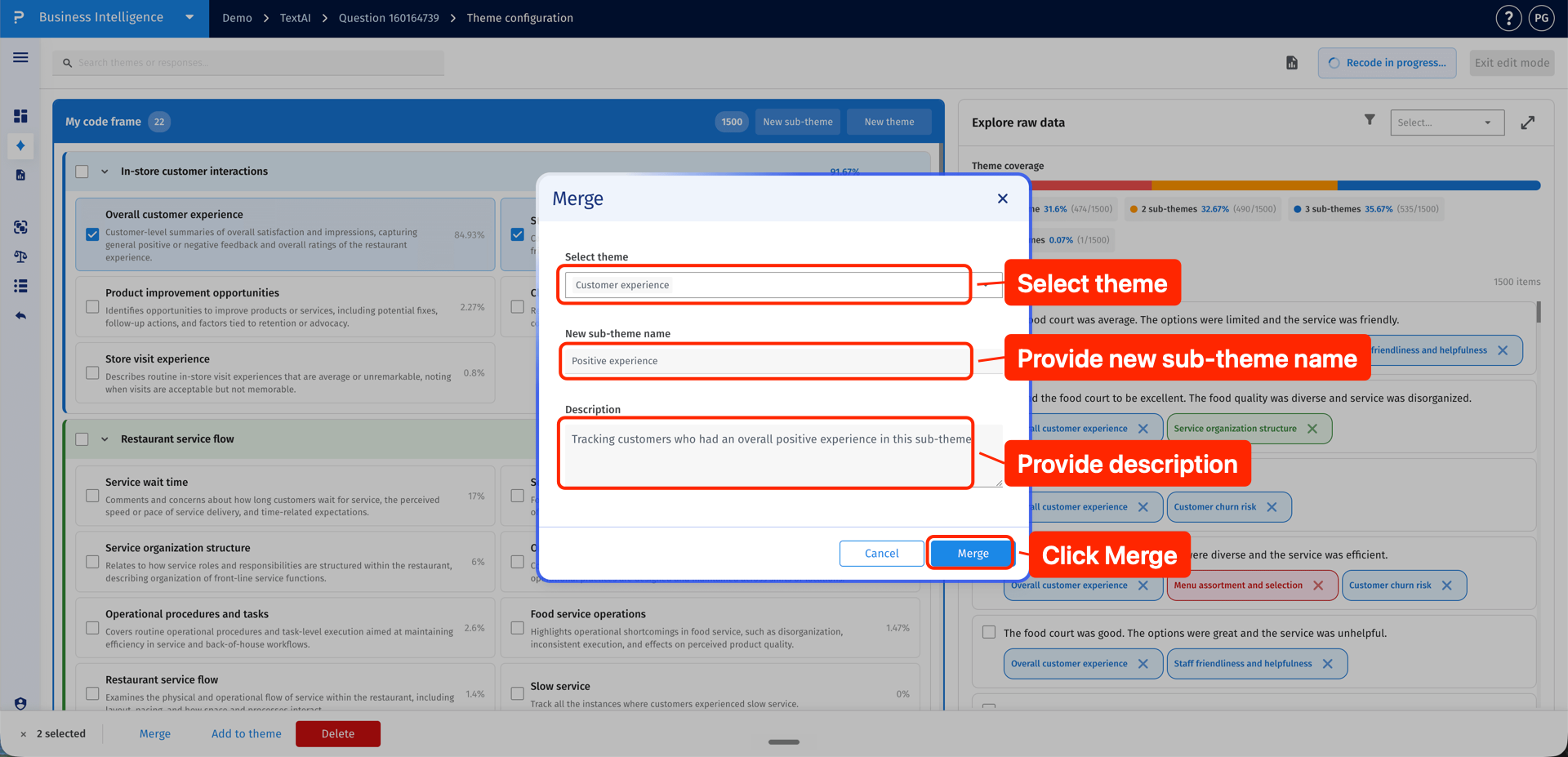
- Select the destination theme, provide the merged sub-theme name and description, then click Merge to create the combined sub-theme.
Tagging responses lets you manually refine how raw responses are categorized. You can assign responses to existing sub-themes or to new sub-themes created during the configuration process.
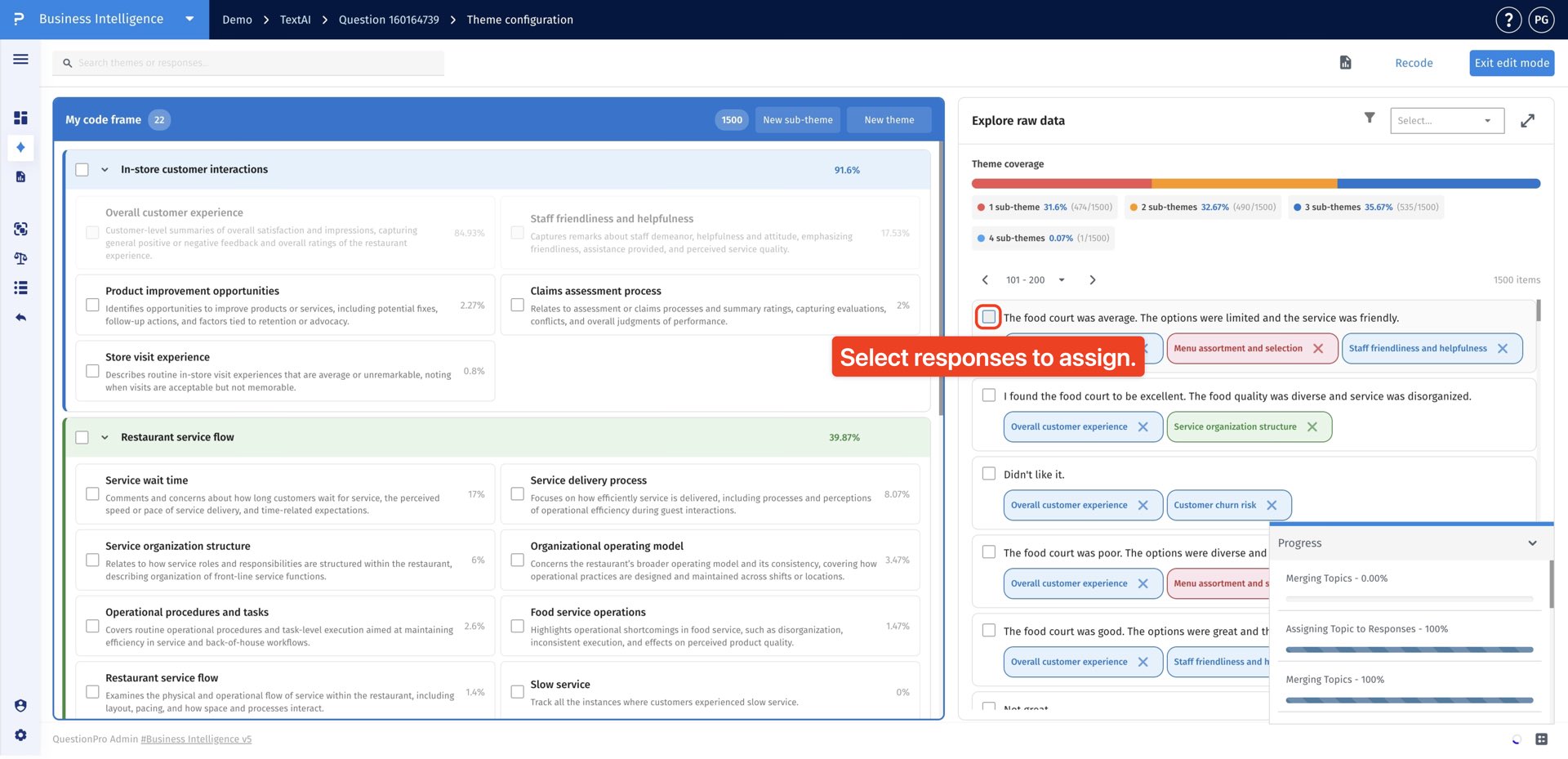
- Select the responses that you want to tag with a sub-theme. You can tag responses with existing sub-themes or with new sub-themes created during configuration.
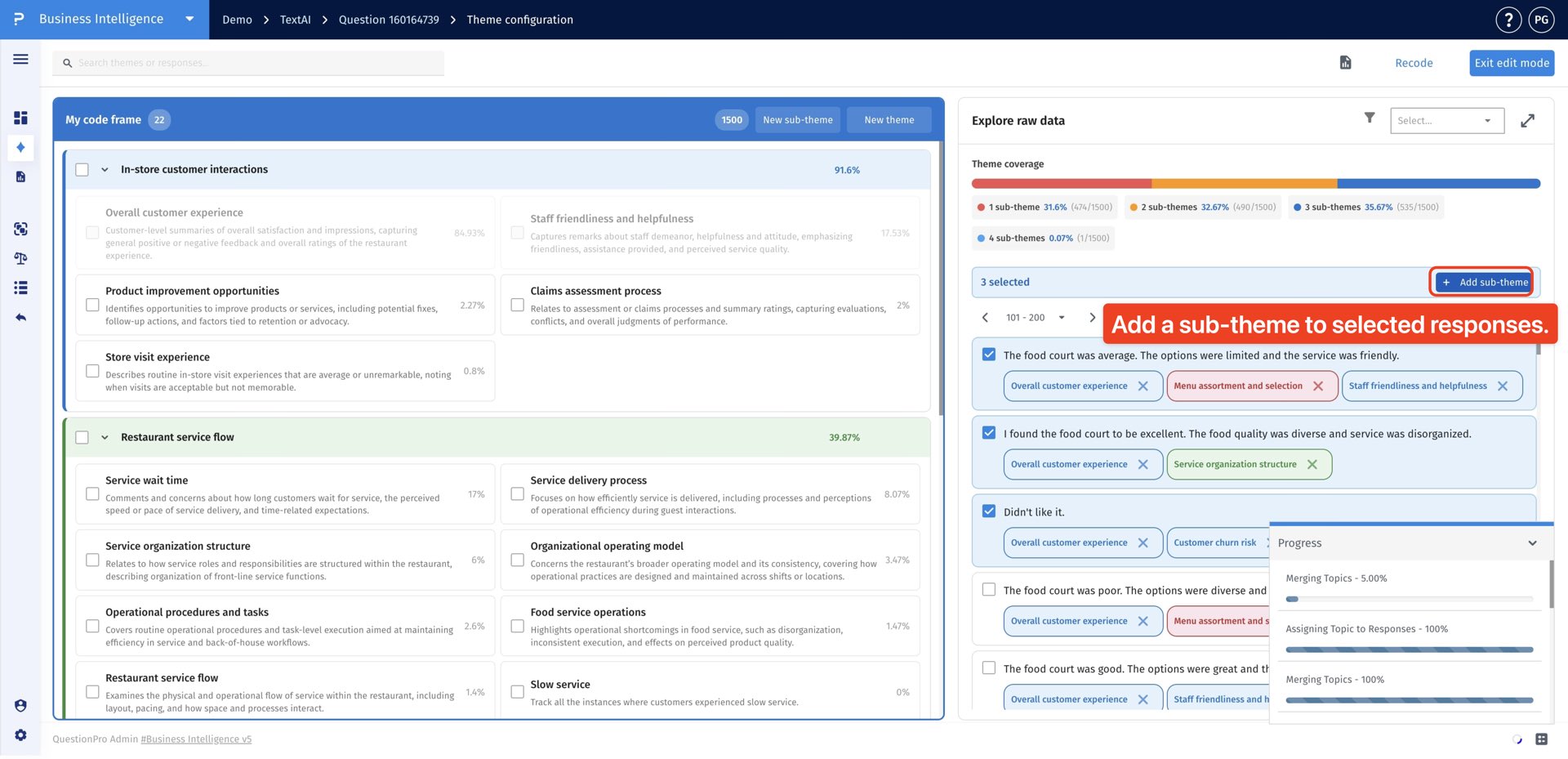
- Click Add Sub-Theme in the Explore Raw Data section.
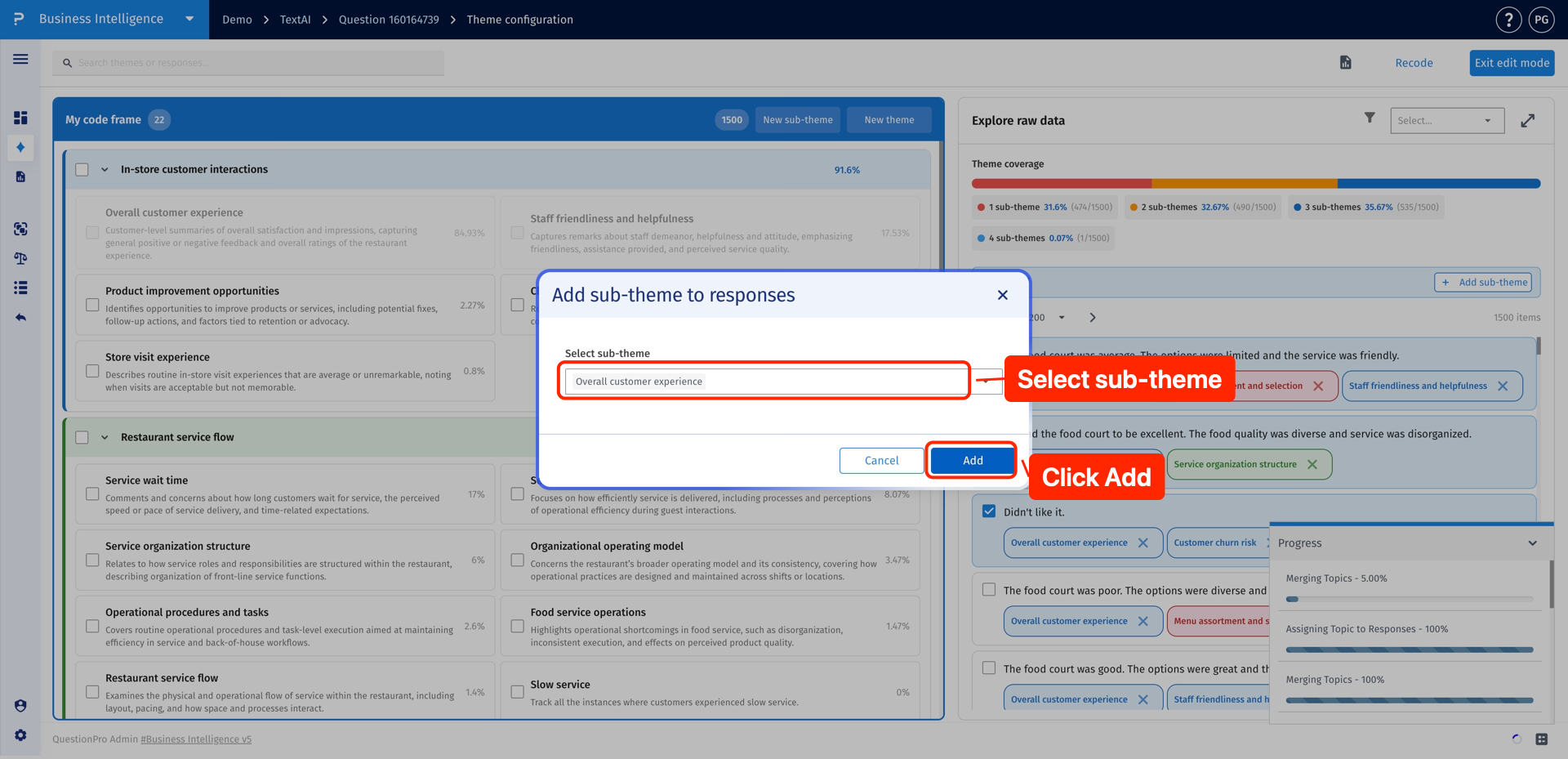
- Choose the sub-theme to assign to the selected responses, then click Add to apply it.
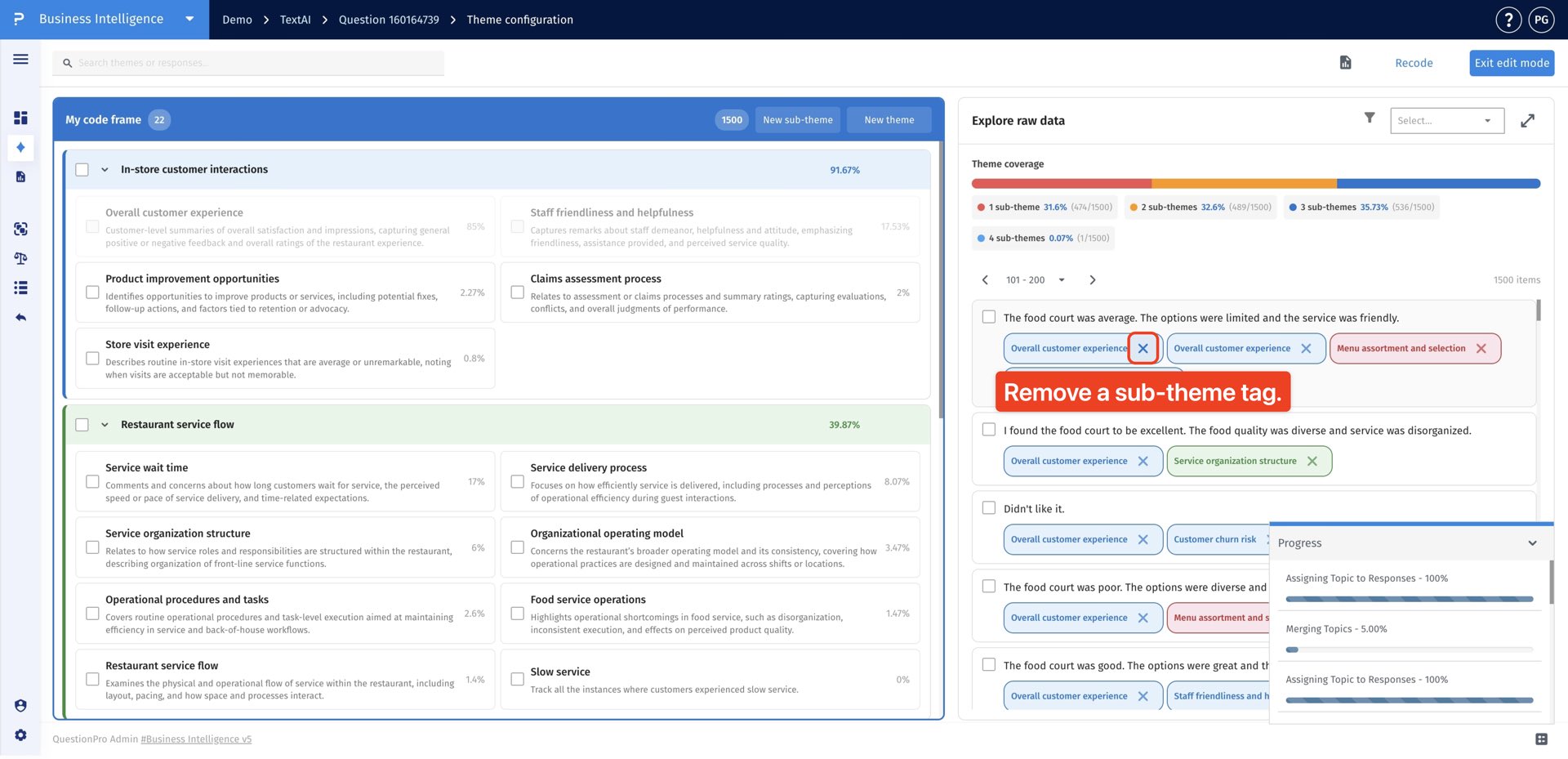
- To remove an incorrect or unnecessary tag, click the remove icon next to the sub-theme on the response. The response remains in the raw data list, but the selected sub-theme tag is removed from that response.
After you create, merge, assign, or remove themes and sub-themes, recoding updates how TextAI applies those changes to the response data. Choose the recoding option based on whether you want to code only new categories, refresh all sub-themes, or update a selected set.
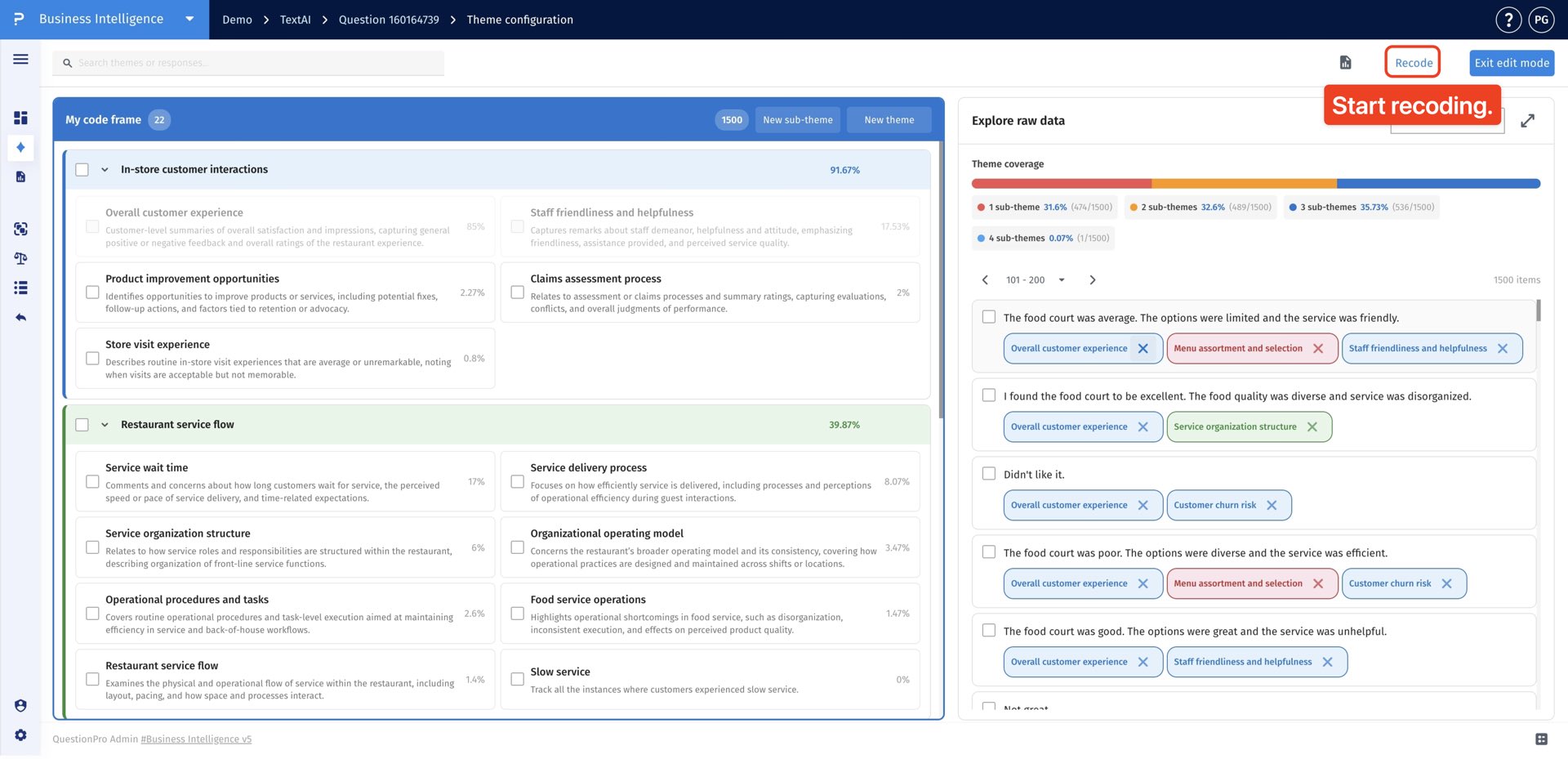
- Click Recode after making your theme and sub-theme changes. This opens the recoding options so you can decide how broadly TextAI should apply the updated configuration.

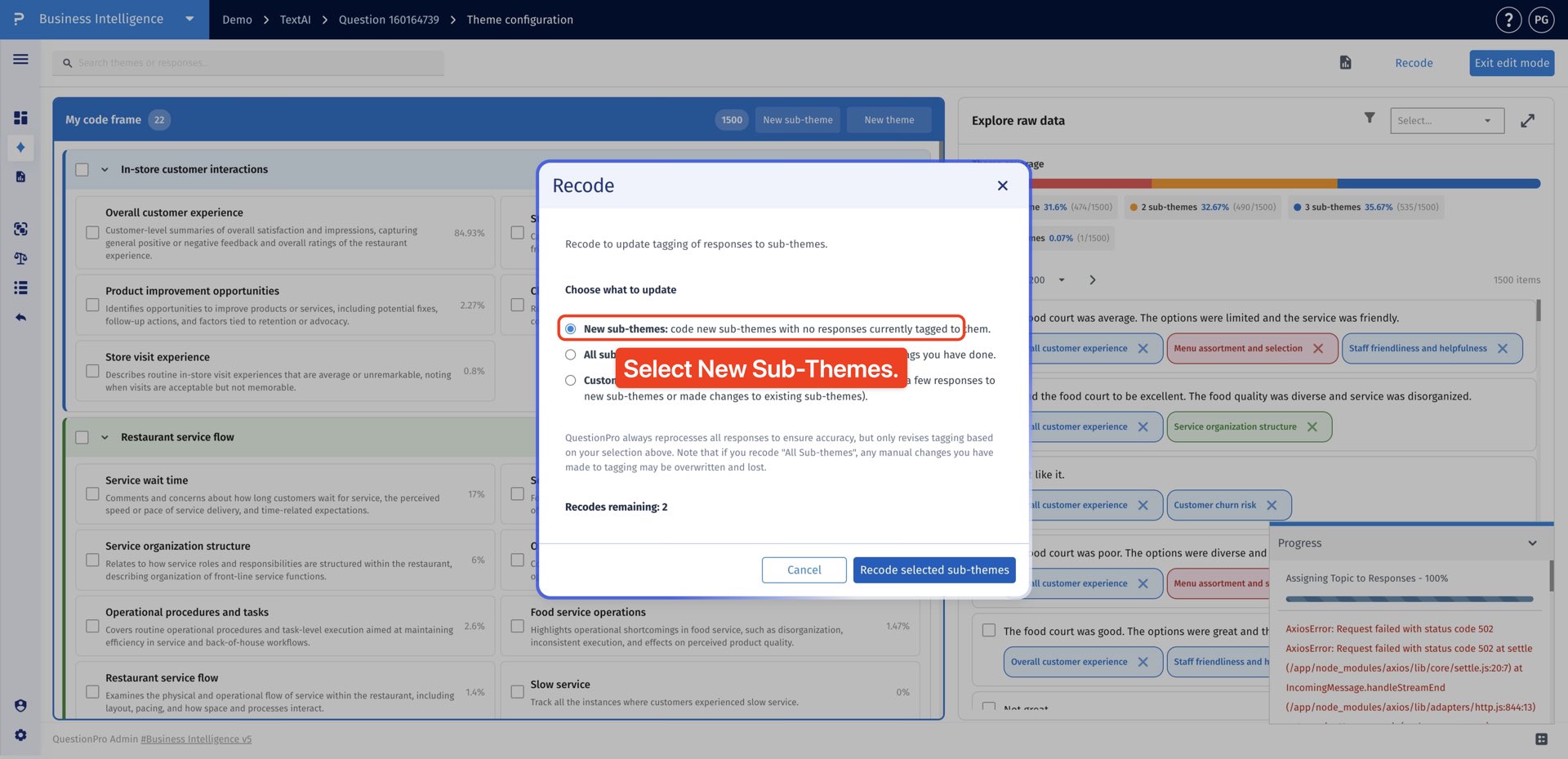
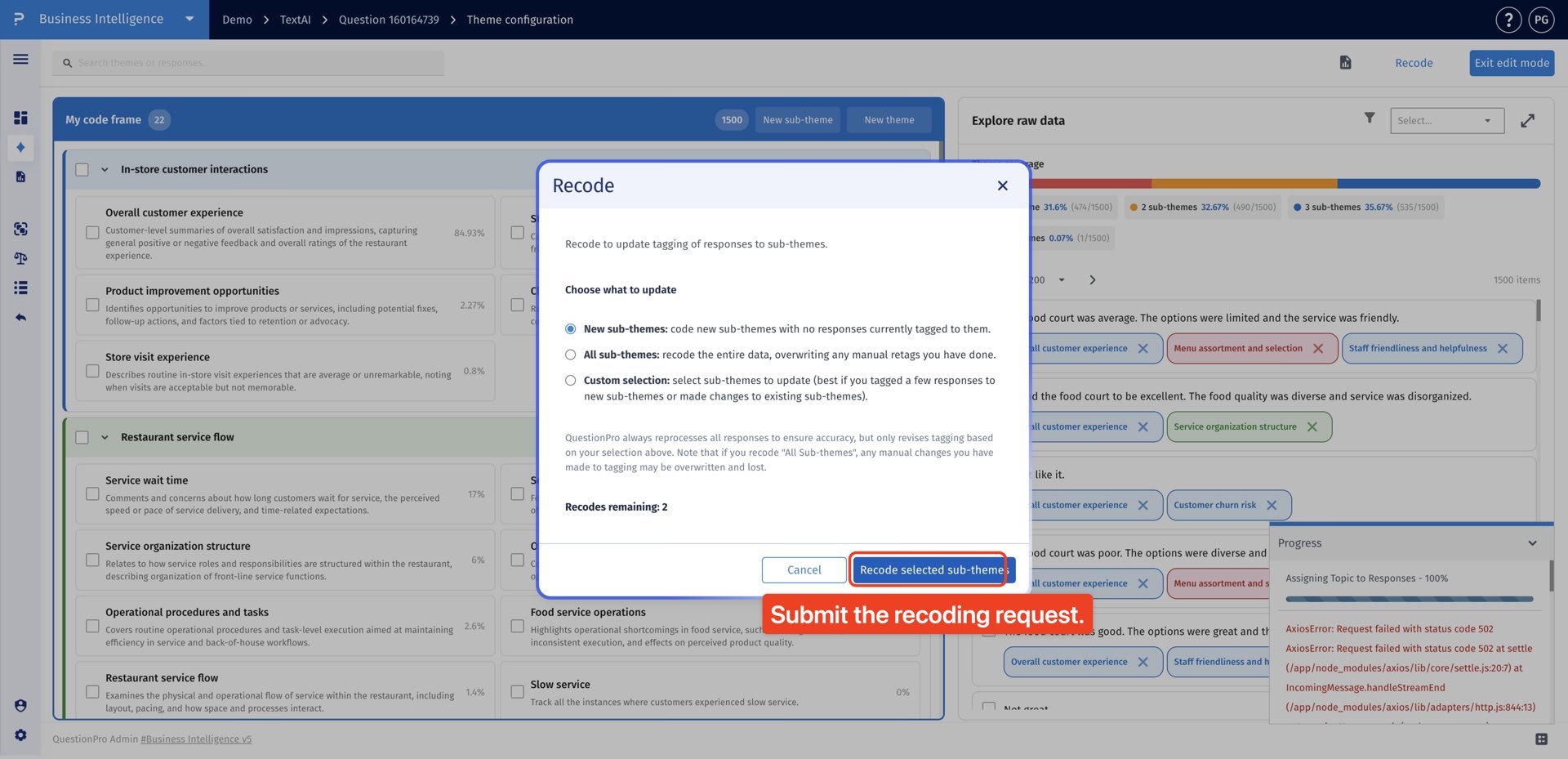
- Select New Sub-themes when you only want TextAI to code newly created sub-themes that do not already have tagged responses. This keeps the existing coded data unchanged while applying coding to the new categories.
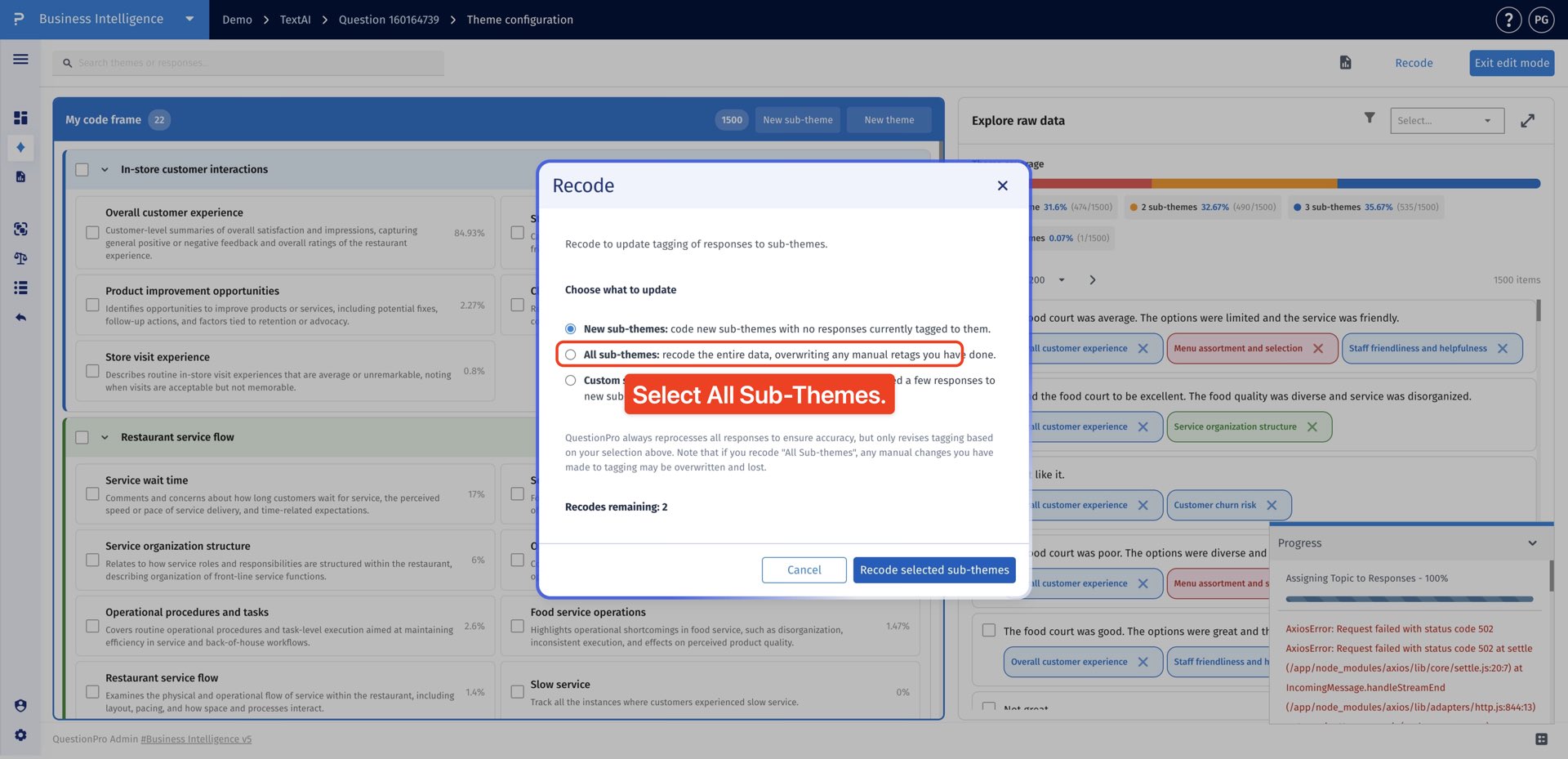
- Select All Sub-themes when you want TextAI to recode the full dataset using the latest theme and sub-theme structure. This refreshes all assignments and can overwrite manual changes.
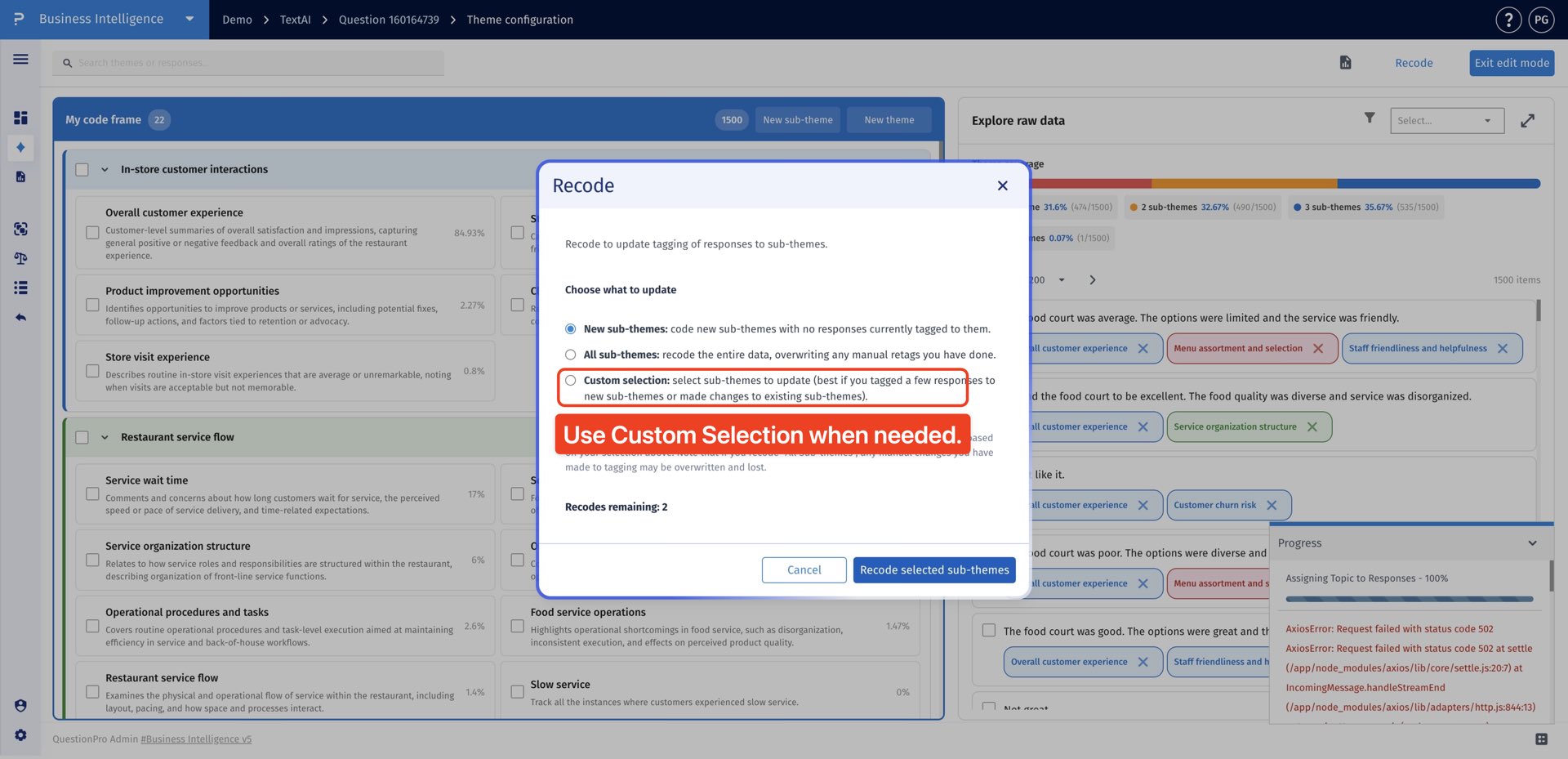
- Use Custom Selection when only specific sub-themes need to be updated. This limits recoding to the categories you choose instead of changing the full dataset.
- Click Recode Selected Sub-themes to submit the recoding request. TextAI then starts applying the selected recoding scope to the response data.
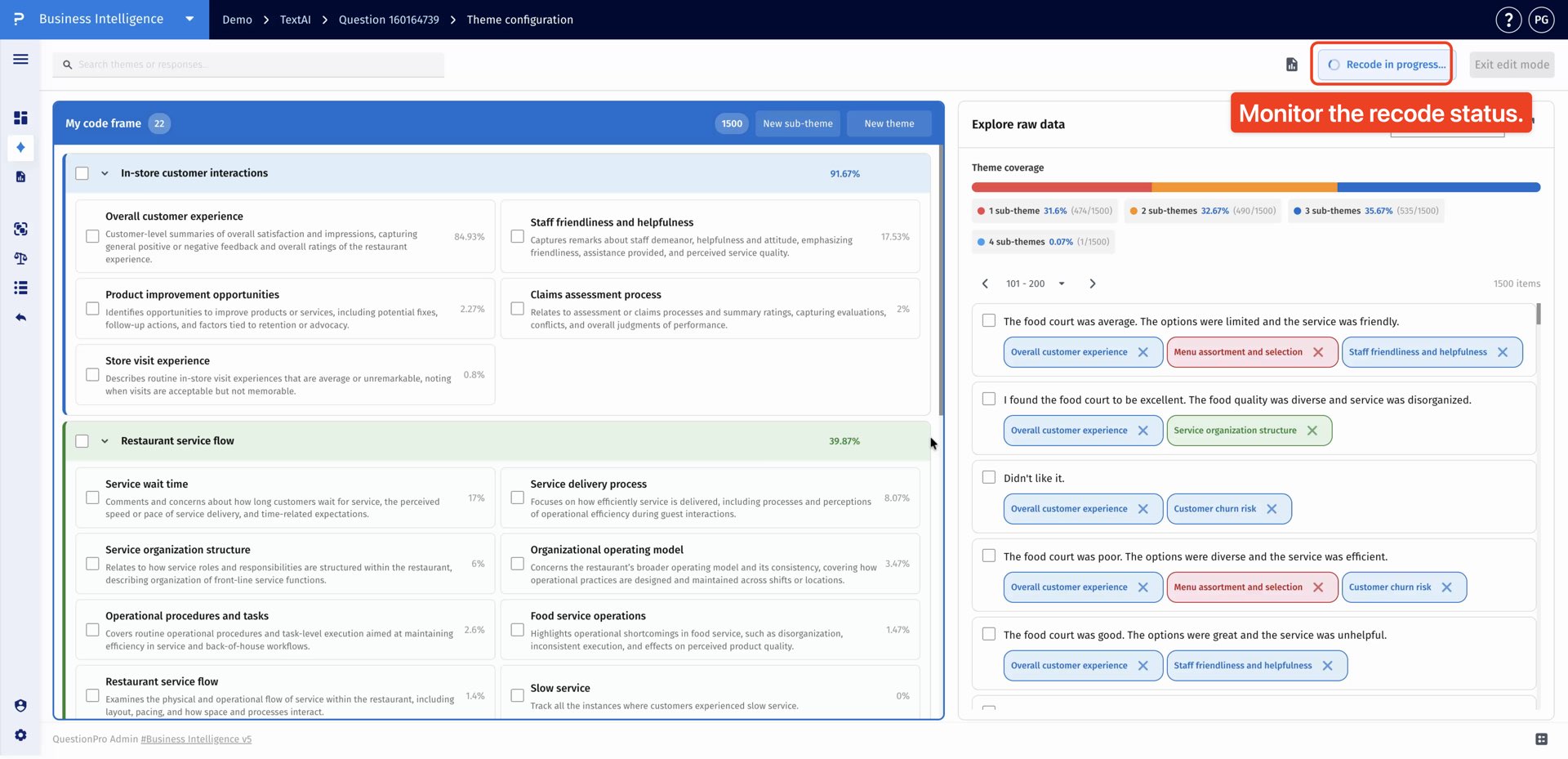
- Monitor the Recode in Progress status in the Theme Configuration panel. This status confirms that TextAI is processing the updated theme and sub-theme coding.
How can I track changes to my theme configuration?
Open Theme Configuration, then click Theme history. Each recorded entry shows the operation, date and time, details of the change, and the user who made it. Use All operations to filter the history by change type, such as responses tagged or untagged, themes or sub-themes created or renamed, description updates, moves, merges, and deletions.
Does removing a sub-theme tag delete the original response?
No. Removing a tag removes that sub-theme assignment from the response. The response remains available in Explore raw data.
Which recoding option should I choose after changing the codebook?
Choose New Sub-themes to code newly created sub-themes that do not already have tagged responses. Choose Custom Selection to recode only the sub-themes you select. All Sub-themes recodes the full dataset and can overwrite manual coding changes, so review the selected scope before submitting.
This feature is available with the following licenses :
Research Edition Communities Customer Experience Employee Experience University - Research Edition
