


Create AI Dashboards
AI dashboard creation gives you two routes. Both use the data source you select for the new dashboard. Choose how you want AI to decide its initial setup:
- Let AI Decide: select your source data and let AI choose the initial dashboard context, layout, widgets, filters, and data slicers. No written prompt or reference dashboard is required.
- Learn from Existing Dashboards: select your source data, then choose up to five existing dashboards to guide the layout and widget patterns. AI learns from their first tabs. Choose one selected dashboard as the theme reference for the theme, palette, and sentiment colors.
Both routes create a new dashboard that you can review and refine. The existing dashboards provide reporting examples; the selected source provides the data for the new dashboard.
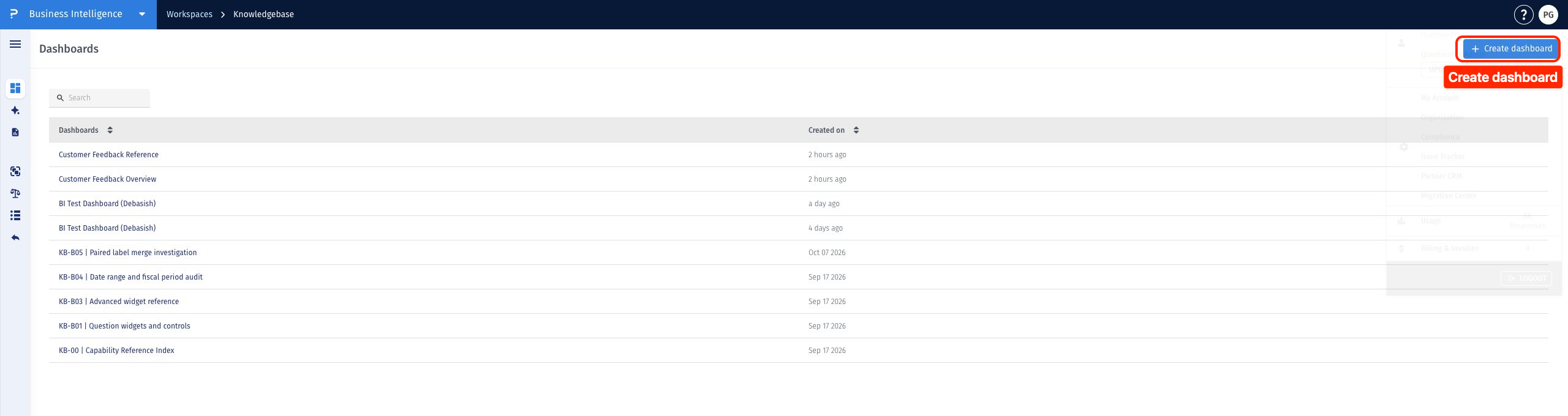
Open your workspace and select Dashboards in the left navigation. Click Create dashboard.
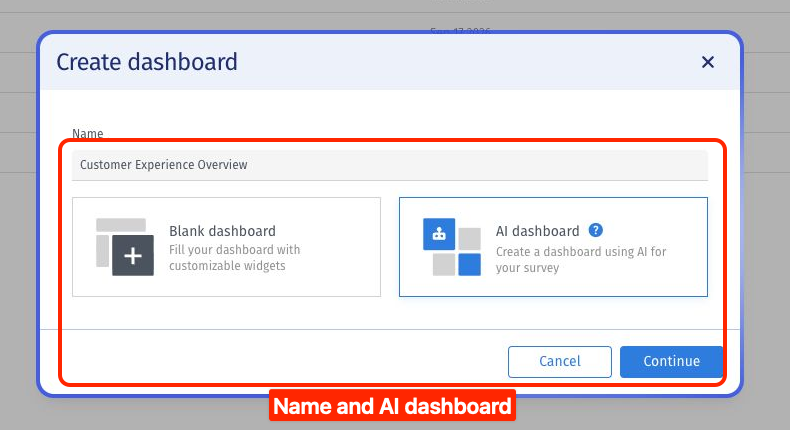
Enter a name for your new dashboard, select AI dashboard, and click Continue.
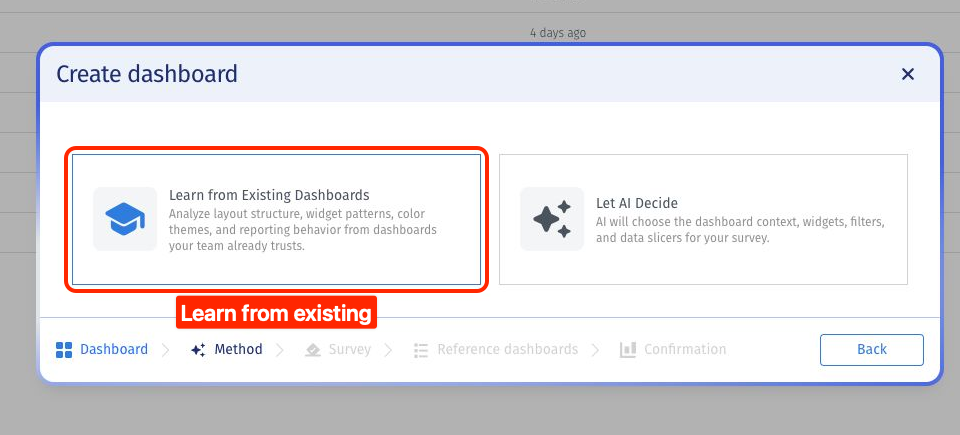
Choose Learn from Existing Dashboards. This route uses existing dashboards as examples for the new dashboard’s layout and widgets.
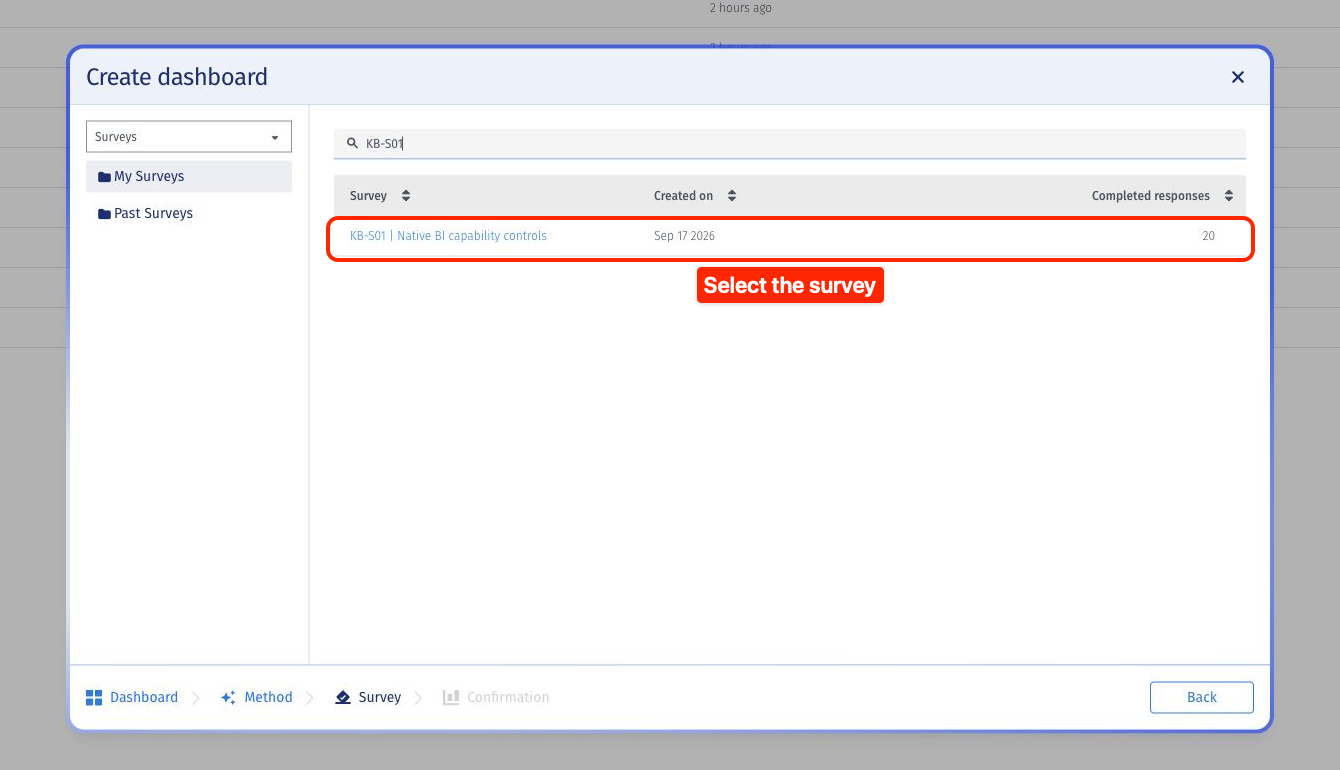
Select the data source for the new dashboard. With Surveys selected, search for your survey, check its completed responses, and click its row. This source supplies the new dashboard’s data.
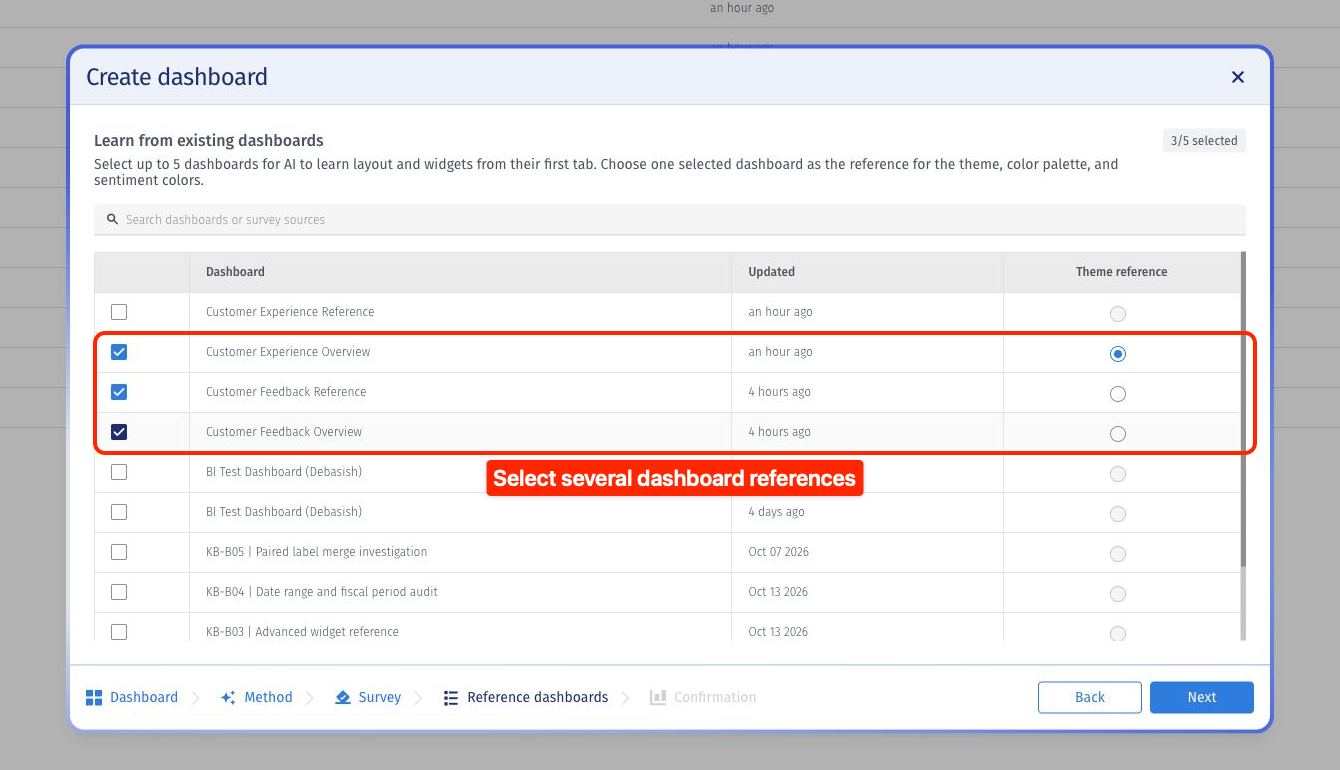
Select up to five reference dashboards. AI learns from their first tabs. For this example, we’ll select Customer Experience Overview, Customer Feedback Reference, and Customer Feedback Overview. Choose references that reflect the reporting approach you want.
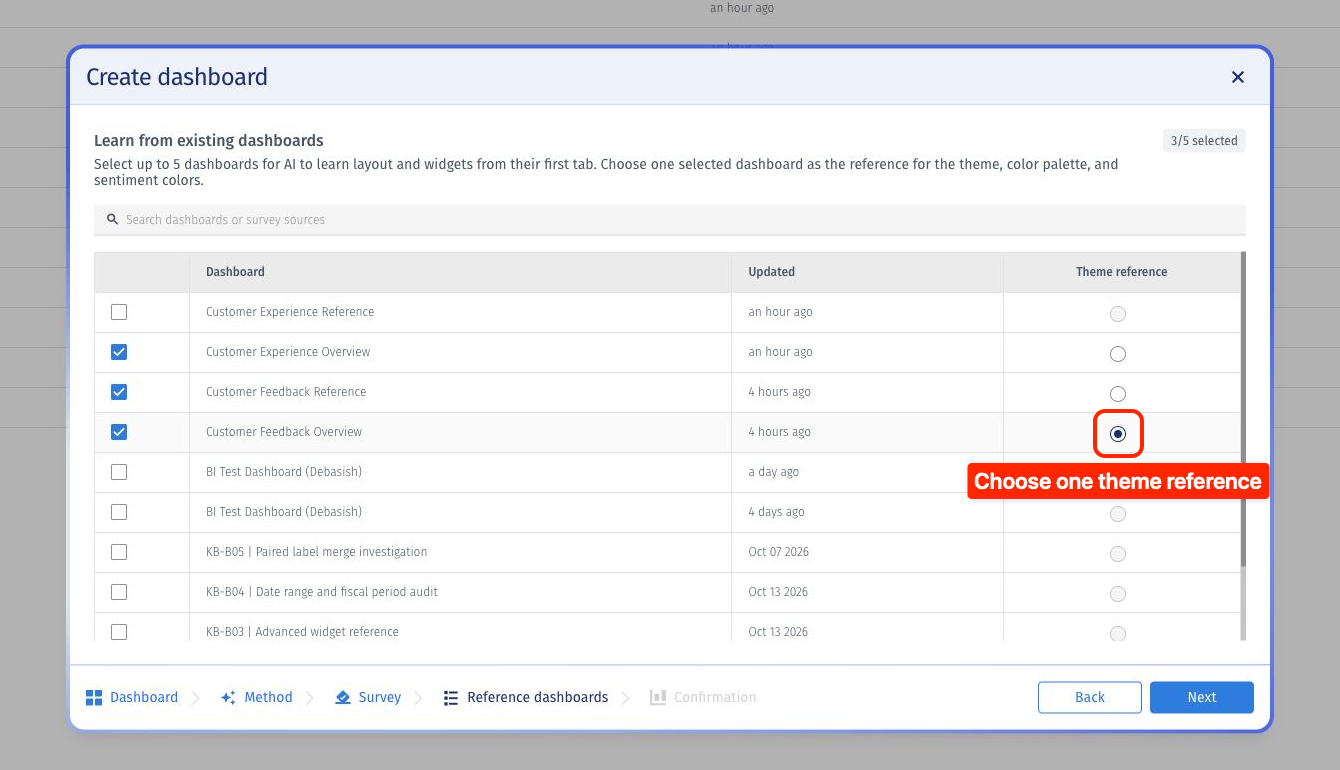
Choose one of the selected dashboards in the Theme reference column. It guides the theme, chart palette, and sentiment colors, independently of the layout and widget references. For this example, we’ll choose Customer Feedback Overview. Check your selections and click Next.
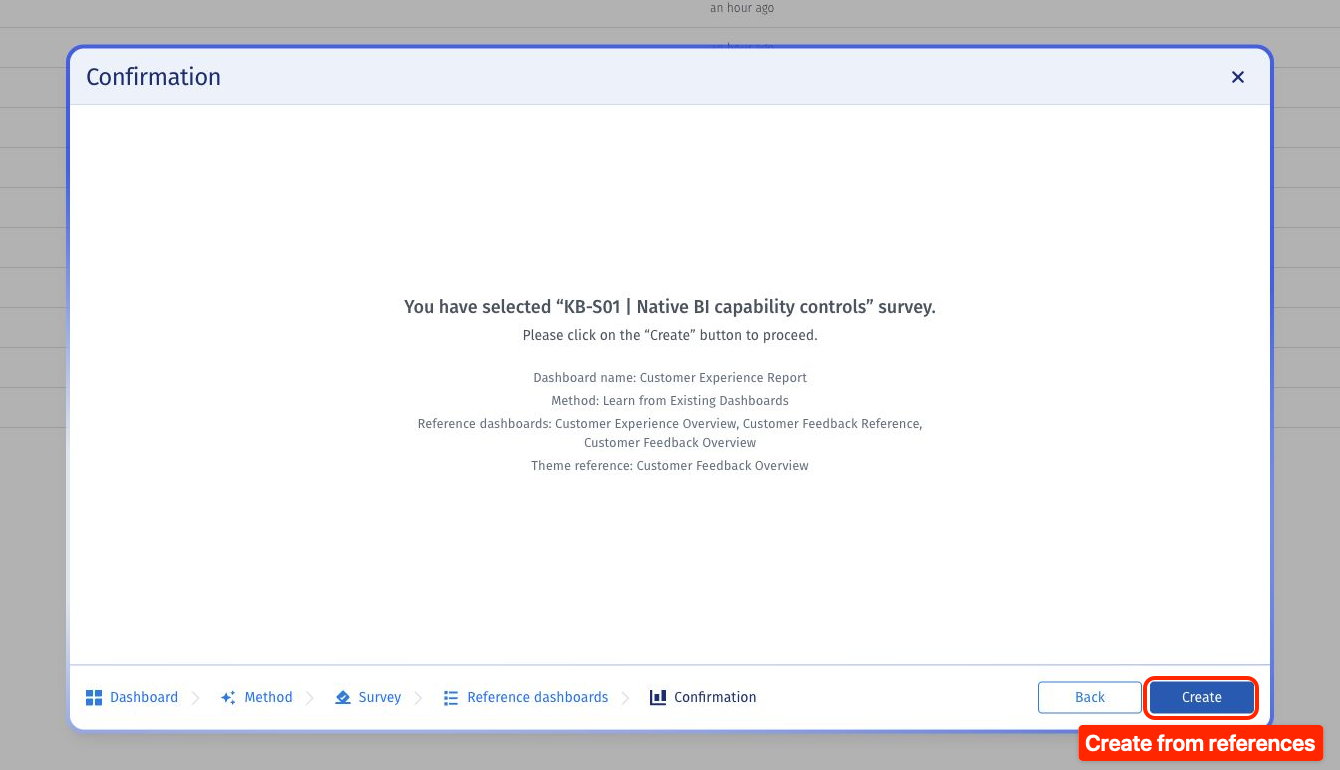
Review the source, dashboard references, and theme reference on Confirmation. Click Create.
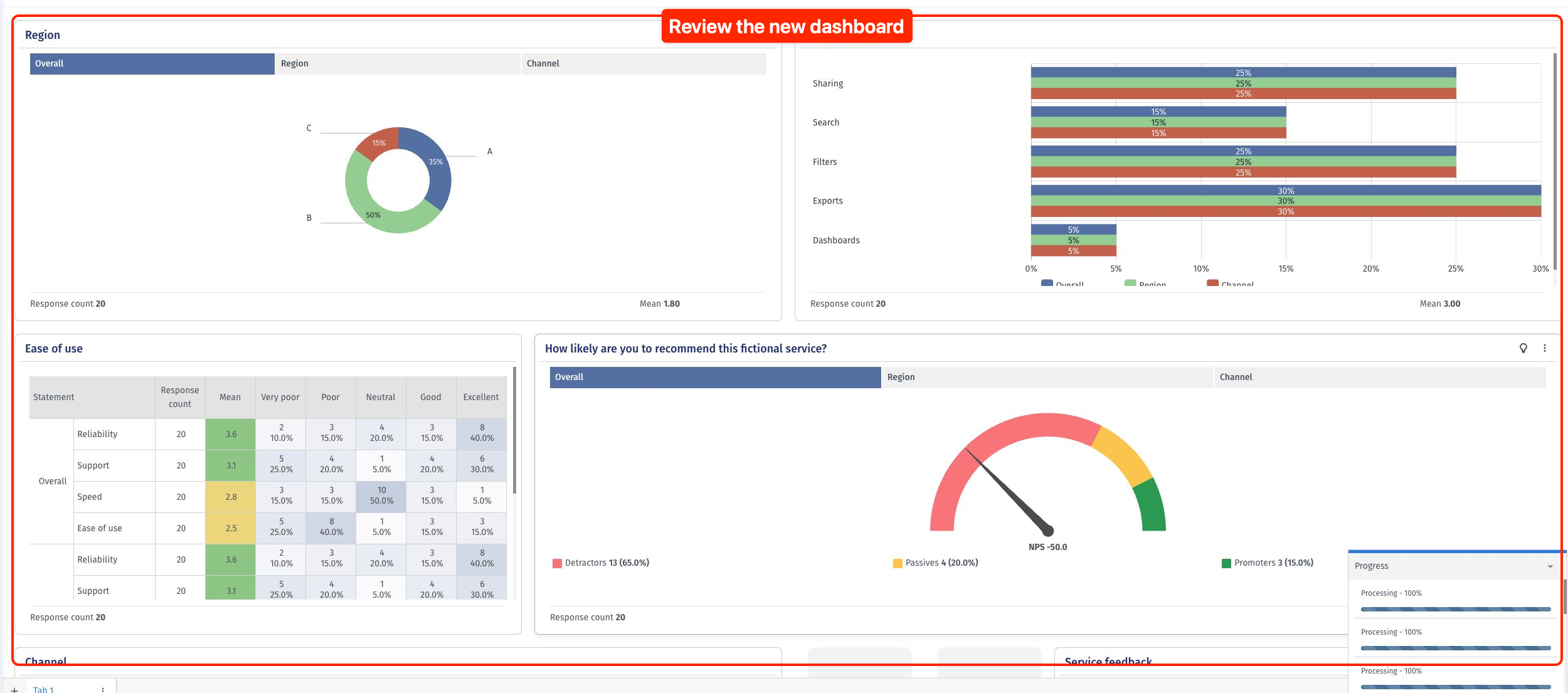
The new dashboard opens when generation finishes. Review the charts, questions, and response counts. Scroll through the remaining widgets and check the available filters and data slicers before using the results.
Open your workspace and select Dashboards in the left navigation. Click Create dashboard.
Enter a name for the new dashboard, select AI dashboard, and click Continue.
Choose Let AI Decide. This route lets AI choose the initial dashboard context, layout, widgets, filters, and data slicers from your selected source. No written prompt or reference dashboard is required.
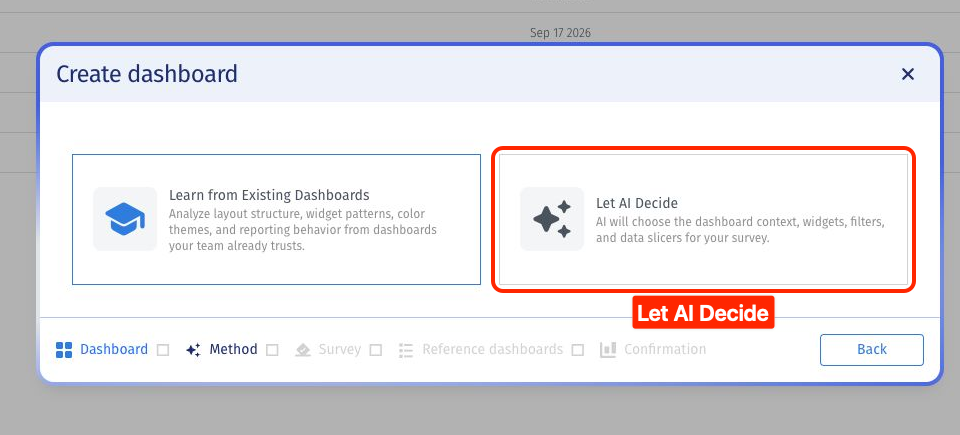
Select the data source for the new dashboard. With Surveys selected, search for your survey, check its completed responses, and click its row.
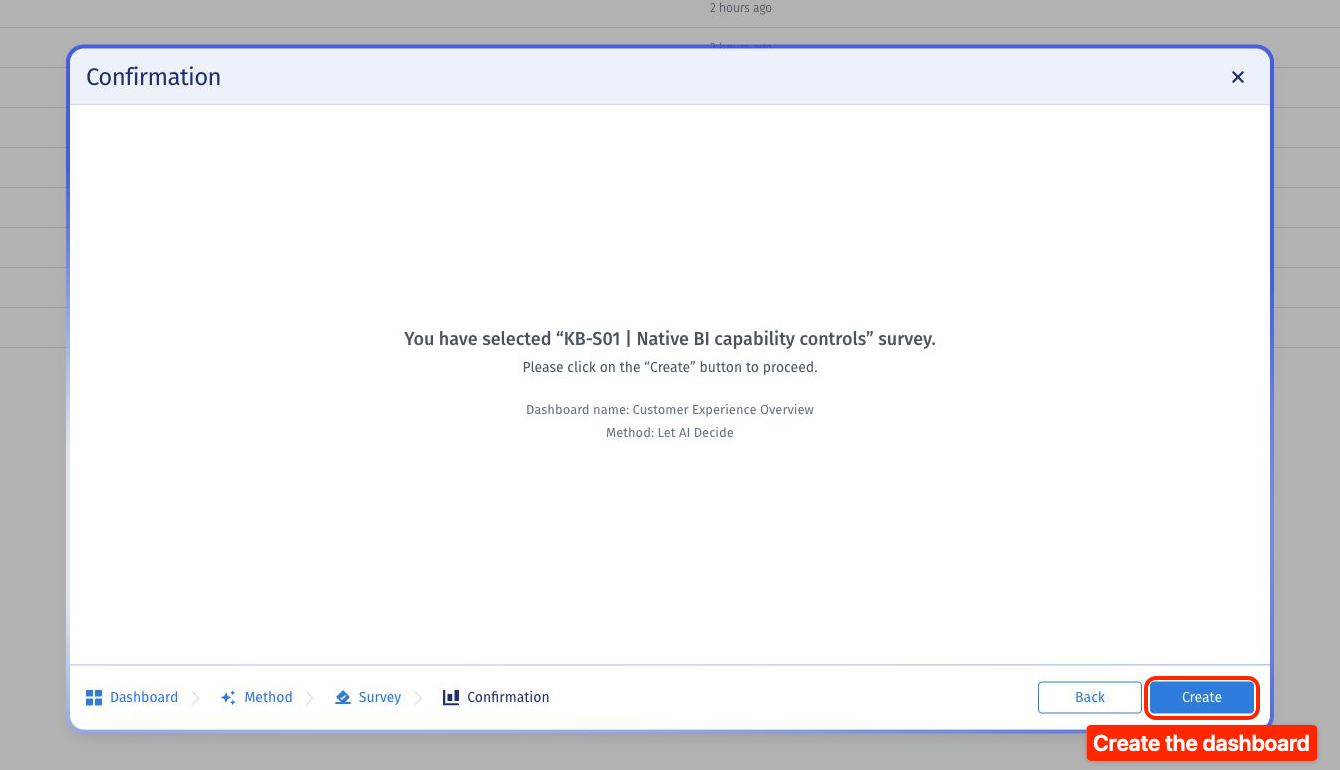
On Confirmation, check the source survey, dashboard name, and Let AI Decide method. Click Create.
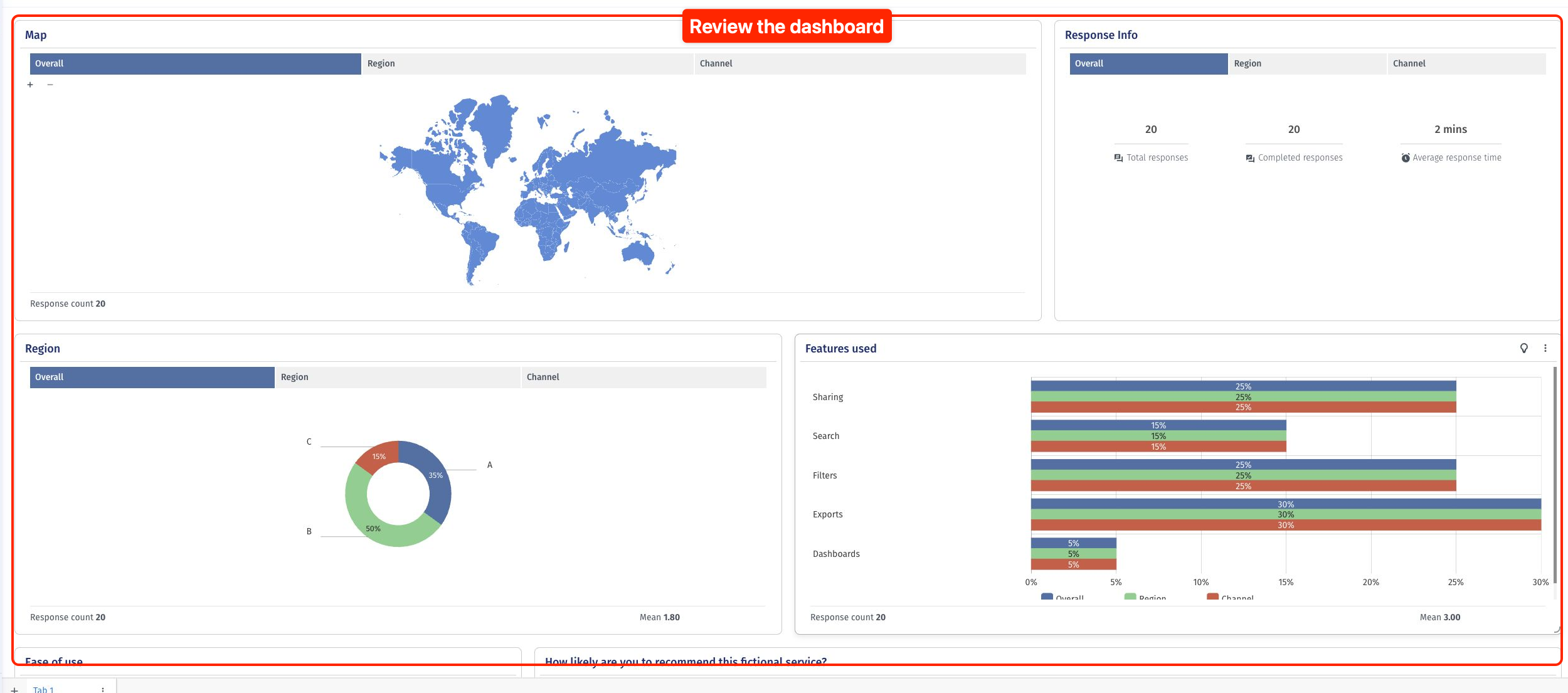
The new dashboard opens when generation finishes. Review the questions, chart choices, and response counts. Scroll down to check the remaining widgets, filters, and data slicers. You can refine the generated result for your reporting needs.
When should I choose Learn from Existing Dashboards?
Choose this route when you already have dashboards with layouts and widget patterns you want AI to use as examples. Select the data source for the new dashboard, then choose up to five reference dashboards. AI learns from their first tabs; the selected data source supplies the new dashboard’s data.
When should I choose Let AI Decide?
Choose this route when you want AI to create an initial dashboard from your selected data source without choosing reference dashboards or writing a prompt. AI selects the dashboard context, layout, widgets, filters, and data slicers. Review and refine the generated result for your reporting needs.
What is the significance of the theme reference dashboard in Learn from Existing Dashboards?
The theme reference guides the new dashboard’s visual style, including its theme, chart palette, and sentiment colors. Choose one of your selected reference dashboards whose appearance you want to follow. This choice is separate from the layout and widget references and does not change the data source for the new dashboard.
