


Gauge Widget in TextAI
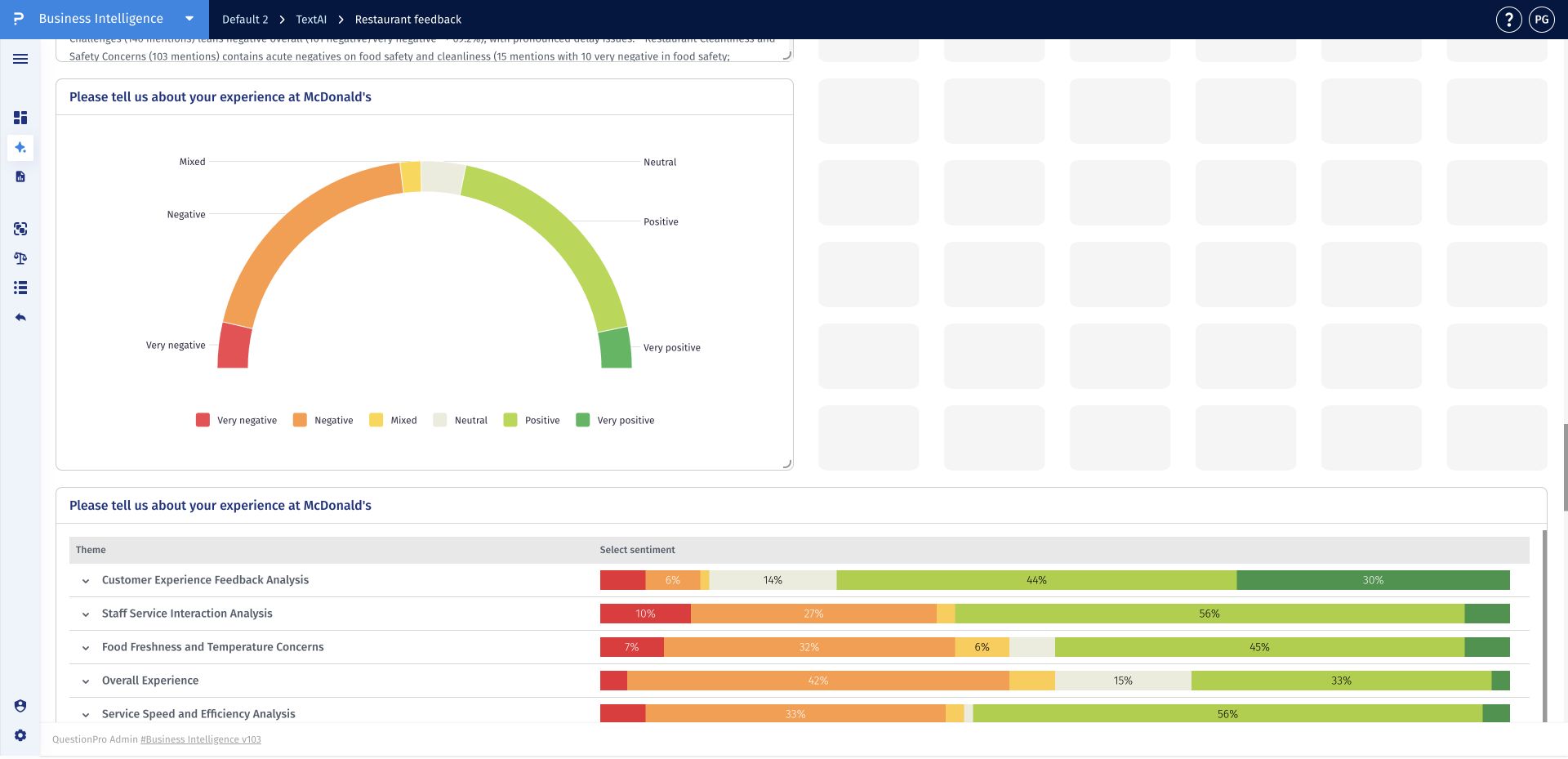
The Gauge widget gives stakeholders a quick view of the sentiment distribution for an open-ended question. Its semicircular visualization summarizes feedback across very negative, negative, mixed, neutral, positive, and very positive sentiment before analysts investigate individual themes and responses.
Use the widget to read the balance of sentiment at a glance. Match each colored section to the legend, note where responses are concentrated, and use the result as a concise summary of the question's sentiment profile.
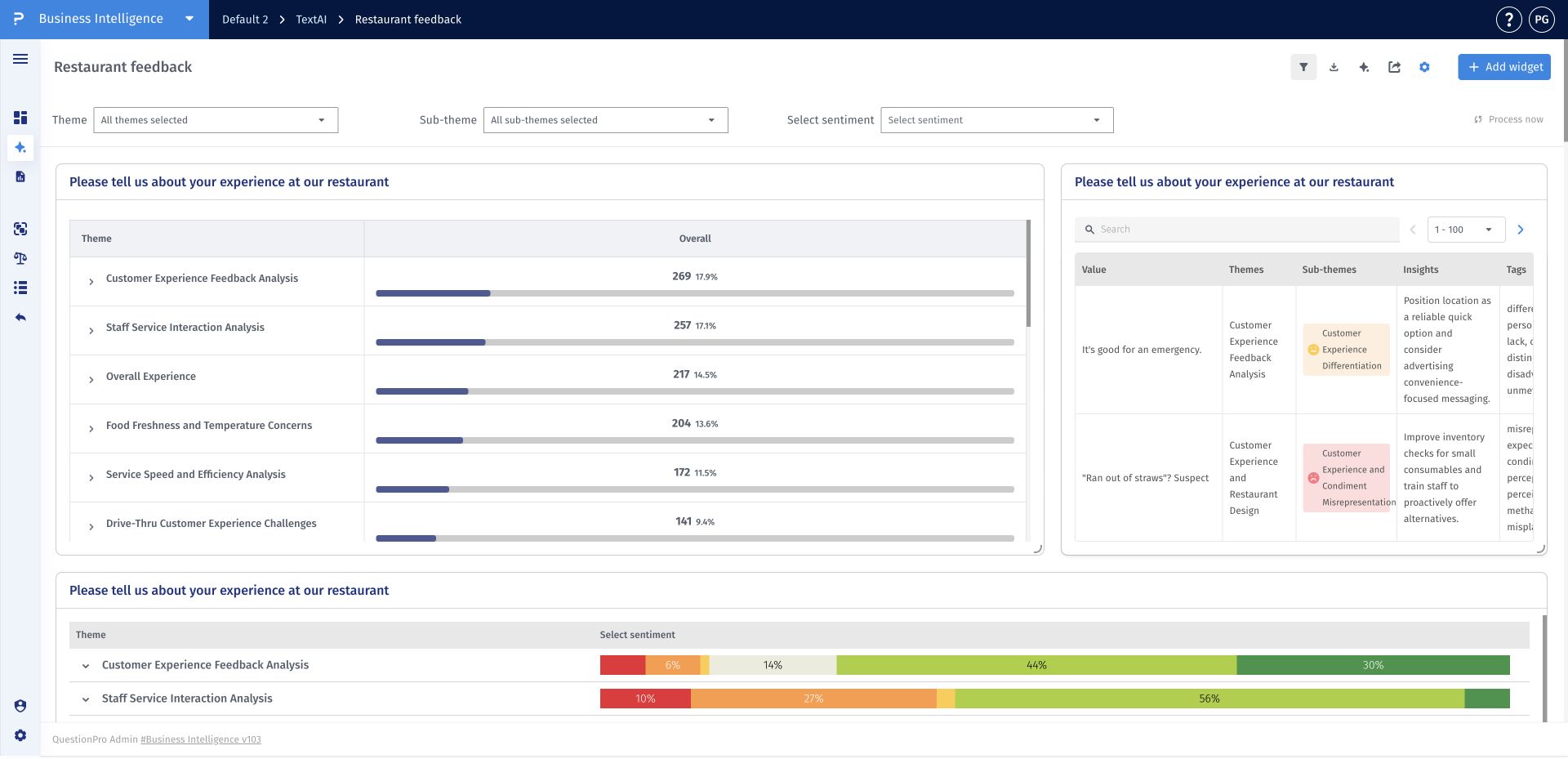
- Step 1: Open a TextAI dashboard and click Add widget.
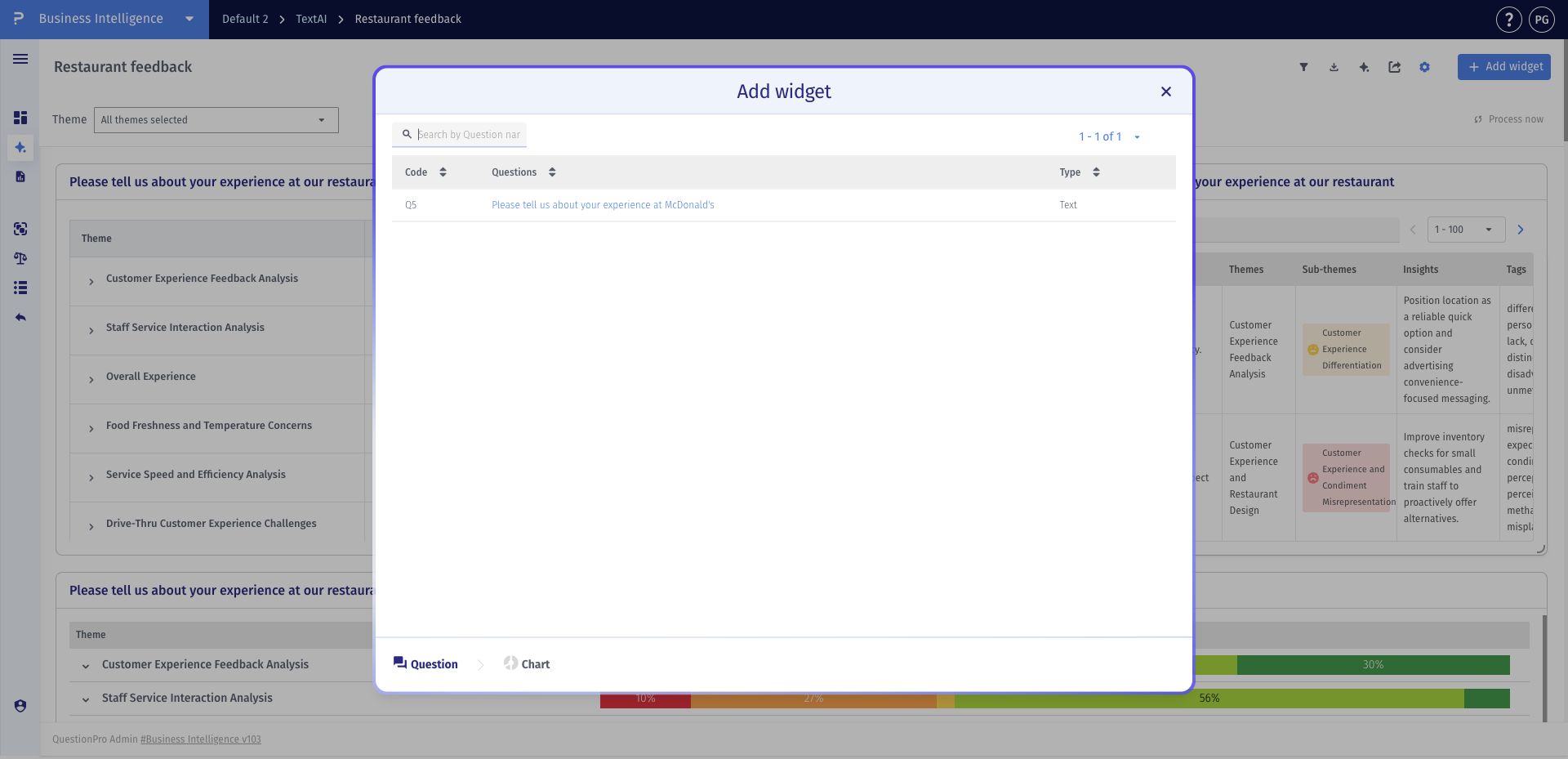
- Step 2: Select the open-ended question you want to summarize.
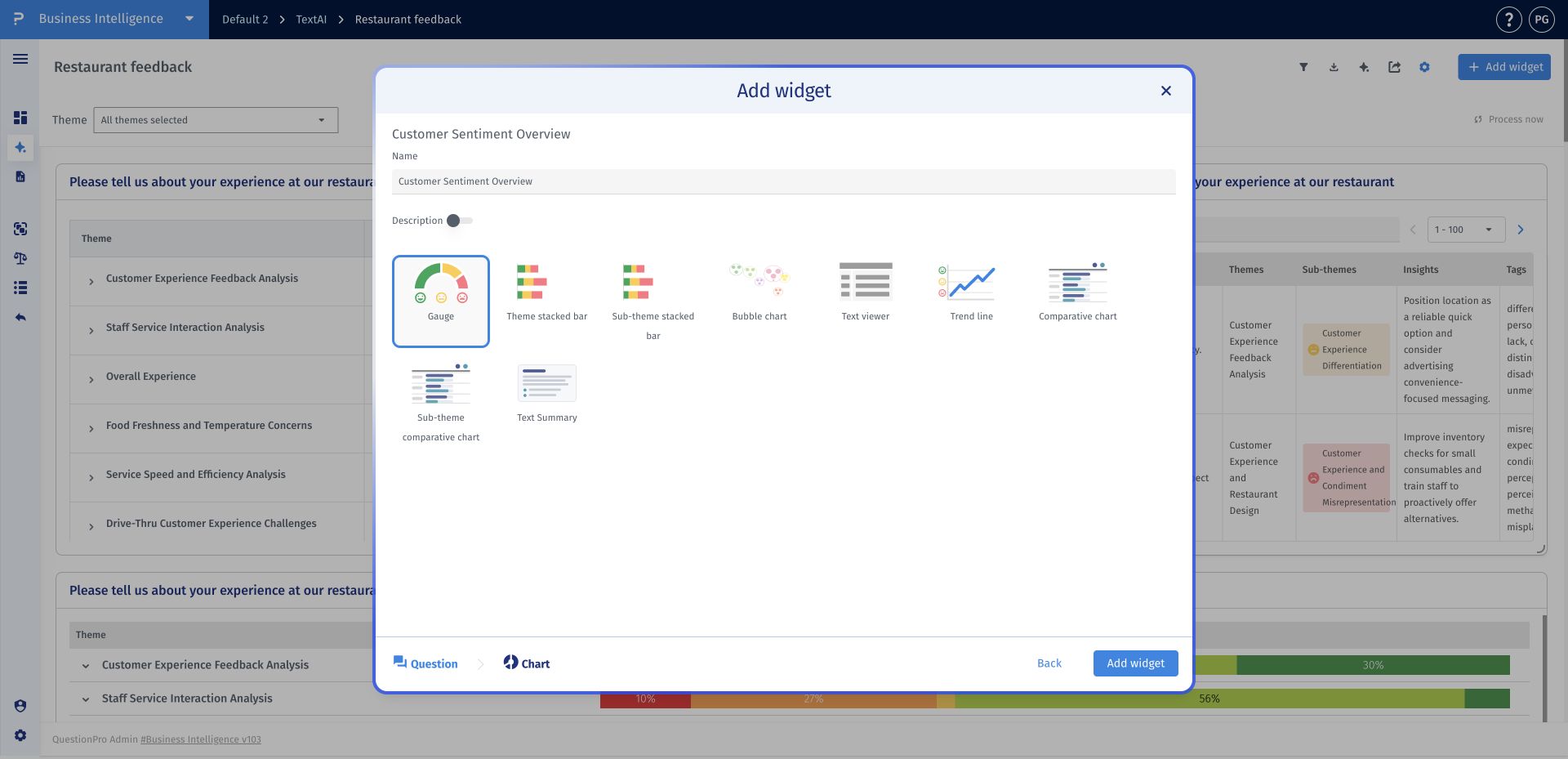
- Step 3: Choose Gauge, enter a clear widget name, and click Add widget.
- Step 4: Match the gauge colors to the legend and review where responses are concentrated across the six sentiment categories.
How do I see the responses behind a sentiment category?
Click a populated sentiment section of the gauge to open the matching responses. Review the original comments and their coding to understand the feedback behind the aggregate sentiment result.
Why can a gauge count differ from the number of comments in its response view?
A comment can have more than one coded sub-theme or sentiment assignment. Aggregate sentiment results can include those assignments, while a response view lists matching comments. Keep assignment counts and distinct-response counts separate.
Which sentiment categories does the gauge display?
The gauge displays very negative, negative, mixed, neutral, positive, and very positive sentiment. Match the colored sections to the legend when interpreting the distribution.
What should I check before comparing two gauges?
Check that both widgets use the intended questions and comparable segment or filter scopes. Inspect the response bases and underlying comments rather than comparing colors or percentages alone.
This feature is available with the following licenses :
Research Edition Communities Customer Experience Employee Experience University - Research Edition
