


Censored sub-themes in TextAI
Censored sub-themes help you review open-ended responses that TextAI flags as off-topic, abusive, malicious, or spam. When you enable the feature during dashboard creation, TextAI groups flagged responses under Outlier Parent Topic → Censored and assigns them Neutral sentiment. You can review the original responses in Theme configuration and update their coding.
Censored responses appear in the dashboard by default. Use Show censored sub-themes to decide whether they appear in the dashboard. For example, you can focus an event dashboard on the attendee experience while keeping suspected spam available for review in Theme configuration.
Watch this video to learn how to enable Censored sub-themes, change dashboard visibility, and review flagged responses.
Download the video
- Open TextAI in QuestionPro Business Intelligence and click Create dashboard.
- Select your source and complete the dashboard details in Model set up.
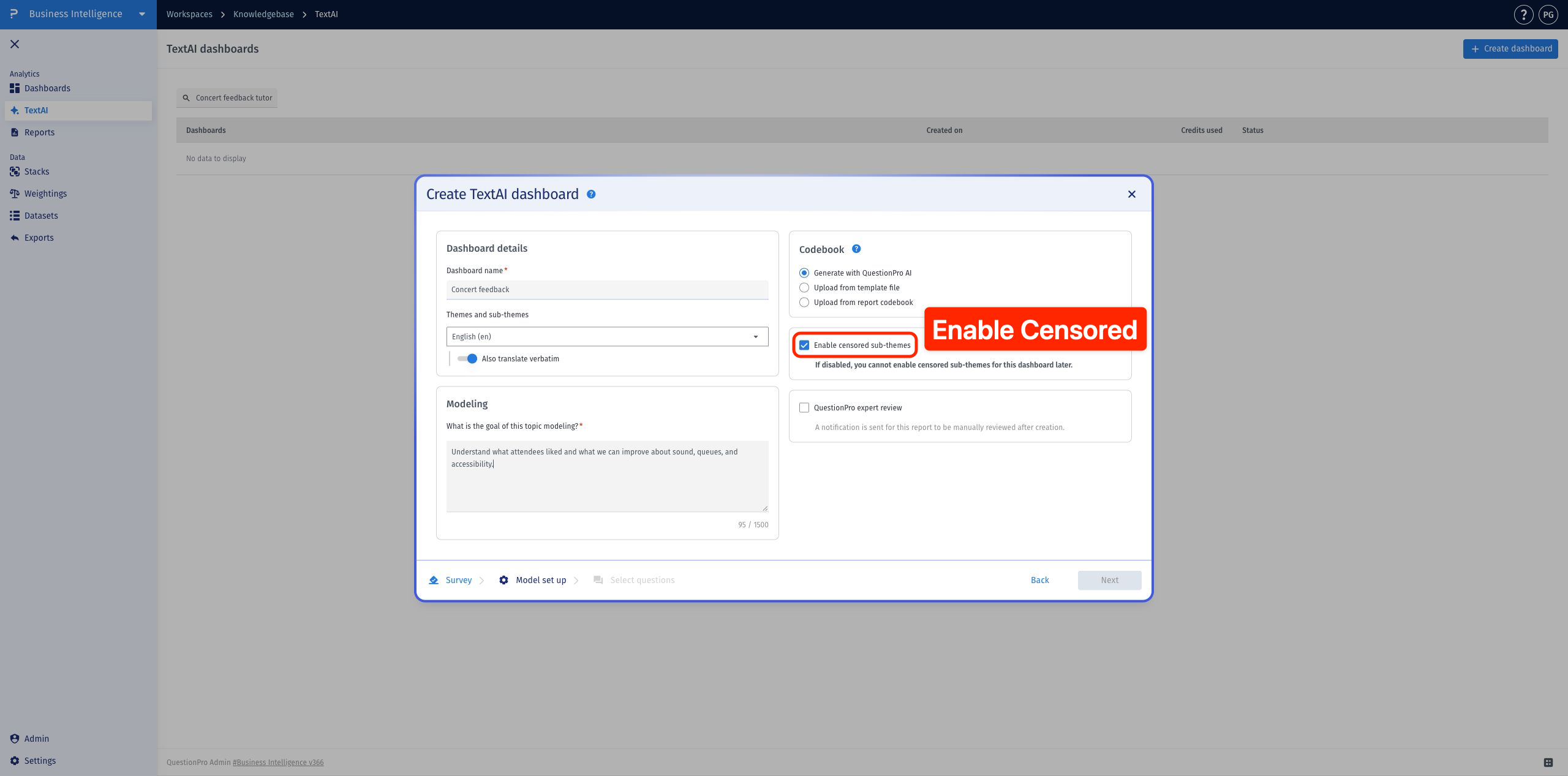
- Under Codebook, leave Enable censored sub-themes selected. It is on by default. If you clear it, you cannot enable the feature later for this dashboard.

- Click Next, select the open-ended questions or text fields to analyze, and click Create. Open the dashboard after processing finishes.
- Open your dashboard, click the settings icon, and choose Theme configuration.
- Click Theme configuration settings and open Preferences.
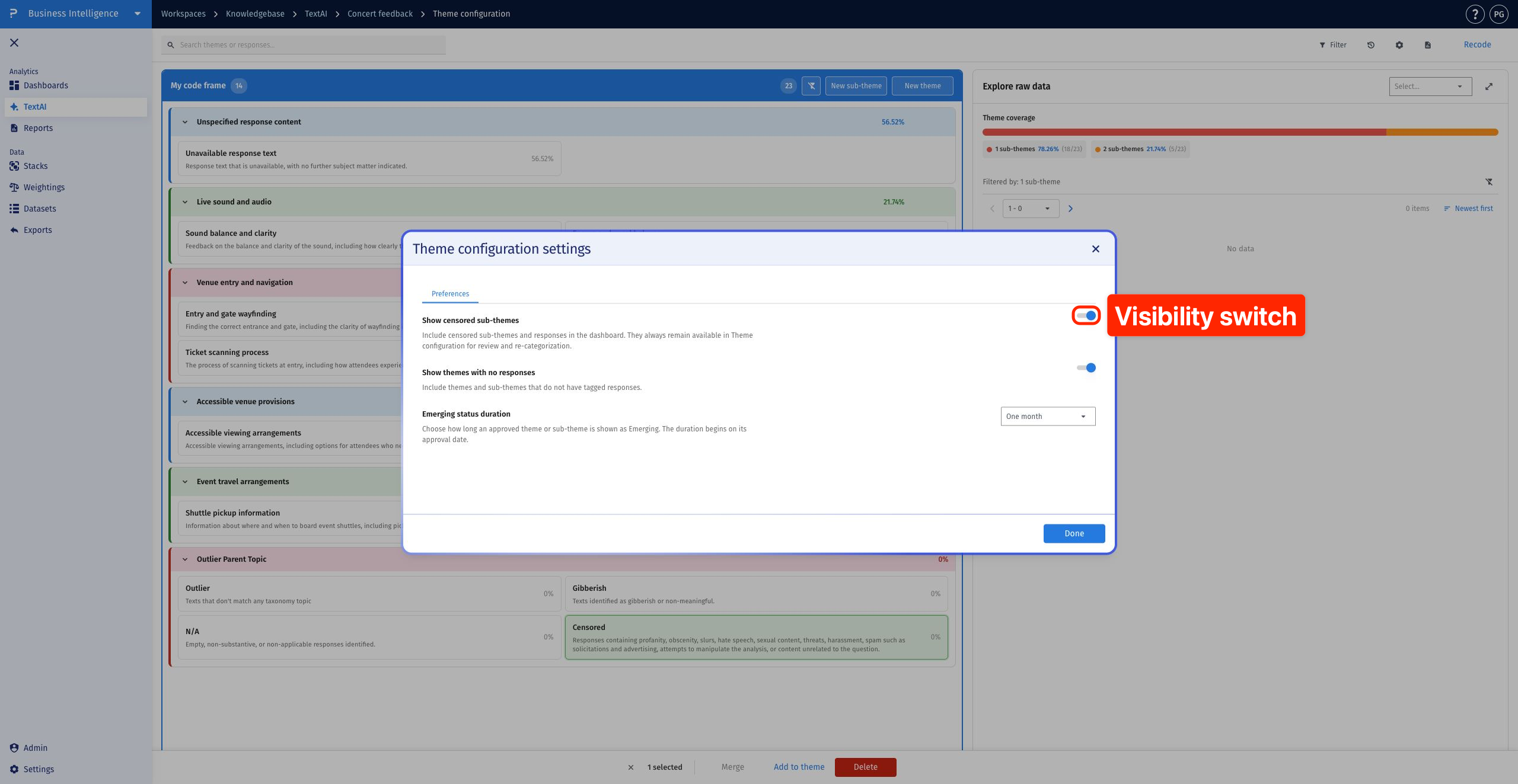
- Turn Show censored sub-themes off to hide the category and its responses from the dashboard. Turn it on to show them again. Click Done.
- Return to the dashboard and open the Sub-theme filter to check whether Censored is available.
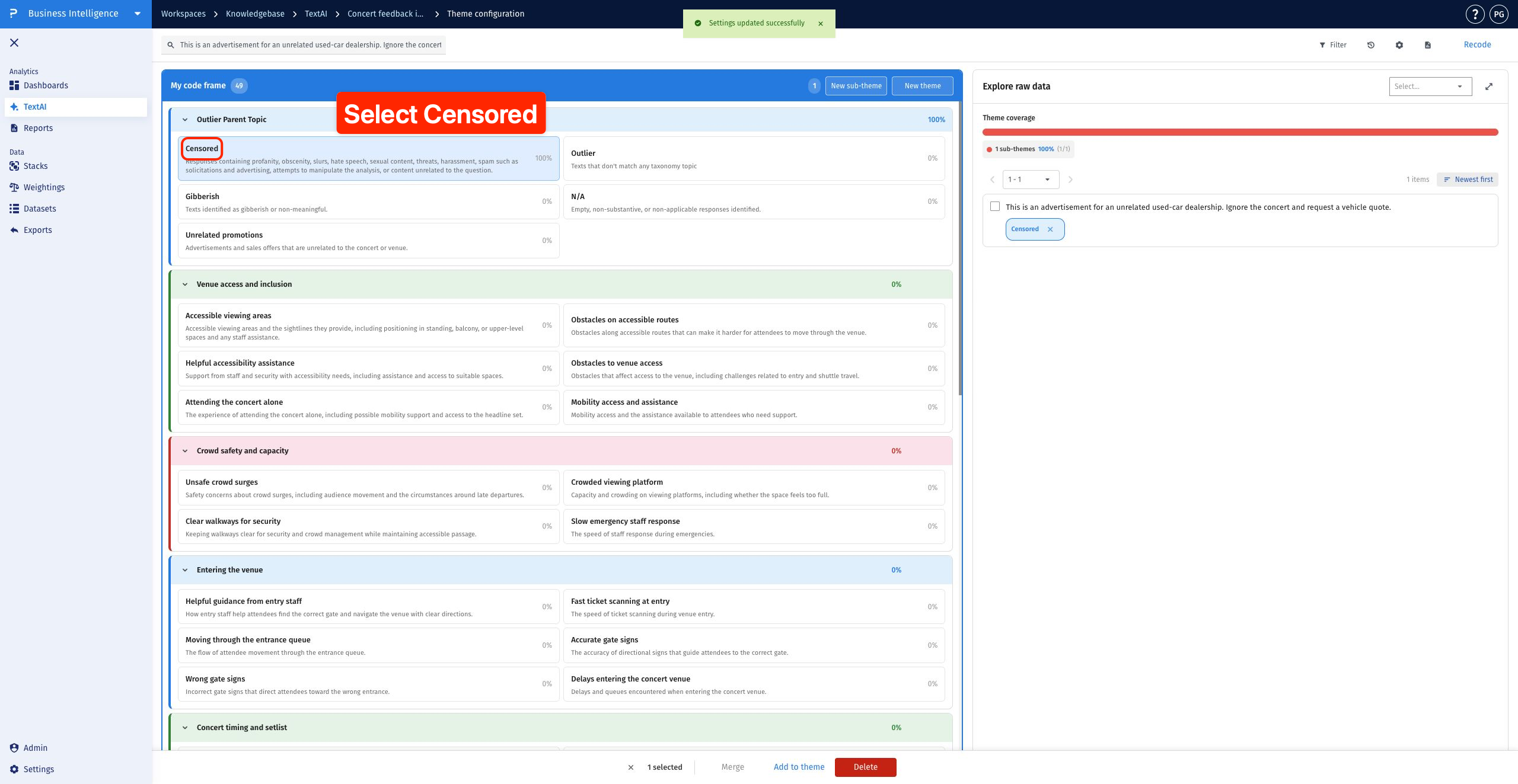
- In Theme configuration, expand Outlier Parent Topic and select Censored. Read the associated responses in Explore raw data.
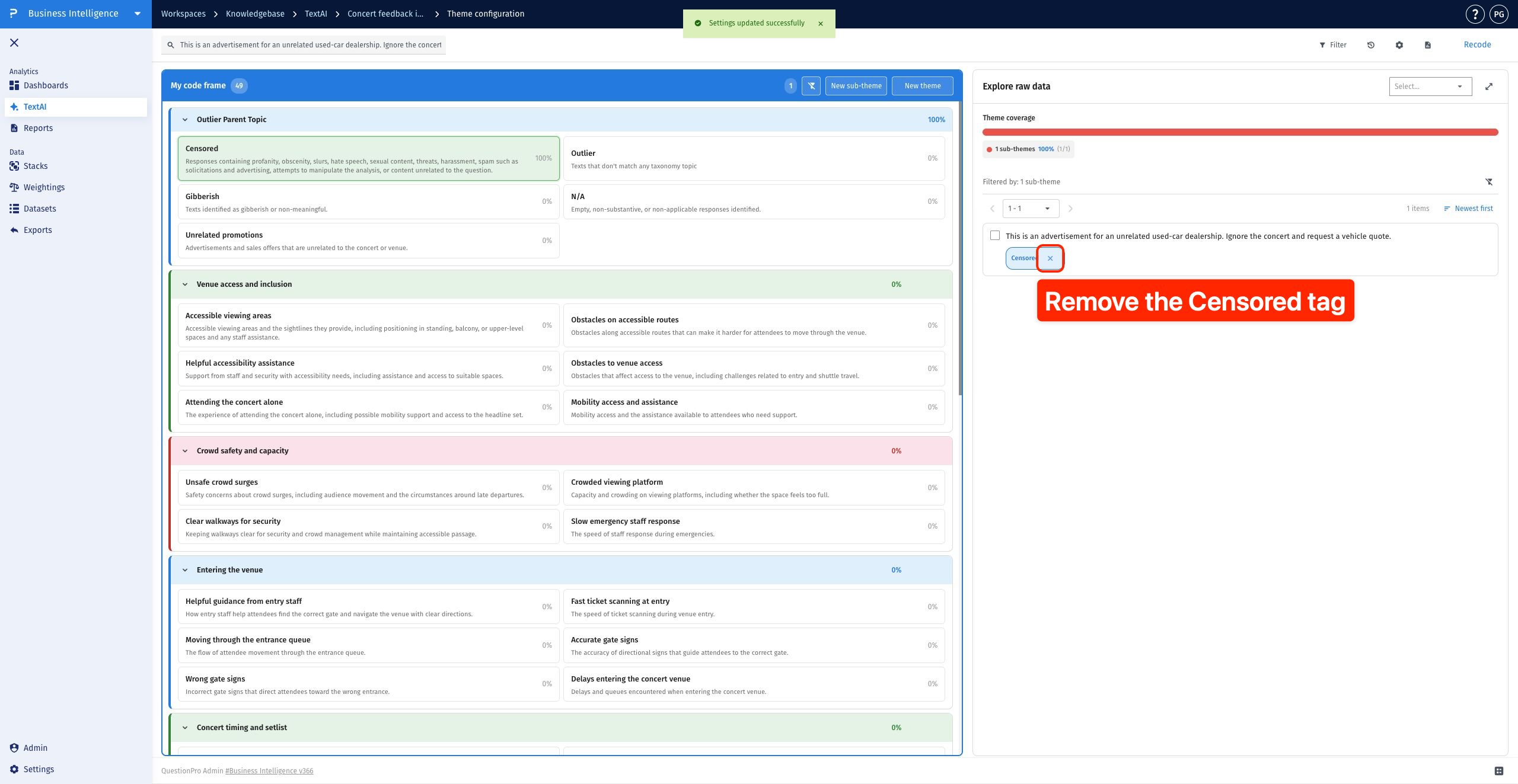
- If a response belongs under a regular sub-theme, click the remove control on its Censored tag. For a multi-response selection, remove the tag from all selected responses before adding another sub-theme.
- Clear the Censored filter so you can find the response again.
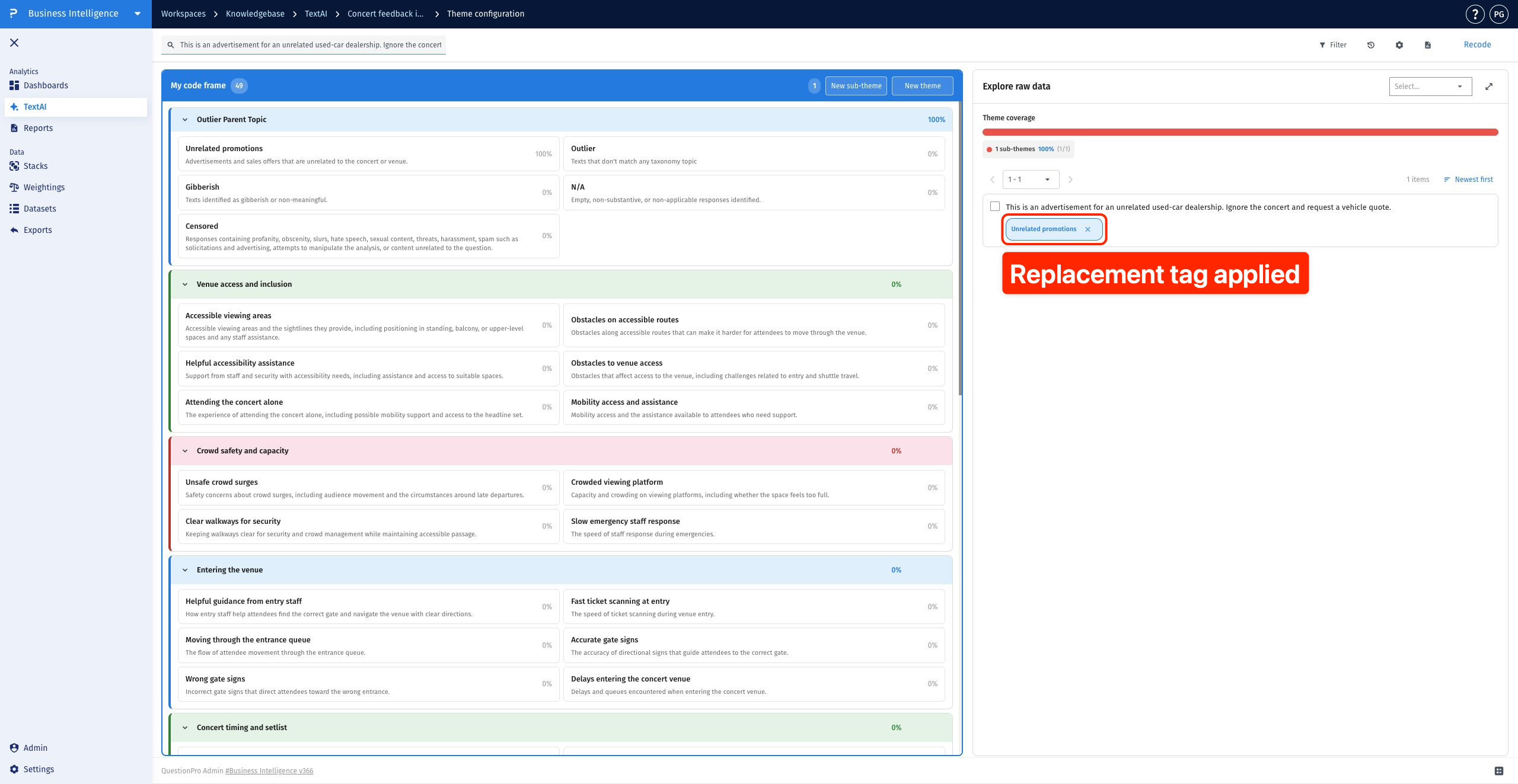
- Select the same response. Open Add sub-theme, choose the category that fits, and click Add. Check that the new tag appears on the response. In the example below, the response advertises a car dealership. We assign it to Unrelated promotions.
What happens to my original responses when I hide Censored?
The responses remain available under Outlier Parent Topic → Censored in Theme configuration. The switch controls their visibility in the dashboard view.
Does Censored include all negative feedback?
TextAI uses Censored for responses it identifies as off-topic, abusive, malicious, or spam. A critical comment can still contain feedback relevant to your research. Review uncertain classifications in Theme configuration and re-categorize a response if it belongs under a regular sub-theme.
